
Background runs process eligible Zoho Projects updates and optional Jira issue creation.
Documentation updated for connector build on May 21, 2026
Technical deployment guide for the Zoho Projects Connector for Jira
This guide covers Marketplace installation, Zoho Projects authentication, Smart Connected Items, custom per-field sync ownership, Conditional Sync Rules, associated Zoho Projects records, and issue-panel operations for the current production app surface.
Marketplace app
Forge app
Jira admin page
Zoho Projects
Custom sync
Jira issue updates and comments can push qualifying changes back to Zoho Projects.
Mapped fields, status, comments, attachments, and auto-create are centered on these modules.
Each mapping can declare whether Zoho Projects, Jira, or both sides own that field.
Fast Path
Deployment quick start in six steps
Install the app
Install the connector from Atlassian Marketplace and open its Jira admin page from Settings > Apps.
Create a Zoho Self Client
In the Zoho API Console, create a Self Client so you can generate the Client ID, Client Secret, and authorization code.
Generate the authorization code
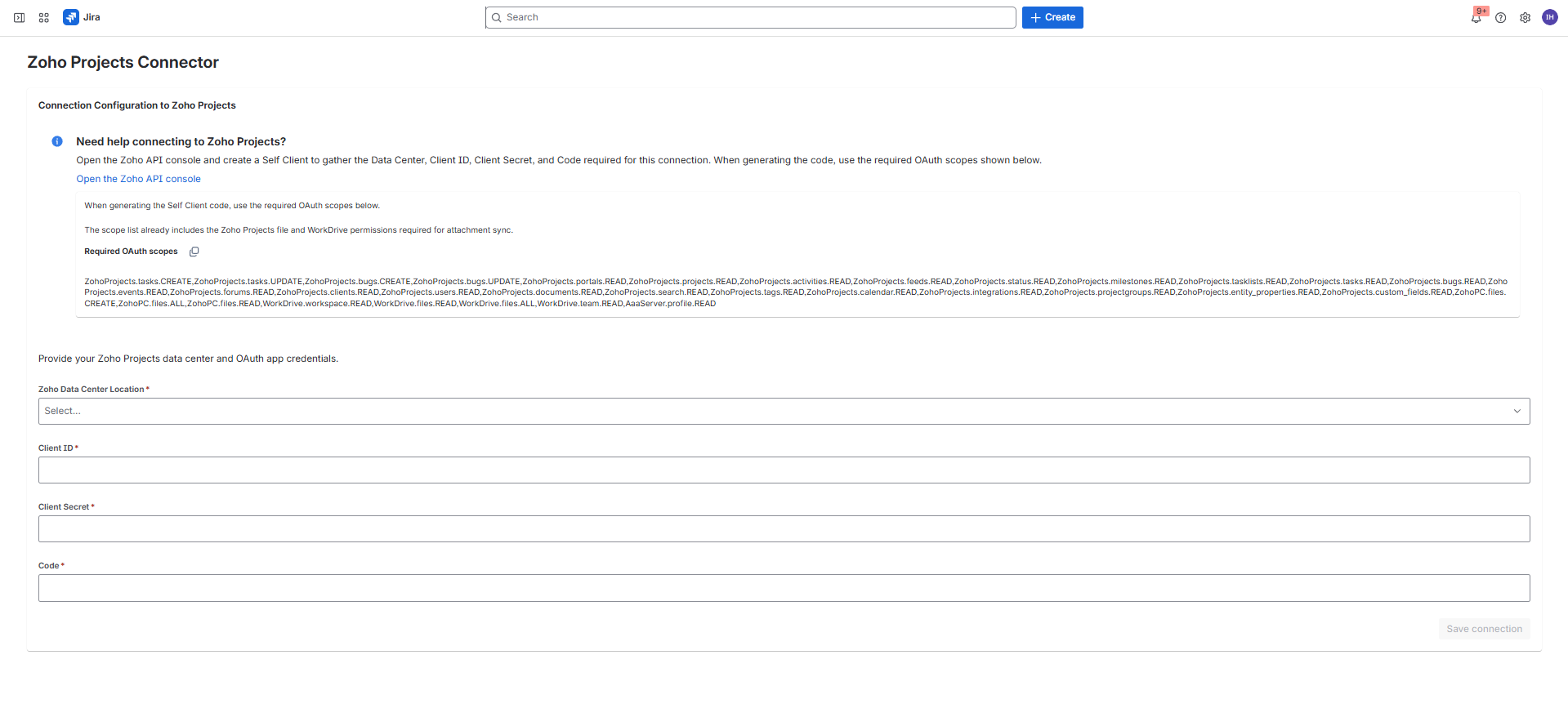
Generate the code with the required Zoho Projects OAuth scopes shown in this guide.
Connect from Jira
Enter the Zoho Projects data center, Client ID, Client Secret, and Code in the admin page and save the connection.
Create Smart Connected Items
Define display-only, one-way, two-way, or custom per-field behavior for the portal, project, module, Jira project, and issue type you want to support.
Use the Jira issue panel
Jira users can link records, open them in Zoho Projects, refresh them, and work with synchronized data where the item mode allows it.
Architecture
How the connector works
Current sync model in this build
The scheduled trigger runs every five minutes. It handles Zoho Projects to Jira field updates for linked records according to the selected sync mode or custom field owner, optional automatic Jira issue creation, Conditional Sync Rules, status sync, attachment sync, and Zoho-to-Jira comment sync.
Jira to Zoho Projects updates are event-driven. Jira issue updates can push two-way mapped fields and status changes, and Jira comment events can push comments back to Zoho Projects. The issue panel can also show associated Zoho Projects record groups when that display option is enabled for the Smart Connected Item.
Where configuration is stored
- Zoho Projects connection settings are stored in Forge app storage and Forge secret storage.
- Smart Connected Item definitions are stored in Forge app storage.
- Issue-to-record links are stored per Jira issue in Forge app storage.
- Latest sync status for synchronized items is stored and shown back in the admin table.
Where users see the linkage
- Admins see connection status and the Smart Connected Items grid in the admin page.
- Jira users see link, preview, refresh, and open actions in the Jira issue panel.
- Zoho Projects records can receive a connector-managed note that references the linked Jira issue.
Terminology
Key terms used in this guide
Display-only Smart Connected Item
A manual, read-focused configuration. Jira users link a Zoho Projects record from the issue panel and see the selected Zoho fields, but no synchronization runs.
One-way Smart Connected Item
A synchronized configuration where mapped Zoho Projects field values flow into Jira. Optional status sync and comments sync can also be enabled when the module supports them.
Two-way Smart Connected Item
A synchronized configuration where mapped fields can flow in both directions between Zoho Projects and Jira, plus optional status sync and comment sync.
Custom Sync per Mapping
A synchronized configuration where each mapped field has its own owner. One mapping can be Zoho-to-Jira, another can be Jira-to-Zoho, and another can remain two-way.
Conditional Sync Rule
A status and issue-creation rule that evaluates a Zoho Projects field. It sets the Jira status for matching records and can optionally create Jira issues when the rule is not met and auto-create is enabled.
Associated Zoho Projects Records
Read-only related Zoho Projects records, such as issues, comments, followers, or attachments, displayed in expandable groups in the Jira issue panel.
Auto-managed link
A link created by the scheduler during automatic Jira issue creation. It is read-only in the issue panel and cannot be manually replaced or removed by the Jira user.
Marketplace Admin Guide
Install the app from Atlassian Marketplace
Who should perform the installation
Installation should be completed by a Jira site administrator, or another Atlassian administrator who is allowed to install apps on the target Jira Cloud site.
- Open the Zoho Projects Connector for Jira listing on Atlassian Marketplace.
- Select the target Jira Cloud site.
- Approve the app installation and review the requested Jira permissions.
- Open Jira administration and navigate to the connector admin page.
What the installation gives you
- A Jira admin page for Zoho Projects authentication and Smart Connected Item setup.
- A Jira issue panel where users can link, view, refresh, and open Zoho Projects records.
- A scheduled integration job that runs every five minutes.
- Jira event handlers for issue updates and Jira comments.
| Stage | Typical responsible admin | Why that level is needed |
|---|---|---|
| Install the app in Jira Cloud | Atlassian site administrator | Marketplace app installation is usually restricted to site administrators. |
| Create the Zoho Self Client and generate code | Zoho administrator or integration owner with API Console access | Needed to create the OAuth client and obtain the credentials used by the connector. |
| Authenticate and configure Smart Connected Items | Jira administrator | Needed to open the connector admin page and define project-specific Jira behavior. |
Zoho Setup
Create the Zoho Self Client
Open the Zoho API Console
Go to api-console.zoho.com and sign in with the Zoho account that should own the integration client.
Create a Self Client
Choose Add Client, then select Self Client. The connector uses that client to exchange the authorization code for access and refresh tokens.
Save the Client ID and Client Secret
Copy the generated Client ID and Client Secret. You will paste both values into the Jira admin page later.
Generate the authorization code
Open the Generate Code tab for the Self Client and generate the code with the required scopes shown in the next section.
Choose the correct Zoho data center
The Jira app lets you select United States, Europe, India, Australia, Japan, China, United Kingdom, Canada, and Saudi Arabia. Use the value that matches the Zoho tenant where your portal and project data live.
Zoho Setup
Generate code and required scopes
Use the full scope set from the app
The connection screen and the app code expect the Self Client code to be generated with the exact Zoho Projects scope bundle below.
Required OAuth scopes
ZohoProjects.tasks.CREATE,
ZohoProjects.tasks.UPDATE,
ZohoProjects.bugs.CREATE,
ZohoProjects.bugs.UPDATE,
ZohoPC.files.CREATE,
ZohoPC.files.ALL,
WorkDrive.files.ALL,
ZohoProjects.portals.Read,
ZohoProjects.projects.Read,
ZohoProjects.activities.Read,
ZohoProjects.feeds.Read,
ZohoProjects.status.Read,
ZohoProjects.milestones.Read,
ZohoProjects.tasklists.Read,
ZohoProjects.tasks.Read,
ZohoProjects.bugs.Read,
ZohoProjects.events.Read,
ZohoProjects.forums.Read,
ZohoProjects.clients.Read,
ZohoProjects.users.Read,
ZohoProjects.documents.READ,
ZohoProjects.search.READ,
ZohoProjects.tags.Read,
ZohoProjects.calendar.Read,
ZohoProjects.integrations.Read,
ZohoProjects.projectgroups.Read,
ZohoProjects.entity_properties.Read,
ZohoProjects.custom_fields.READ,
ZohoPC.files.Read,
WorkDrive.workspace.Read,
WorkDrive.files.Read,
WorkDrive.team.Read,
AaaServer.profile.Read
Why these scopes are needed
- Portal, project, module, and field metadata loading in the admin setup flow.
- Searching Zoho Projects records from the Jira issue panel link dialog.
- Reading Tasks and Issues data for display and synchronization.
- Writing back to Zoho Projects for two-way fields, status sync, and comment sync.
What you paste into Jira later
- Zoho data center
- Client ID
- Client Secret
- Generated authorization code
Marketplace Admin Guide
Connect in the Jira admin page
Connection form fields
- Select the Zoho Data Center Location.
- Paste the Client ID.
- Paste the Client Secret.
- Paste the generated Code.
- Select Save connection.
What happens after a successful connection
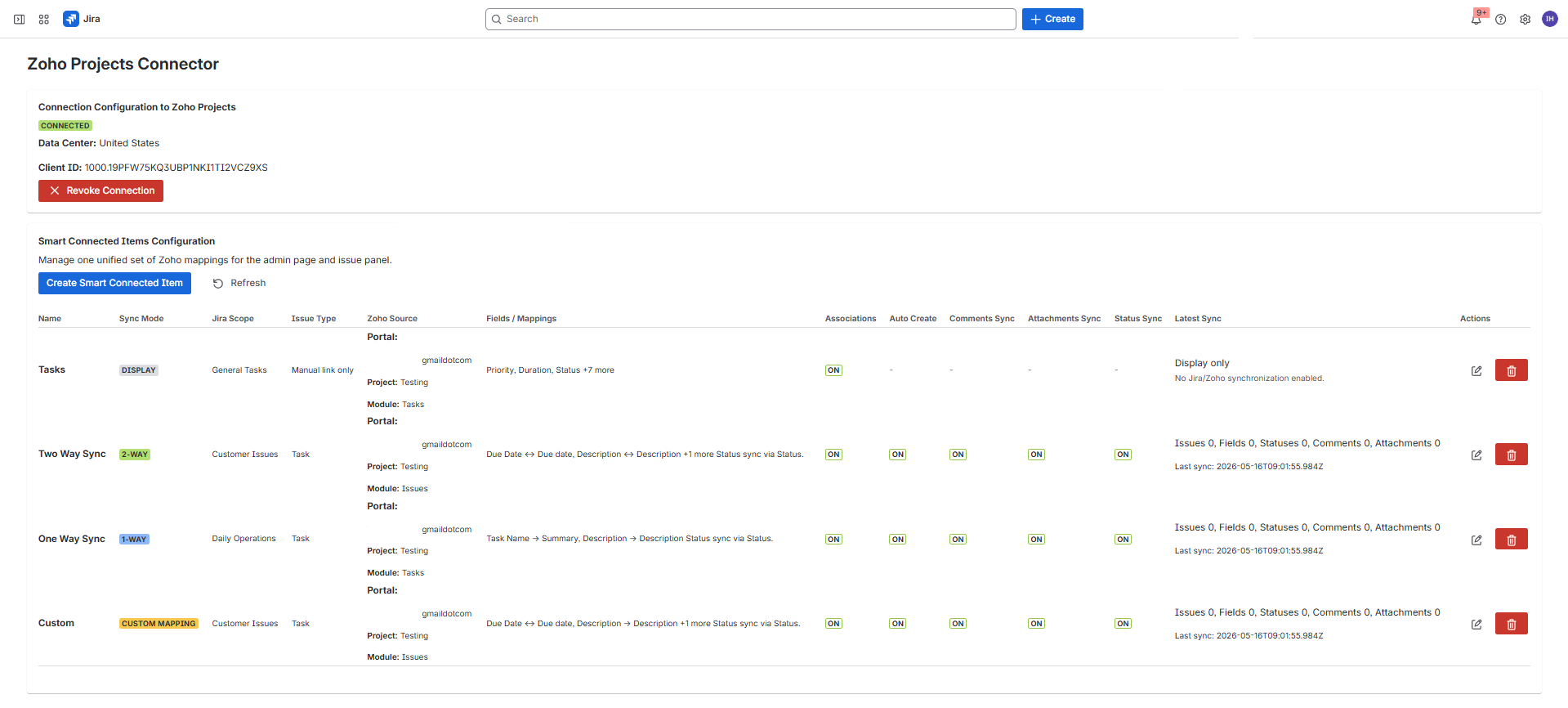
- The page switches from the connection form to a connected summary state.
- The admin page shows the saved data center and client ID.
- The Create Smart Connected Item button becomes available.
- You can revoke the saved connection later with Revoke Connection.
Marketplace Admin Guide
Create Smart Connected Items
Display-only item
Use this when Jira users only need to manually link a Zoho Projects record and view selected Zoho fields in the issue panel. No automatic issue creation or scheduled synchronization runs.
Synchronized item
Use this when one Jira project and issue type should be connected to one Zoho Projects portal, project, and module with field mappings, issue creation, status, comments, or attachments.
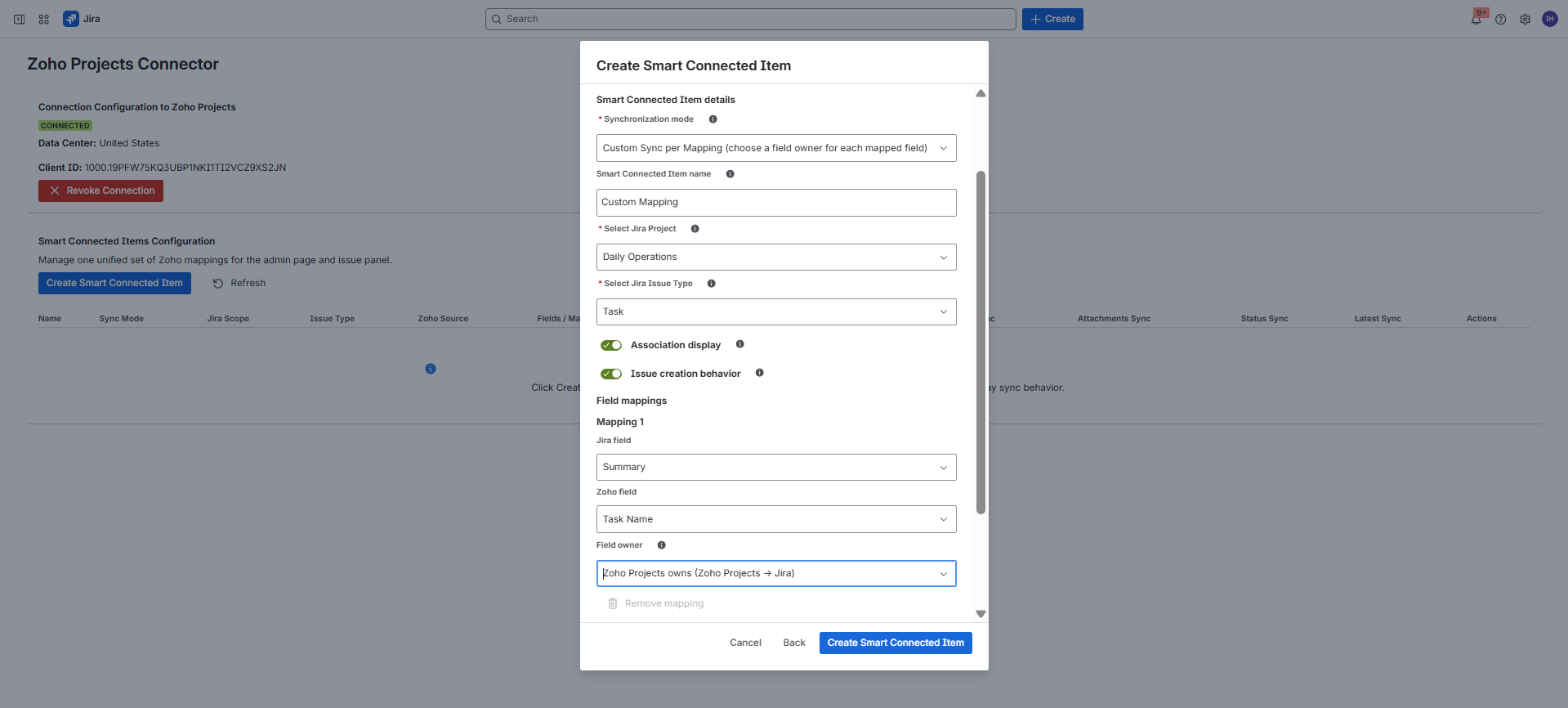
Custom Sync per Mapping
Use this synchronized mode when different mapped fields need different owners. For example, Zoho Projects can own task details while Jira owns triage fields for the same connected record.
Associated record display
Enable associations when the Jira issue panel should show related Zoho Projects records in read-only expandable groups below the primary linked record.
Choose the synchronization mode
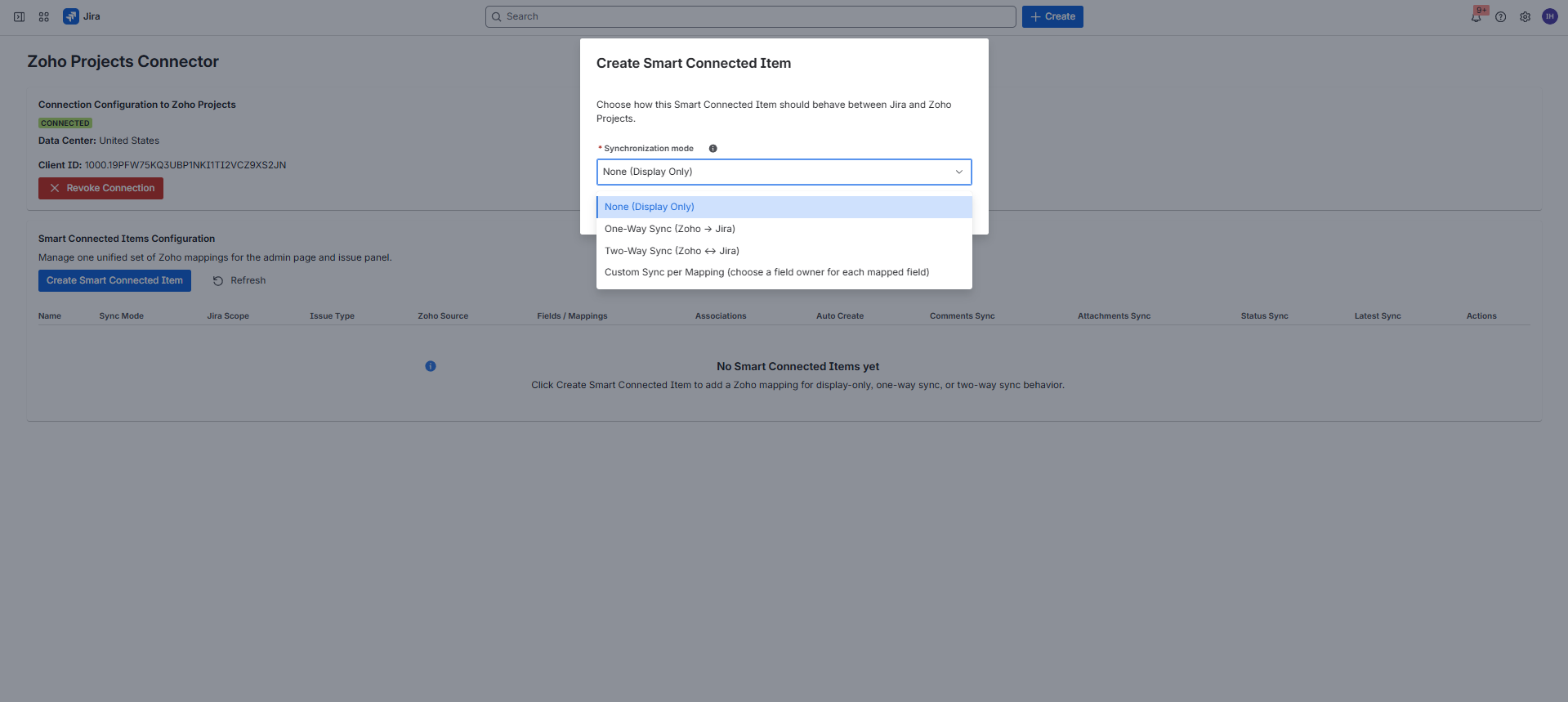
Start with Create Smart Connected Item, then choose None (Display Only), One-Way Sync, or Two-Way Sync, or Custom Sync per Mapping.
Select the Zoho source
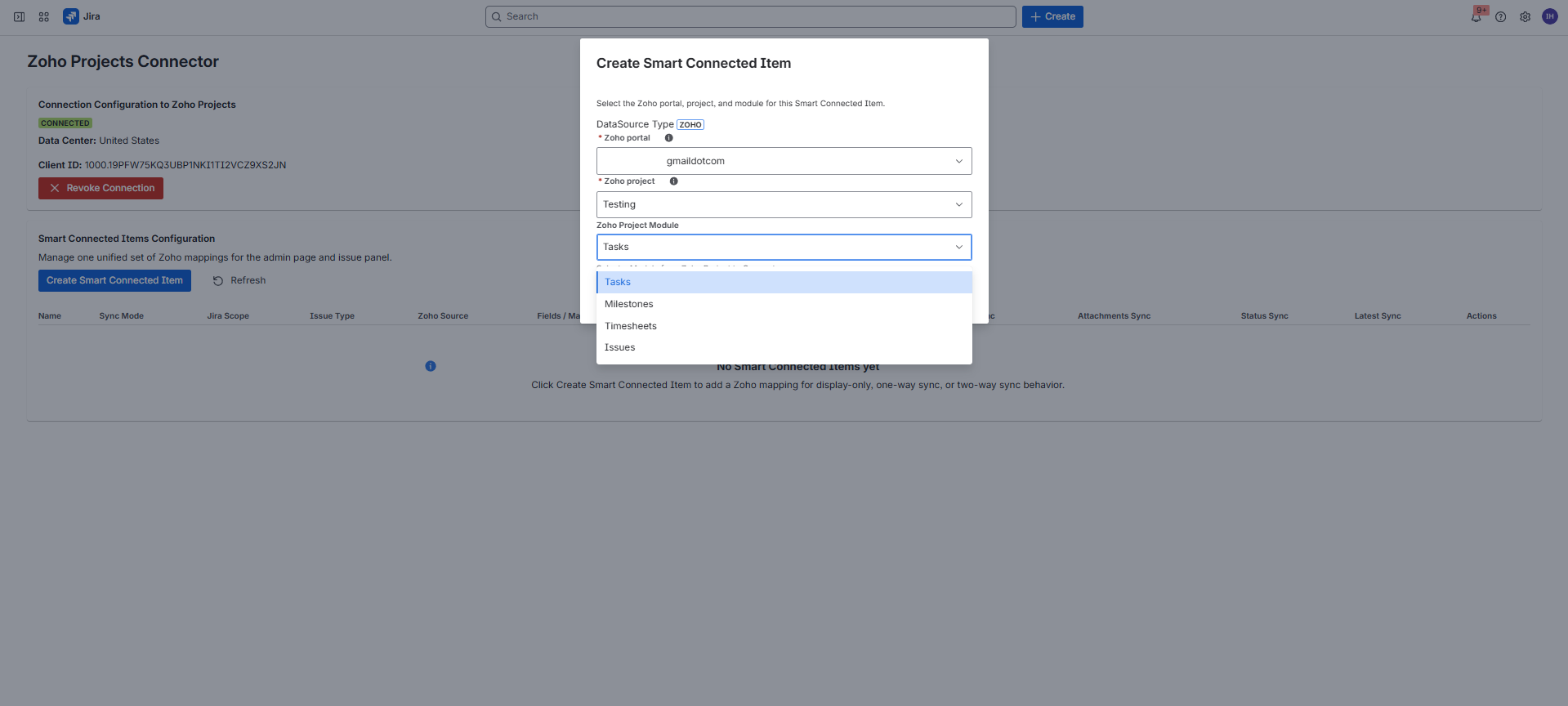
Pick the Zoho portal, the Zoho project inside that portal, and the Zoho Projects module you want the item to target.
Complete the Jira scope and mappings
Display-only items target one or more Jira projects. Synchronized items target a single Jira project and a Jira issue type, then define field mappings, optional field owners, associated record display, and sync settings.
Review the dashboard row after saving
The saved item appears in the Smart Connected Items table with its sync mode, Jira scope, Zoho source, enabled options, association state, attachment state, and latest sync summary.
Behavior Matrix
Modes and behavior matrix
| Capability | Display Only | One-Way Sync | Two-Way Sync | Custom Sync per Mapping |
|---|---|---|---|---|
| Manual search and link from the issue panel | Yes | Yes | Yes | Yes |
| Scheduled auto-create Jira issue from Zoho Projects | No | Optional | Optional | Optional |
| Zoho Projects -> Jira mapped field sync | No | Yes | Yes | Per mapping when Zoho Projects owns or both own |
| Jira -> Zoho Projects mapped field sync | No | No | Yes | Per mapping when Jira owns or both own |
| Status sync when enabled | No | Yes, both directions | Yes, both directions | Yes, both directions |
| Comments sync when enabled | No | Yes, both directions | Yes, both directions | Yes, both directions |
| Attachments sync when enabled | No | Yes, both directions | Yes, both directions | Yes, both directions |
| Display associated Zoho Projects records in the issue panel | Optional | Optional | Optional | Optional |
| Conditional Sync Rules | No | Optional | Optional | Optional |
| Create Jira issue when rule is not met | No | Optional when auto-create and Conditional Sync Rules are enabled | Optional when auto-create and Conditional Sync Rules are enabled | Optional when auto-create and Conditional Sync Rules are enabled |
How to read the dashboard table
The Smart Connected Items table shows the item name, sync mode, Jira scope, issue type, Zoho source, fields or mappings, association state, auto-create status, comments sync status, attachment sync status, status sync status, and the latest sync summary.
Important behavior detail
Field mappings follow the selected sync mode. In Custom Sync per Mapping, each mapped field has its own owner and does not have to follow one global one-way or two-way pattern. Status, comments, and attachments follow their own enabled or disabled switches.
Configuration Rules
Field mapping rules
Display-only items
- Select one or more Zoho fields to show in the Jira issue panel preview.
- No Jira field mapping is required.
- Manual linking is required before users see a record preview.
Synchronized items
- Select a Jira project first, then choose the Jira issue type from that project.
- Create one or more Jira field to Zoho field mappings.
- The UI supports adding more than one mapping in the same Smart Connected Item.
How custom field owners work
In Custom Sync per Mapping, each mapping includes a field owner. Choose Zoho Projects owns for Zoho Projects -> Jira, Jira owns for Jira -> Zoho Projects, or Both own for two-way synchronization on that one field.
When mappings are optional
You can create a synchronized Smart Connected Item without field mappings when the goal is status-only synchronization, comment-only synchronization, attachment-only synchronization, associated record display, or manual linking without automatic issue creation.
| Field owner | Direction | Typical use |
|---|---|---|
| Zoho Projects owns | Zoho Projects -> Jira | Use when the Zoho Projects record is the source of truth for that field. |
| Jira owns | Jira -> Zoho Projects | Use when the value is maintained by Jira users and should be written back to Zoho Projects. |
| Both own | Zoho Projects <-> Jira | Use when either side can update the value and the connector should keep both records aligned. |
New synchronized items must target an issue type
New one-way and two-way Smart Connected Items are issue-type scoped. The app loads issue types after you choose the Jira project and requires an issue type before save.
Configuration Rules
Conditional Sync Rules
What the rule evaluates
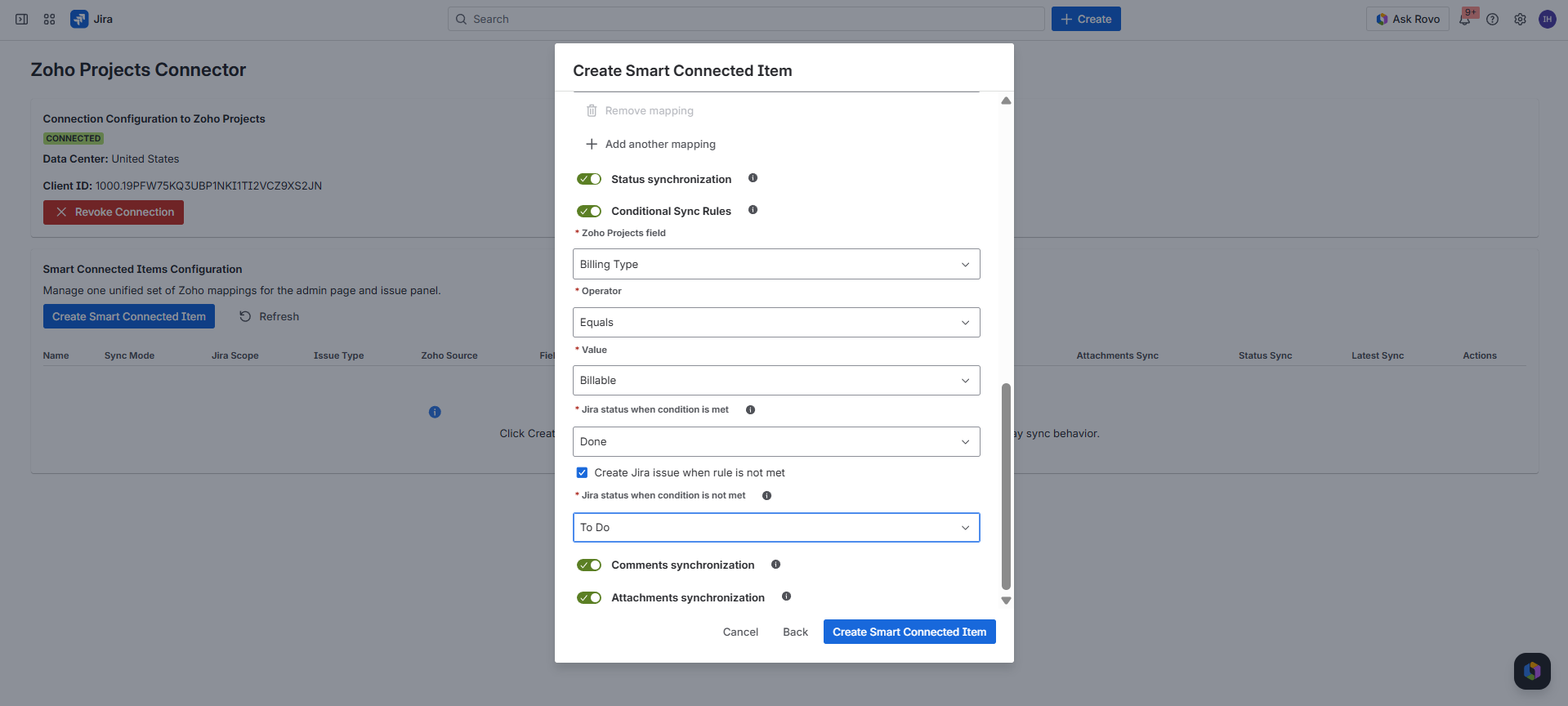
A Conditional Sync Rule checks one Zoho Projects field on each eligible linked or newly discovered Zoho Projects record. The rule supports equality, inequality, empty, and not-empty checks, with value selection driven by the selected Zoho field.
What the rule changes in Jira
The admin chooses one Jira status for records that meet the condition and one Jira status for linked or newly created issues when the condition is not met. During sync, the connector transitions the Jira issue to the configured status when Jira exposes a valid workflow transition.
What the new checkbox controls
Create Jira issue when rule is not met applies to automatic Jira issue creation. When checked, Zoho Projects records that do not satisfy the rule can still create Jira issues, using the not-met Jira status. When unchecked, records that fail the rule are skipped by the auto-create flow until they satisfy the condition.
| Configuration field | Meaning | Example |
|---|---|---|
| Zoho Projects field | The Zoho Projects field the connector evaluates for the condition. | Billing Type |
| Operator | The comparison rule, such as equals, does not equal, is empty, or is not empty. | Equals |
| Value | The expected value, unless the operator is empty or not empty. | Billable |
| Jira status when condition is met | The workflow status used when the Zoho Projects record satisfies the rule. | Done |
| Create Jira issue when rule is not met | Allows automatic issue creation for records that do not satisfy the condition, instead of skipping those records during auto-create. | Checked |
| Jira status when condition is not met | The workflow status used for linked issues, or for auto-created issues when the checkbox is checked and the record does not satisfy the rule. | To Do |
How this interacts with other sync options
Conditional statuses take precedence over generic status synchronization for that Smart Connected Item. Field mappings still follow the selected sync mode or custom field owner settings. The Create Jira issue when rule is not met checkbox only changes automatic issue creation for records that fail the rule. Comments and attachments continue to follow their own enabled or disabled switches.
Use the checkbox to control intake volume
Keep the checkbox off when Jira should only receive Zoho Projects records that satisfy the rule. Turn it on when non-matching records should still be created in Jira, but separated into the not-met Jira status for triage or review.
Workflow transition requirement
Jira must expose a transition from the issue's current status to the configured target status. If the workflow does not allow that move, the connector cannot force the issue into the selected status.
Configuration Rules
Display Associated Zoho Projects Records
What the toggle does
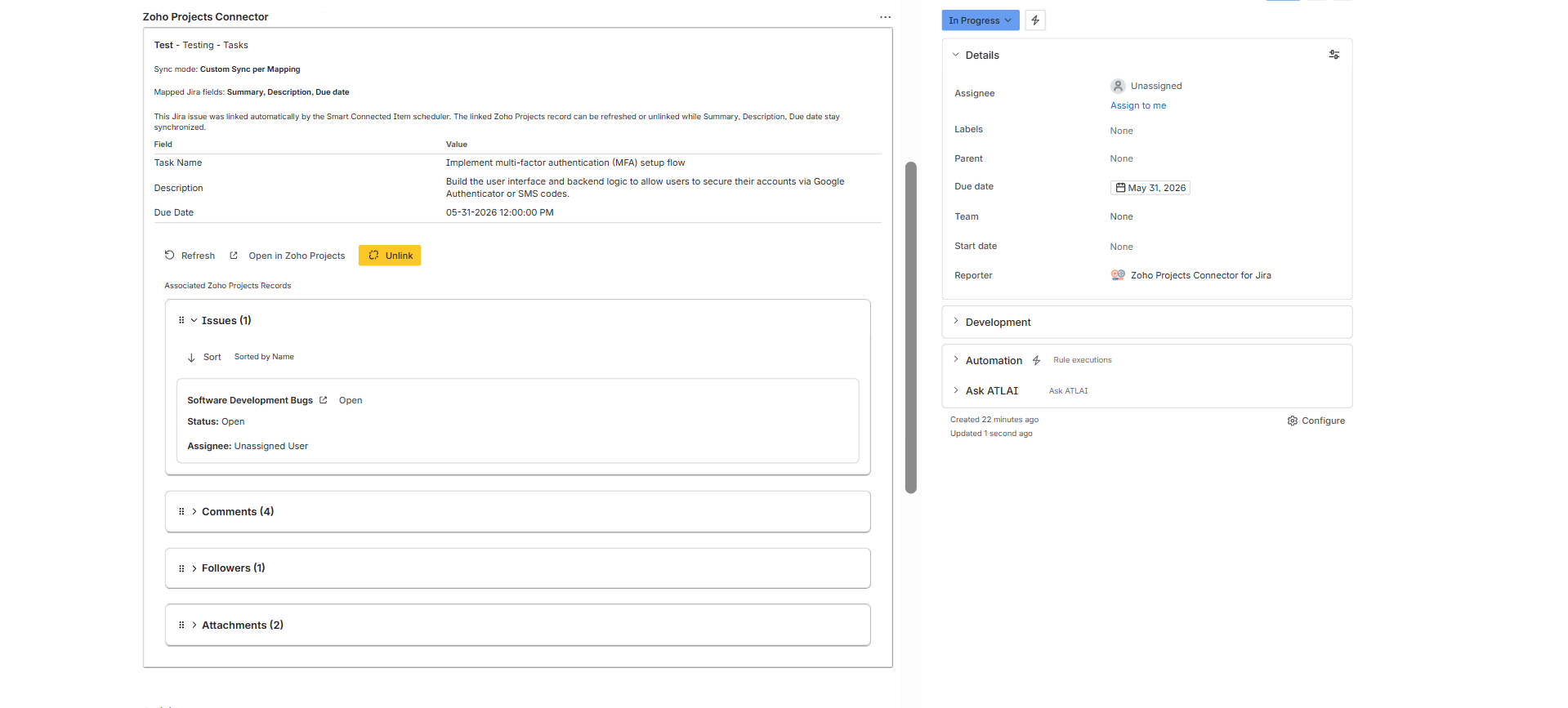
When enabled, the Jira issue panel looks up Zoho Projects records associated with the primary linked record and groups them by available relationship type, such as issues, comments, followers, or attachments.
What users see
Users see expandable groups under Associated Zoho Projects Records. Returned records show a compact preview of useful fields and an Open action when the connector can build a Zoho Projects URL for that related record.
Read-only context
Associated records are displayed for context. They do not create Jira links, do not become sync targets, and do not change the main linked Zoho Projects record. The primary linked record remains the record controlled by the Smart Connected Item.
Synchronization
Automatic Jira issue creation
What the option does
When enabled, the five-minute scheduled sync creates a new Jira issue for each new Zoho Projects record that matches the Smart Connected Item, then stores a read-only link in the issue panel.
Recommended use
Use automatic Jira issue creation for standardized intake flows where Tasks or Issues in Zoho Projects should always appear in the same Jira project and issue type.
Conditional rule behavior
When Conditional Sync Rules are enabled, auto-create can be limited to records that meet the rule. Enable Create Jira issue when rule is not met when non-matching Zoho Projects records should also create Jira issues in the configured not-met status.
Module support
Automatic Jira issue creation currently supports Zoho Projects Tasks and Issues in this build.
Synchronization
Status sync
Direction and timing
Jira issue status changes can push to Zoho Projects immediately on issue update events, and Zoho status changes can flow back to Jira on the five-minute scheduler.
How matching works
The connector does not require the two workflows to be identical. It looks for the closest safe alternative status between Jira and Zoho Projects.
Module support
Status sync currently supports Zoho Projects Tasks and Issues.
Synchronization
Comments sync
Jira to Zoho Projects comments
When comments sync is enabled, new Jira comments are pushed to the linked Zoho Projects record immediately through the Jira comment event trigger.
Zoho Projects to Jira comments
The five-minute scheduler pulls new Zoho Projects comments into the linked Jira issue when comments sync is enabled for the Smart Connected Item.
Module support
Comments sync currently supports Zoho Projects Tasks and Issues.
Reference
Permissions and scope reference
| Platform | Permission or scope | Purpose |
|---|---|---|
| Forge | storage:app |
Stores Zoho connection settings, Smart Connected Items, and issue-to-record links. |
| Forge | read:jira-work |
Reads Jira issues, projects, fields, comments, and workflow context. |
| Forge | write:jira-work |
Creates issues, updates fields, posts comments, and updates issue state in Jira. |
| Forge | read:issue:jira |
Supports issue-level reads used by the issue panel and sync flows. |
| Forge | write:issue:jira |
Supports issue-level updates used by the sync flows. |
| Zoho Projects | Generate Code scopes listed above | Supports metadata loading, record search, reads, status updates, comments, and mapped-field writeback. |
Jira User Guide
Issue panel overview
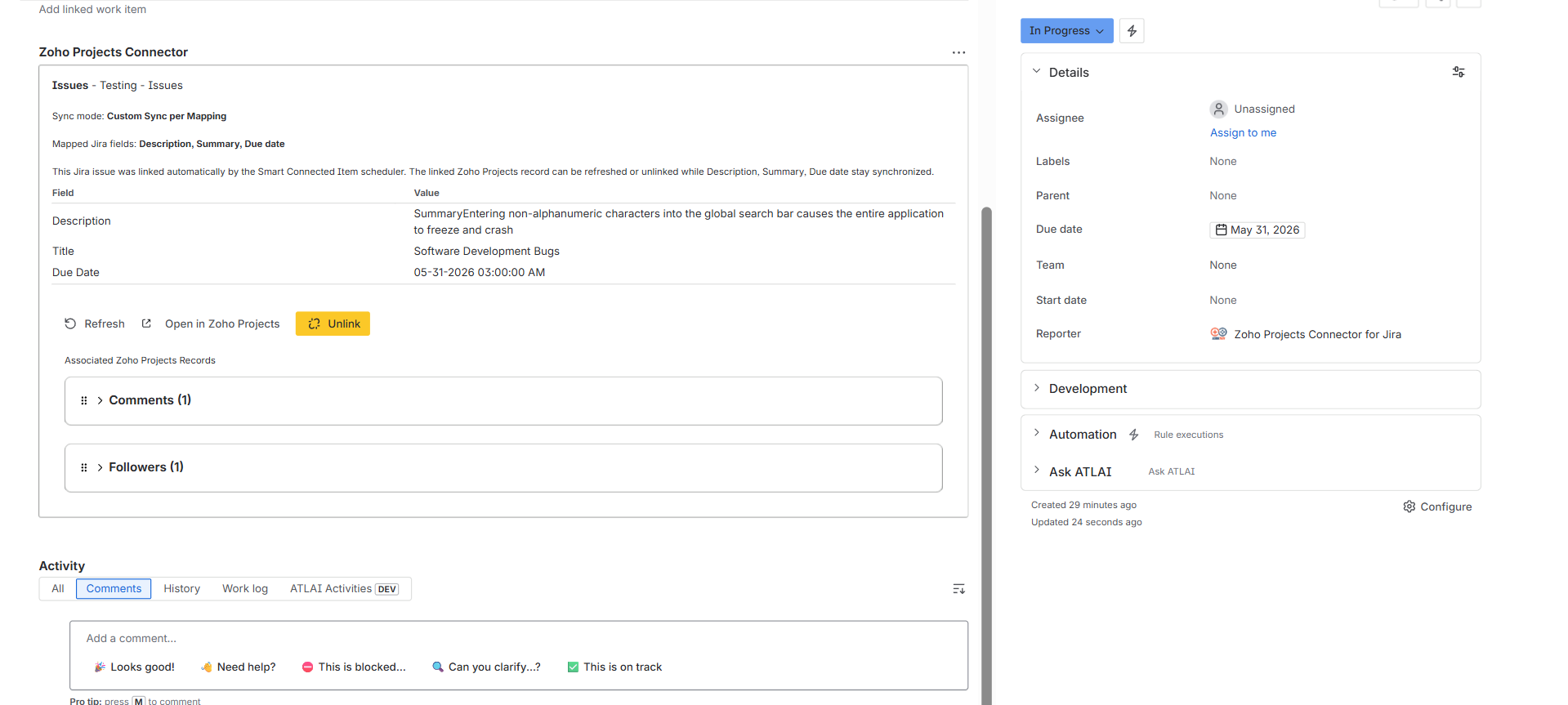
What Jira users see
- The Smart Connected Items that apply to the current Jira project and issue type.
- The linked Zoho Projects record preview when a record is already connected.
- Open in Zoho Projects, Refresh, and for manual links, Unlink.
- Sync mode context so the user knows whether the item is display-only, one-way, two-way, or custom per mapping.
- Associated Zoho Projects record groups when the admin enabled association display.
What determines visibility
The issue panel only shows Smart Connected Items that apply to the current Jira issue context. Display-only items are scoped by Jira project, while synchronized items are scoped by Jira project plus issue type.
Jira User Guide
Link records from the issue panel
Open the link flow
When a Smart Connected Item is not linked yet, the issue panel shows a Link action.
Search Zoho Projects by name or title
The link modal searches the selected portal, project, and module after the user types at least 2 characters, then shows matching Zoho Projects records to choose from.
Link the selected record
After the record is chosen, the app stores the link against the current Jira issue and refreshes the panel preview.
Refresh or unlink later
Manual links expose Refresh and Unlink. Refresh reloads the linked record preview, while Unlink removes the stored relationship.
Jira User Guide
Auto-managed links
When they appear
Auto-managed links appear when the scheduler automatically creates a Jira issue from a new Zoho Projects record for a synchronized Smart Connected Item with auto-create enabled.
Why the panel treats them differently
These links are owned by the automation flow. The user can still open the Zoho Projects record and refresh the preview, but cannot manually unlink or replace the record.
Jira User Guide
Manual refresh behavior
Refresh is available for manual and auto-managed links
The issue panel exposes Refresh for both manual links and scheduler-created links so the user can pull the latest Zoho Projects record preview immediately.
What refresh does
It reloads the current record preview and re-applies the connector's normal linked-item behavior for that issue and Smart Connected Item.
What refresh does not replace
It does not disable the scheduled sync. The five-minute scheduler continues to run as normal for synchronized Smart Connected Items.
Jira User Guide
Visible Jira link note in Zoho Projects
What the connector writes
For supported record types, the connector can write a Zoho Projects note that states the record is linked to a Jira issue. The note can include the Jira issue key, Jira URL, Jira issue ID, Smart Connected Item name, and whether the link was manual or automatic.
Why it exists
This gives Zoho Projects users an immediate signal that the record is already connected to Jira, without requiring them to inspect Jira directly first.
Operations
Troubleshooting guide
The Jira admin page cannot authenticate to Zoho Projects
Verify the selected data center, Client ID, Client Secret, and Code. Confirm the code was generated from the correct Self Client and that the required OAuth scopes were included.
A Smart Connected Item does not appear in the issue panel
Confirm the item applies to the current Jira project. For one-way and two-way items, also confirm the current issue matches the configured Jira issue type.
No Jira issues are being auto-created
Confirm the Smart Connected Item is synchronized, auto-create is enabled, the selected module is supported for auto-create, and the scheduler has had time to run. If Conditional Sync Rules are enabled and the record does not meet the rule, also confirm Create Jira issue when rule is not met is checked.
A Conditional Sync Rule is not moving the Jira issue
Confirm the rule is enabled, the selected Zoho Projects field and value match the record, and the Jira workflow exposes a transition from the issue's current status to the configured target status.
Records that do not meet the rule are not creating Jira issues
Confirm auto-create is enabled and the Create Jira issue when rule is not met checkbox is checked. When the checkbox is off, non-matching Zoho Projects records are intentionally skipped by the automatic issue creation flow.
Associated Zoho Projects records are not visible
Confirm association display is enabled on the Smart Connected Item, the issue is linked to a Zoho Projects record, and related records exist for the selected Zoho Projects module.
Status or comment changes are not appearing quickly from Zoho Projects
Zoho Projects to Jira updates are scheduled, not instant. Wait for the next five-minute cycle or use Refresh from the issue panel to pull the latest record preview sooner.
The link dialog finds no Zoho Projects records
Make sure the user typed at least two characters, the correct portal/project/module was configured in the Smart Connected Item, and matching records exist in that Zoho Projects source.
Operations
Known limits in this connector build
Five-minute scheduler cadence
Zoho Projects to Jira updates and automatic issue creation are driven by the five-minute scheduled trigger.
Sync feature focus
Full synchronized behavior is centered on Zoho Projects Tasks and Issues in the current build.
Display-only modules are broader
Milestones and Timesheets can be selected in the UI, but synchronized features are narrower.
Attachment sync is synchronized-item scoped
Attachment sync appears in the Smart Connected Item flow for synchronized modes, not display-only items.
Synchronized item scope
Each new synchronized Smart Connected Item targets one Jira project, one Jira issue type, and one Zoho source.
Conditional rules depend on Jira workflow transitions
Configured target statuses must be reachable from the issue's current status through the Jira workflow.
Manual search requires input
The issue panel link dialog requires at least two characters before it searches Zoho Projects records.
Operations