Per-user sign-in is supported, and shared app auth enables automation.
Technical documentation aligned with the shared Korvex Systems docs shell
Deploy, configure, and operate Zoho CRM Connector for Jira
This guide covers the current Forge implementation, including authentication modes, Smart Connected Items, custom per-field sync ownership, Conditional Sync Rules, associated Zoho CRM records, scheduled CRM polling, Jira push events, and the linked-record workflow inside the Jira issue panel.
Forge app
Jira admin page
Custom sync
Zoho CRM associated records
Custom Sync per Mapping lets each mapped field choose its owning system.
Eligible Jira changes can push back into Zoho CRM when app auth is active.
Users can inspect the primary CRM record and related Zoho CRM records from Jira.
Fast Path
Quick start in six steps
Install the app
Install the connector from Atlassian Marketplace and open the Jira admin page.
Choose the auth mode
Use Providers for per-user sign-in, or App OAuth 2.0 for shared automation.
Connect Zoho CRM
Select the Zoho CRM data center and complete the selected connection flow.
Create Smart Connected Items
Define the Jira scope, Zoho CRM module, and sync mode you want to support.
Enable sync features
Turn on auto-create, associated records, conditional rules, status sync, CRM notes sync, and attachment sync where needed.
Use the issue panel
Link records, preview mapped data, refresh linked items, open in Zoho, inspect associated records, and unlink manual links.
Authentication
Choose the auth mode that fits your rollout
Providers
Best when each Jira user should connect with their own Zoho CRM account from the issue panel.
- Per-user Zoho CRM login.
- Good for manual linking and user-by-user access.
- Background automation does not run in this mode.
App OAuth 2.0
Stores a shared Zoho CRM token for the app and unlocks the scheduler and Jira push events.
- Required for auto-create, status sync, CRM notes sync, and attachment sync.
- Users are not prompted to sign in from the issue panel.
- Supports scheduled CRM polling every five minutes.
Switching modes does not remove Smart Connected Items
The admin page only clears stored authentication state when you switch modes. Smart Connected Items and linked records stay in place.
Jira Admin
Connect in the Jira admin page
Connection details tab
- Zoho CRM data center: US, EU, IN, AU, JP, CN, UK, CA, or SA.
- Providers: connect or switch the per-user provider auth state.
- App OAuth 2.0: supply Client ID, Client Secret, and Code.
- Mode switching: changes auth state only and does not remove Smart Connected Items.
Connected-state summary
- Current mode summary card for Providers or App OAuth 2.0.
- Zoho CRM data center summary card.
- Automation summary card for the active setup.
- App auth also shows the active API domain used by the saved connection.
Background automation requires App OAuth 2.0
Provider mode supports per-user Zoho CRM logins in the issue panel, but the five-minute scheduler, Jira issue/comment/attachment triggers, auto-create, CRM notes sync, and attachment sync only run when App OAuth 2.0 is active.
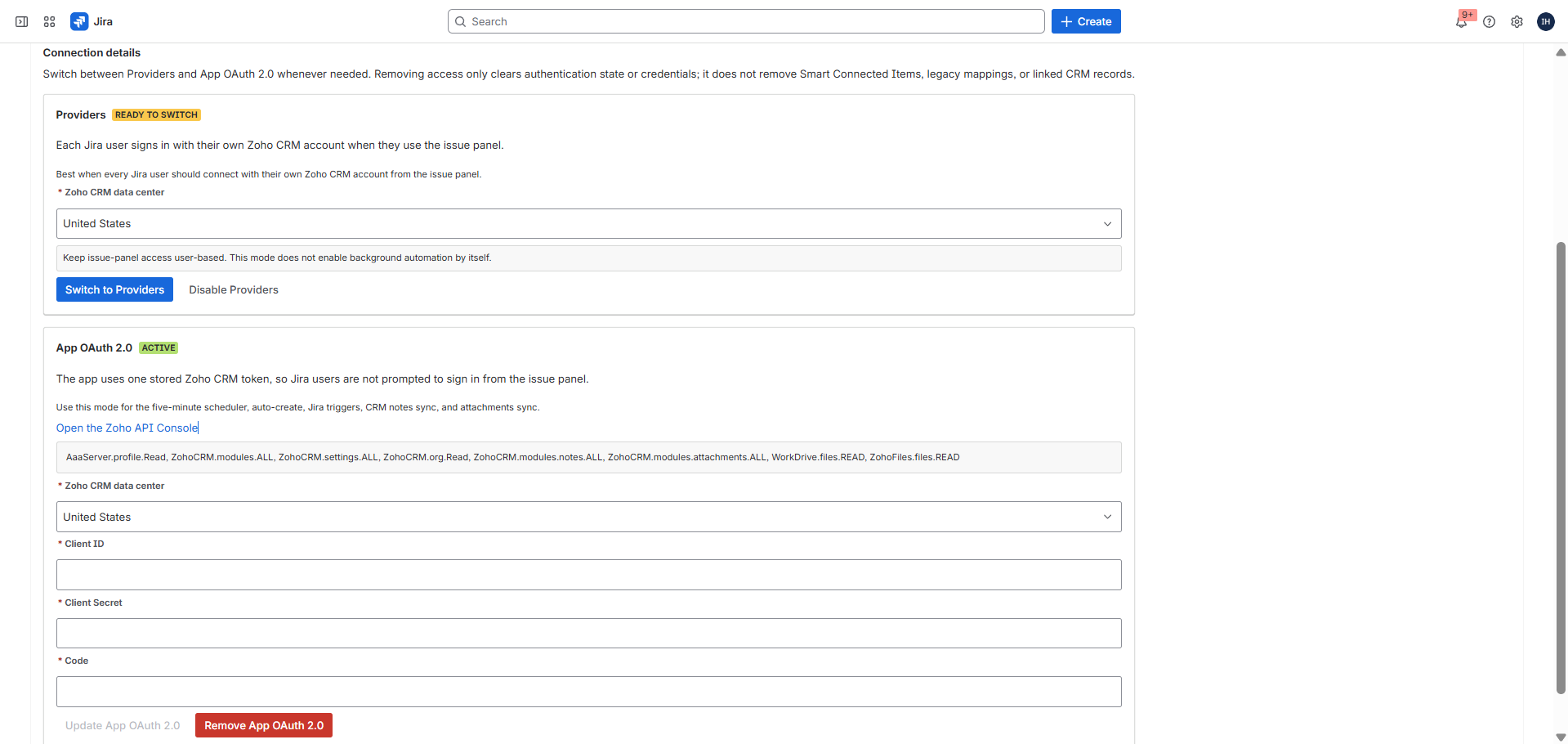
Required OAuth scopes
AaaServer.profile.Read,
ZohoCRM.modules.ALL,
ZohoCRM.settings.ALL,
ZohoCRM.org.Read,
ZohoCRM.modules.notes.ALL,
ZohoCRM.modules.attachments.ALL,
WorkDrive.files.READ,
ZohoFiles.files.READ
Use the Zoho API Console
Open the Zoho API Console to create the client, generate the code, and paste the values into Jira.
Core Configuration
Create Smart Connected Items
Smart Connected Items define the Jira project, issue type, Zoho CRM module, and sync mode for each connector behavior. The current flow supports display-only records, one-way CRM-to-Jira sync, two-way sync, and Custom Sync per Mapping for field-by-field ownership.
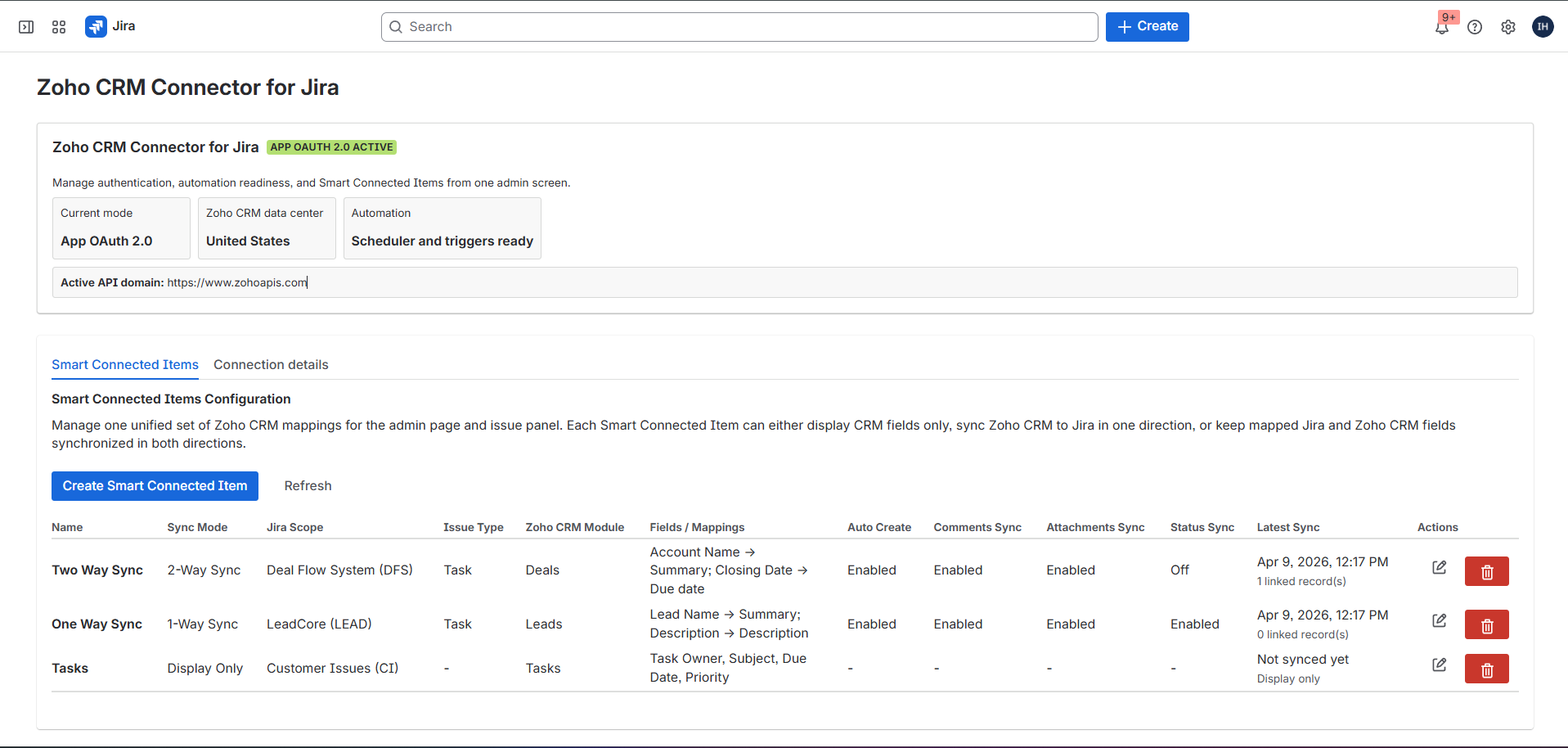
Entry point
From the dashboard, admins use Create Smart Connected Item and first choose the synchronization mode. The modal then switches into the correct flow for a display-only item, a synchronized item, or a custom field ownership setup.
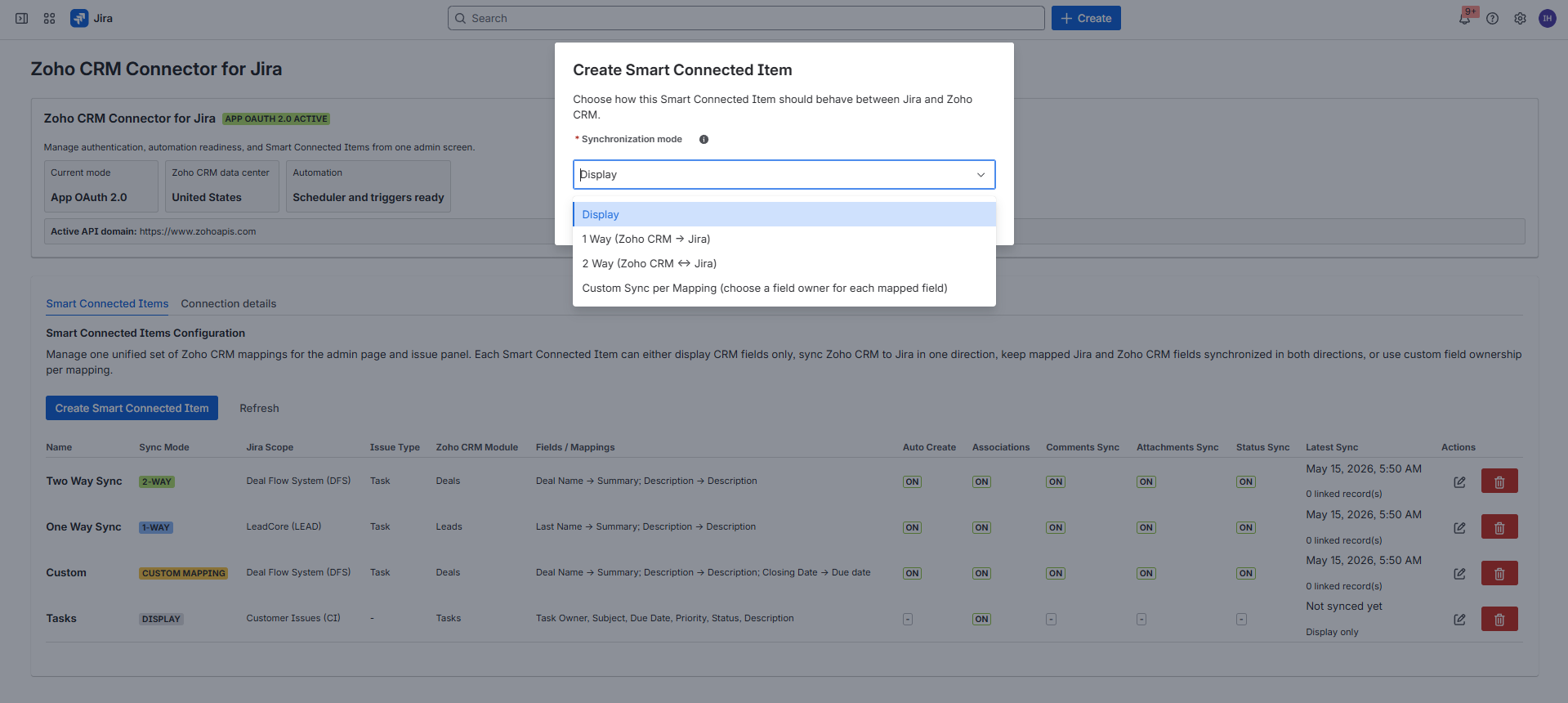
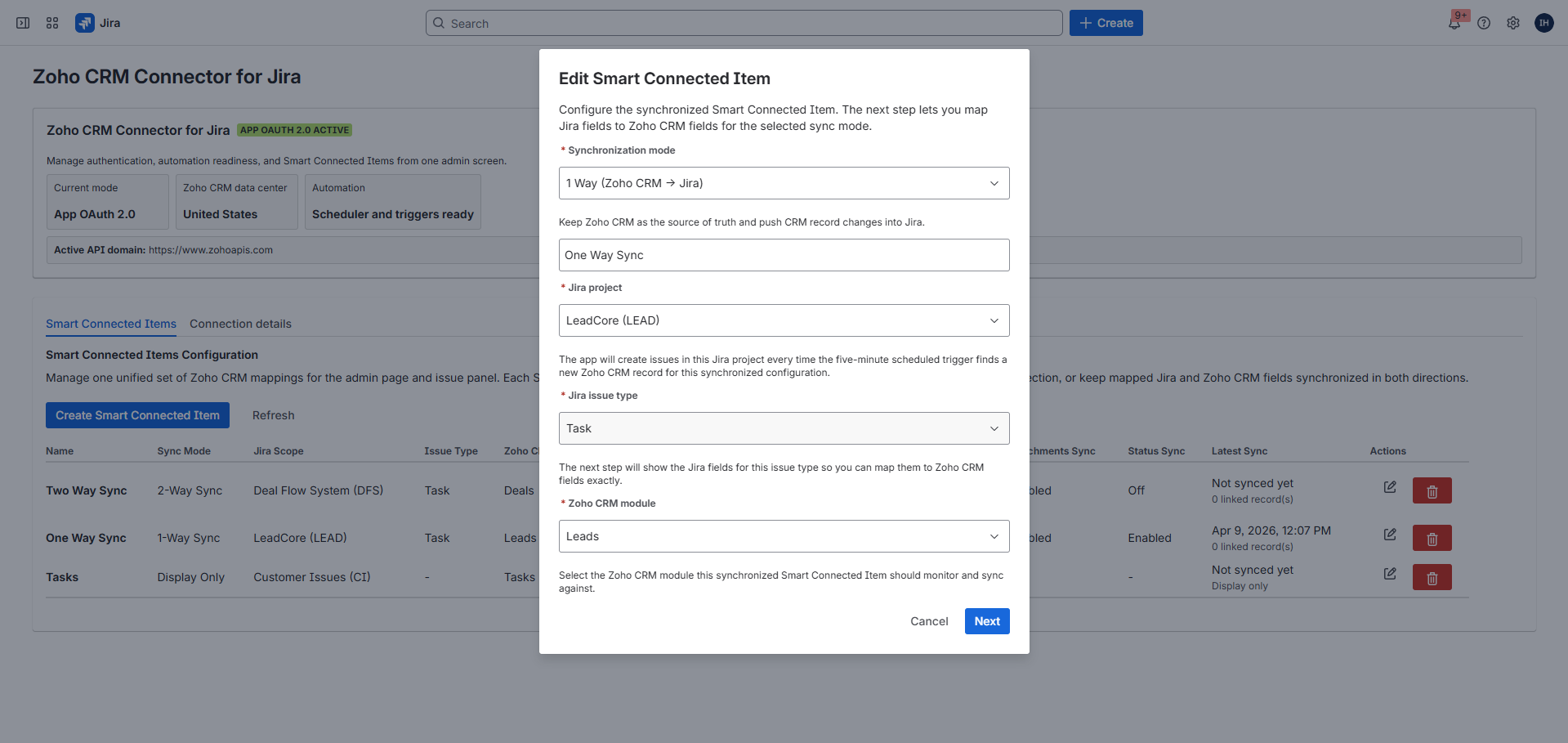
Display
Manual link only. The issue panel shows the selected Zoho CRM fields after linking, with no sync.
1 Way
The scheduler keeps mapped Jira fields aligned with the linked Zoho CRM record.
2 Way
The scheduler applies CRM changes to Jira, and Jira events can push mapped changes back to Zoho CRM.
Custom Sync per Mapping
Each mapped field chooses an owner: Zoho CRM, Jira, or both systems.
Core Configuration
Modes and behavior matrix
| Capability | Display | 1 Way | 2 Way | Custom Sync per Mapping |
|---|---|---|---|---|
| Manual search and link from the issue panel | Yes | Yes | Yes | Yes |
| Scheduled auto-create Jira issues from Zoho CRM | No | Optional | Optional | Optional |
| Zoho CRM -> Jira mapped field sync | No | Yes | Yes | Per mapping when Zoho CRM owns or both own |
| Jira -> Zoho CRM mapped field sync | No | No | Yes | Per mapping when Jira owns or both own |
| Status sync when enabled | No | Yes | Yes | Yes |
| CRM notes sync when enabled | No | Yes | Yes | Yes |
| Attachments sync when enabled | No | Yes | Yes | Yes |
| Display associated Zoho CRM records | Optional | Optional | Optional | Optional |
| Conditional Sync Rules | No | Optional | Optional | Optional |
| Create Jira Issue when condition is not met | No | Optional when auto-create and Conditional Sync Rules are enabled | Optional when auto-create and Conditional Sync Rules are enabled | Optional when auto-create and Conditional Sync Rules are enabled |
How to read the modes
The selected sync mode controls mapped field direction. Custom Sync per Mapping is different: each field mapping has its own owner, so one Smart Connected Item can combine CRM-owned, Jira-owned, and two-way fields while keeping the rest of the automation options consistent.
Core Configuration
Field mapping and custom ownership
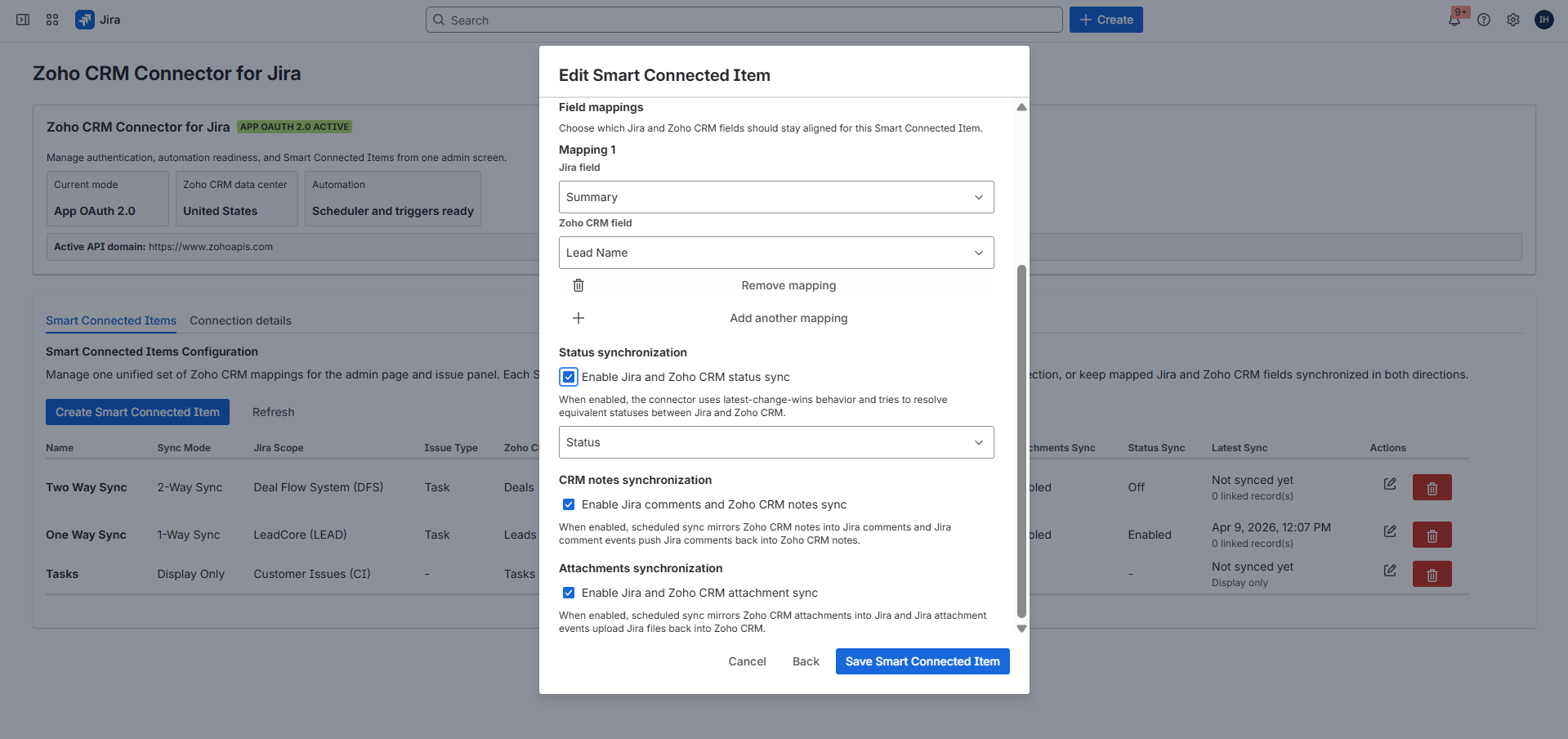
How mappings work
A mapping pairs one Jira field with one Zoho CRM field. In 1 Way mode, Zoho CRM is the source of truth. In 2 Way mode, the connector can also push eligible Jira issue field changes back into the linked Zoho CRM record.
How custom field owners work
In Custom Sync per Mapping, each mapping chooses whether Zoho CRM owns the field, Jira owns the field, or both systems can update it. Use this when different fields in the same item have different sources of truth.
| Field owner | Direction | Typical use |
|---|---|---|
| Zoho CRM owns | Zoho CRM -> Jira | Use for CRM-native values such as deal name, lead name, dates, stage, or account context. |
| Jira owns | Jira -> Zoho CRM | Use when agents maintain the value in Jira and Zoho CRM should receive the Jira update. |
| Both own | Zoho CRM <-> Jira | Use when either side may update the field and the team has tested the conflict behavior. |
Mappings are not required for every automation
A synchronized Smart Connected Item can still be useful with few or no mapped fields when the goal is status synchronization, conditional status routing, CRM notes sync, attachment sync, or associated record display.
Automation
Conditional Sync Rules
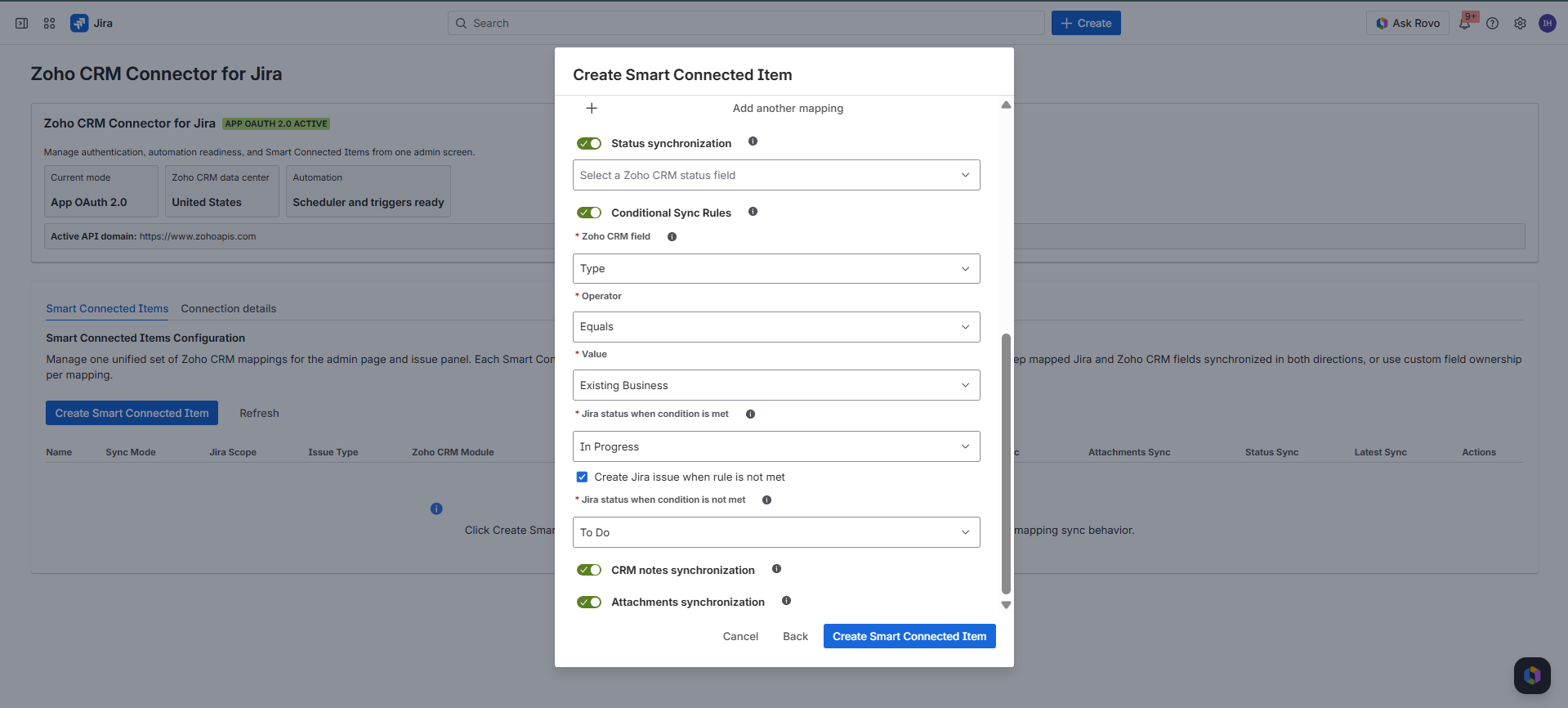
What the rule evaluates
A rule checks one Zoho CRM field on each eligible linked or newly discovered record. The admin selects the CRM field, an operator, and the expected value. For picklist-style fields, the value can be selected from the loaded CRM metadata.
What the rule changes in Jira
The admin chooses one Jira status for records that meet the condition and one fallback Jira status for records that do not. During sync, the connector transitions the issue when Jira exposes a valid workflow transition to the target status.
What the new checkbox controls
Create Jira Issue when condition is not met applies only to automatic Jira issue creation. When checked, Zoho CRM records that do not satisfy the condition can still create Jira issues in the configured not-met status. When unchecked, non-matching records are skipped by auto-create until they satisfy the condition.
| Configuration field | Meaning | Example from the screenshot |
|---|---|---|
| Zoho CRM field | The CRM field evaluated by the rule. | Type |
| Operator | The comparison rule used for the CRM value. | Equals |
| Value | The expected CRM value. | Existing Business |
| Jira status when condition is met | The issue status used when the CRM record satisfies the rule. | In Progress |
| Create Jira Issue when condition is not met | Allows automatic issue creation for CRM records that do not satisfy the condition, instead of skipping those records during auto-create. | Checked |
| Jira status when condition is not met | The fallback issue status used for linked issues, or for auto-created issues when the checkbox is checked and the CRM record does not satisfy the condition. | To Do |
Interaction with status sync
Conditional status routing is configured on the same synchronized Smart Connected Item as the mapped fields. Field mappings still follow the selected sync mode or custom field owner, while the conditional rule controls the target Jira status when it is enabled. The Create Jira Issue when condition is not met checkbox only changes automatic issue creation for records that fail the condition.
Explicit not-met issue creation
The checkbox makes the old not-met auto-create behavior explicit. If the checkbox is off, non-matching Zoho CRM records are filtered out of automatic Jira issue creation even though the rule can still set the not-met status for already linked issues.
Issue Panel Context
Display associated Zoho CRM records
What the toggle does
When Display Associated Records is enabled, the issue panel looks up Zoho CRM records related to the primary linked record and groups them by relationship type. Common groups include stage history, open tasks, contact roles, notes, and other related CRM data exposed by the selected module.
What users see
Users see expandable groups under Associated Zoho CRM Records. Each expanded group shows compact record details and an Open action when the connector can build a Zoho CRM URL for that associated record.
Read-only context
Associated records are shown for context only. They do not become the primary linked record, do not create additional Jira links, and do not change which Zoho CRM record is controlled by the Smart Connected Item.
Automation
Status, notes, attachments, and auto-create
Auto-create
Creates Jira issues from eligible Zoho CRM records during the scheduled poll when App OAuth 2.0 is active and the selected module is polling-ready.
Status sync and conditional routing
Status sync uses a selected Zoho CRM status field. Conditional Sync Rules can route the Jira issue to a met or not-met status based on a CRM field condition.
Not-met issue creation
Create Jira Issue when condition is not met lets auto-create include CRM records that fail the rule. Leave it unchecked when non-matching records should be skipped.
CRM notes sync
Scheduled sync can mirror Zoho CRM notes into Jira comments, and Jira comment events can create Zoho CRM notes.
Attachment sync
Scheduled sync can pull CRM attachments into Jira, and Jira attachment events can upload Jira files back to Zoho CRM. The current resolver enforces a 10 MB maximum size.
Associated record display
The issue panel can show related Zoho CRM records as expandable, read-only context below the primary linked record.
Polling-ready modules
Leads, Contacts, Accounts, Deals, Campaigns, Calls, Events, Tasks, Products, Vendors, Price Books, Quotes, Sales Orders, Purchase Orders, Invoices, Cases, Solutions, Appointments, and Services are in the current polling list.
Jira User Guide
Use the Jira issue panel
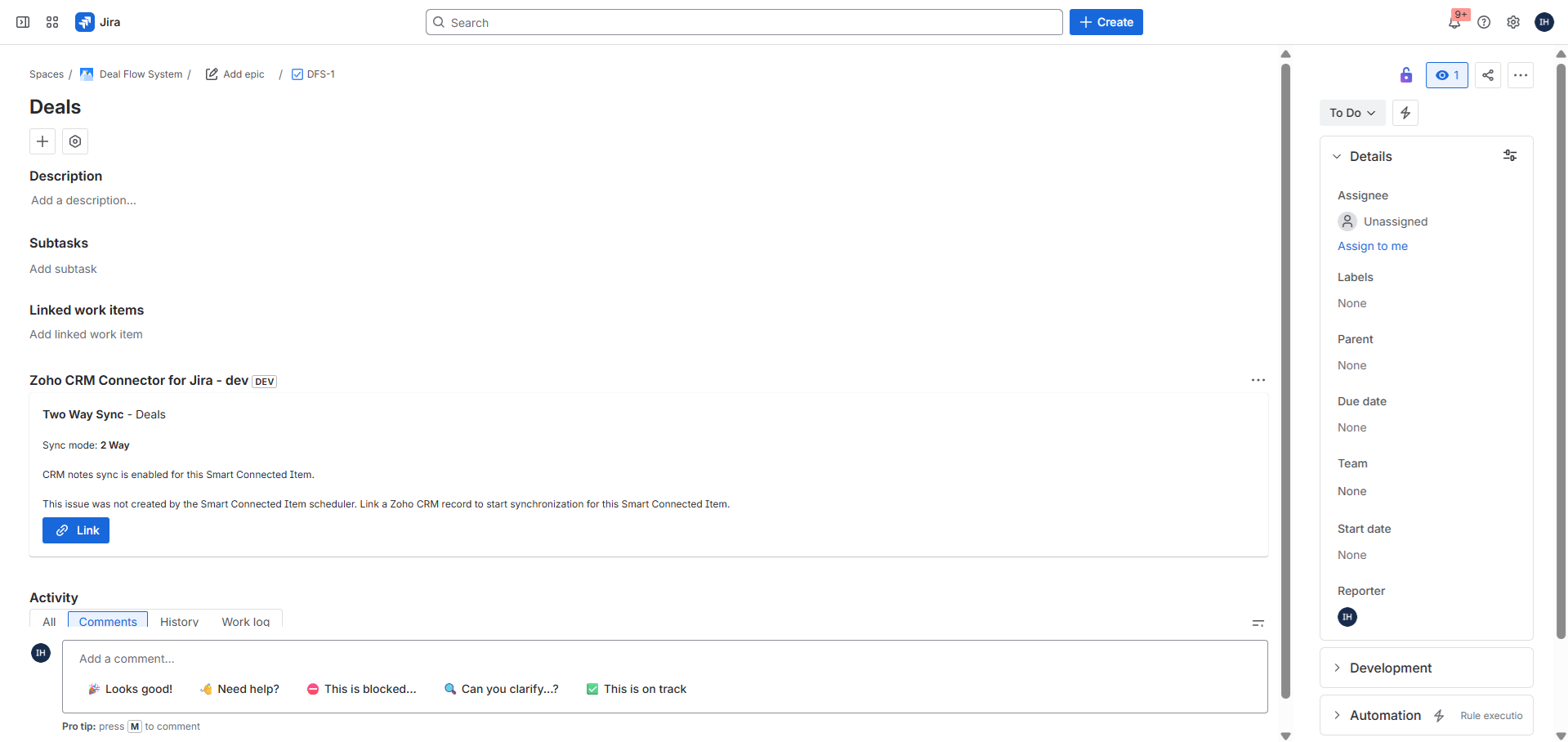
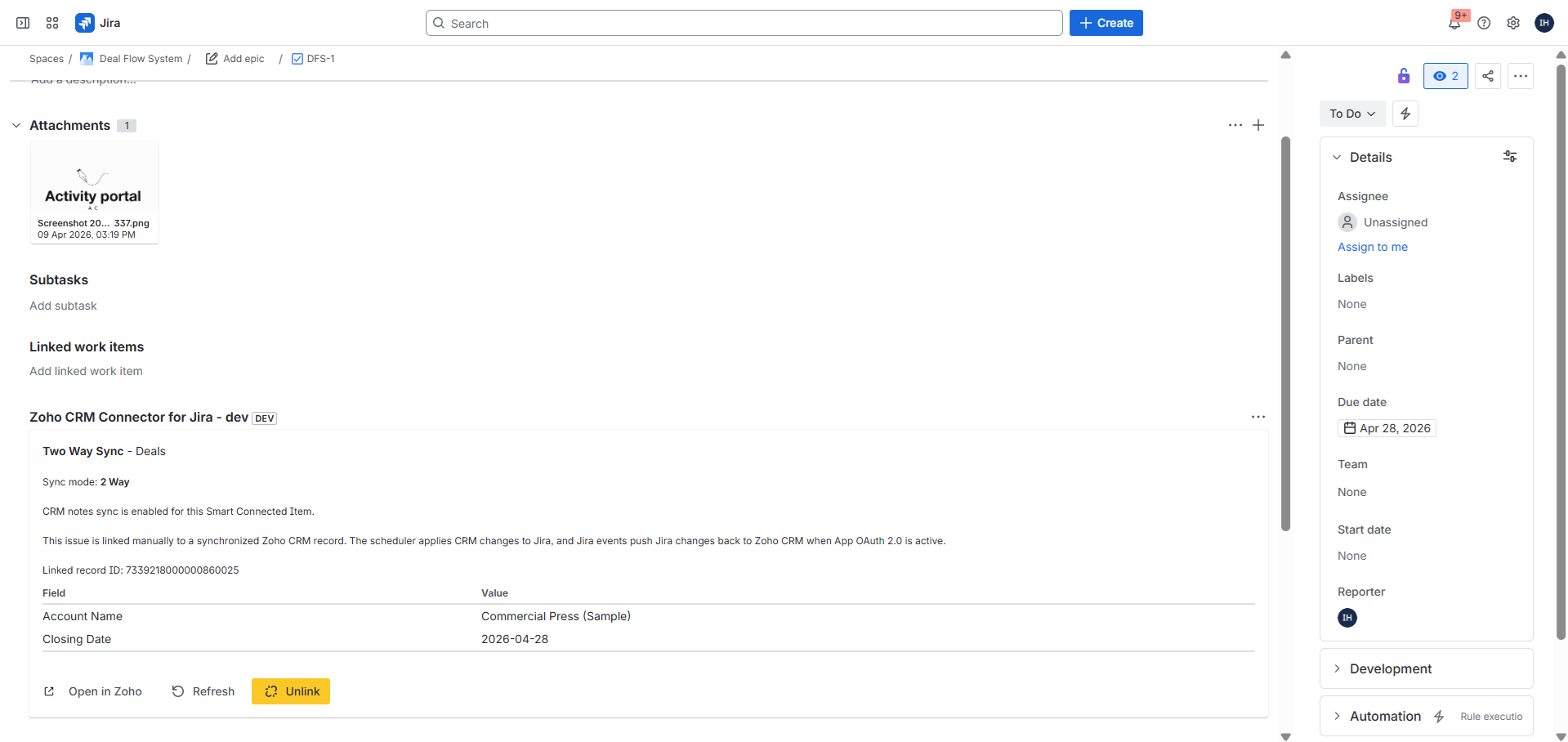
Manual links
The link dialog is titled Link a Zoho CRM record and supports search by name/title or direct CRM record ID entry.
After linking, the card can show the linked record ID, preview fields, Open in Zoho CRM, Refresh, and for manual links Unlink.
Auto-managed links
Issues created by the scheduler are linked automatically. Those links are read-only in the issue panel, but users can still refresh and open the linked CRM record.
Provider mode shows Zoho CRM login required when the user has not signed in. App mode shows Zoho CRM authentication required if the admin setup is incomplete.
Associated records
When the admin enables associated records, users can expand related CRM groups such as stage history, open tasks, and contact roles without changing the primary linked record.
Refresh behavior
Refresh reloads the primary record preview and associated record groups from Zoho CRM, so users do not have to wait for the next scheduler run to inspect current context.
Operations
Troubleshooting and limits
Auto-create or sync options are disabled
Those features require App OAuth 2.0. Auto-create also depends on the selected Zoho CRM module being in the polling-ready module set.
Attachment sync needs attention
Reconnect App OAuth 2.0 if WorkDrive or ZohoFiles permissions are missing from the stored token.
Conditional status did not change
Verify that the CRM field value matches the rule and that the Jira workflow exposes a transition from the issue's current status to the configured target status.
Non-matching records are not creating issues
Confirm auto-create is enabled and Create Jira Issue when condition is not met is checked. When the checkbox is off, non-matching CRM records are intentionally skipped by automatic issue creation.
Associated records are missing
Confirm the Smart Connected Item has associated records enabled and that the linked CRM record has related records available through the selected Zoho CRM module.
Known timing limit
Zoho CRM polling is scheduled every five minutes, so CRM-originated changes are not instant.
Known UI limit
Auto-managed links are intentionally read-only in the issue panel and mapped Jira summary text still follows Jira length limits.
References