The scheduled sync looks for new and updated Zendesk tickets on five-minute runs.
Documentation validated against connector build on May 17, 2026
Technical deployment guide for the Zendesk Connector for Jira
This guide covers Marketplace installation, Zendesk Support authentication, Smart Connected Items, custom per-field sync ownership, Conditional Sync Rules, associated Zendesk record display, and issue-panel operations for enterprise Jira environments.
Marketplace app
Forge app
Jira admin page
Jira issue panel
Zendesk Support
Jira issue, comment, and attachment events push eligible changes back to Zendesk.
Files above 10 MB are skipped to stay inside Forge runtime and payload limits.
Custom Sync per Mapping lets each mapped field choose its own source of truth.
Fast Path
Quick start in six steps
Install the app
A Jira site admin installs the app from Atlassian Marketplace and opens the Zendesk Connector admin page from Jira administration.
Prepare Zendesk credentials
Gather the Zendesk subdomain, an agent email address, and a Zendesk API token for the account you want Jira to use.
Save the Zendesk connection
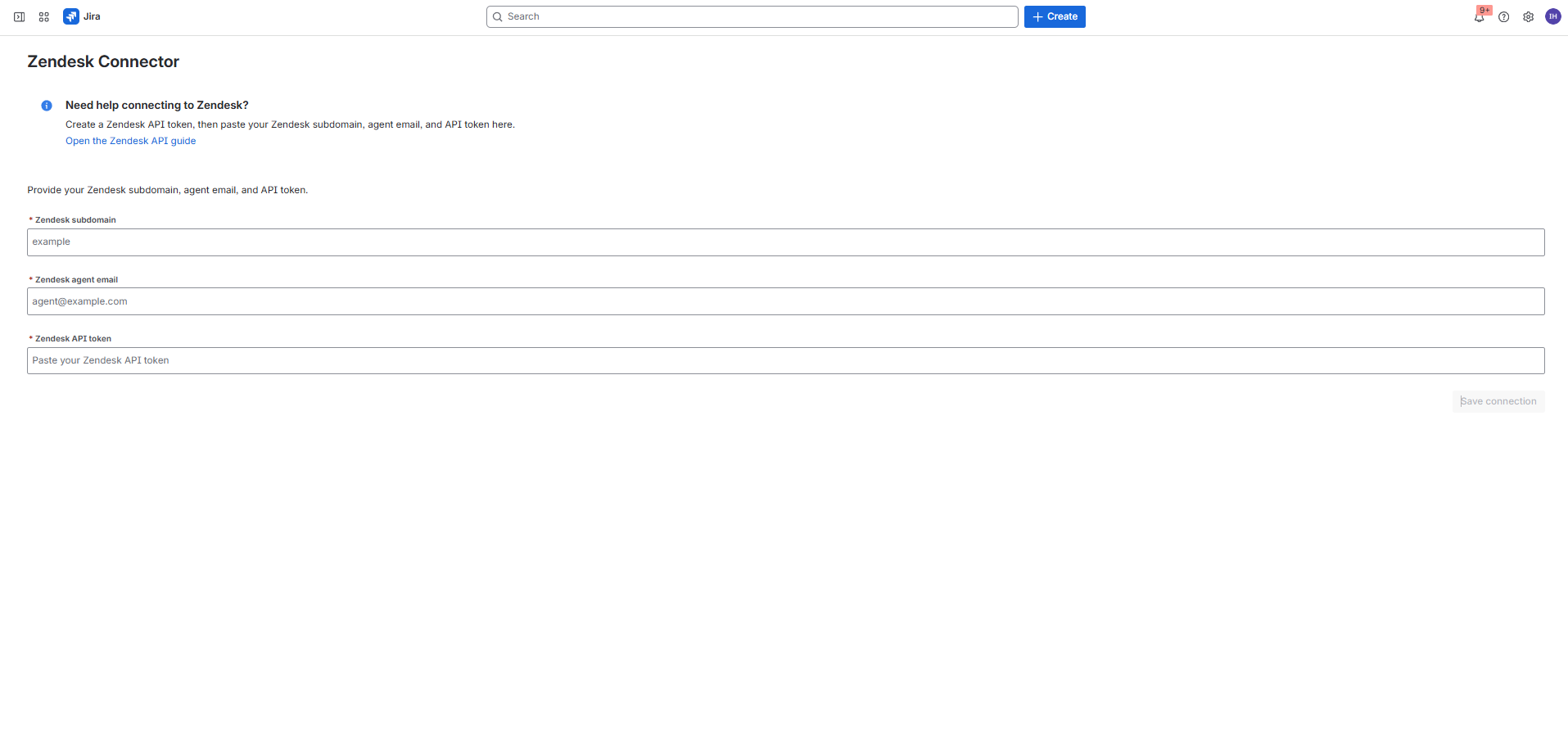
Enter the subdomain, email, and token in the Jira admin page. The token is stored securely in Forge secret storage after validation succeeds.
Create Smart Connected Items
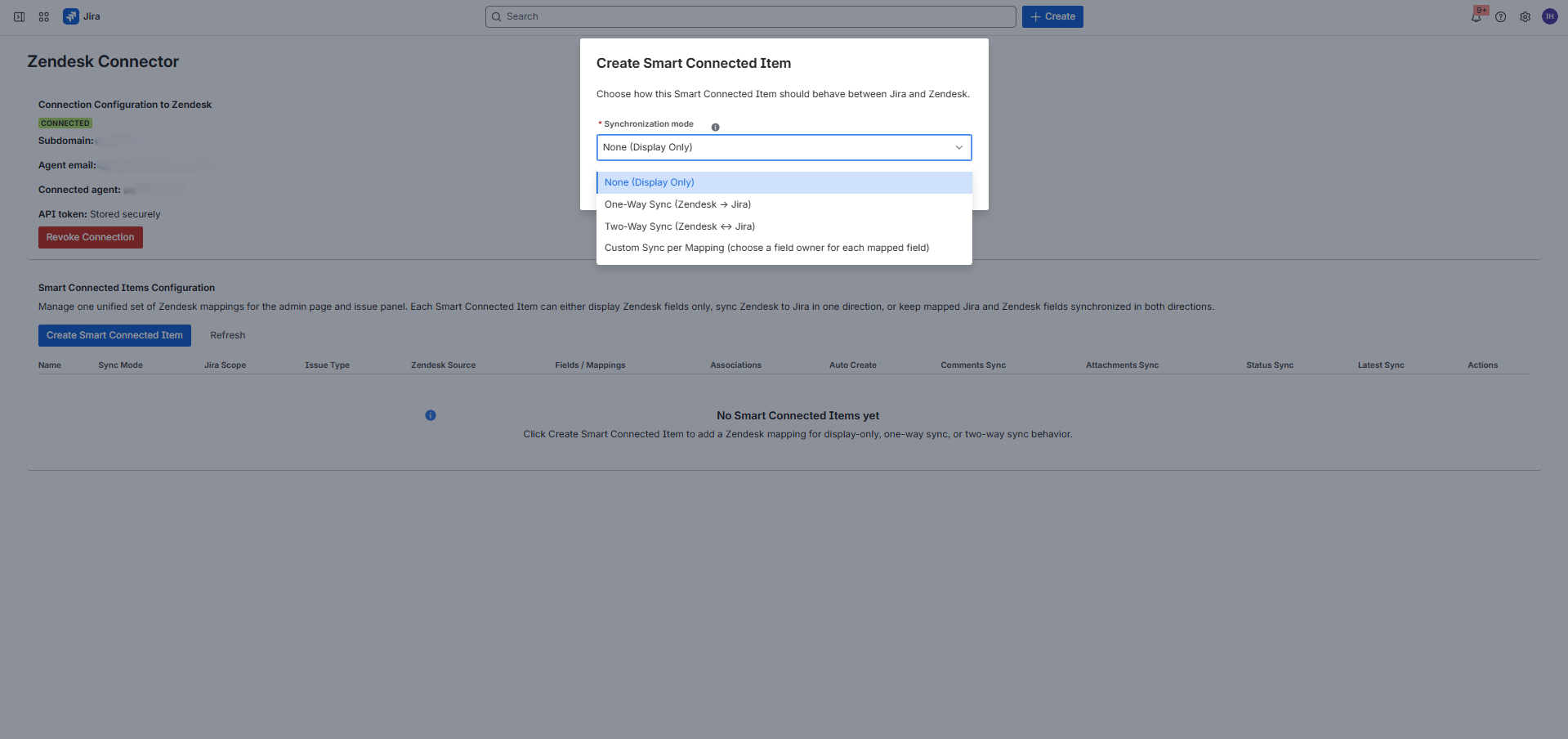
Choose display-only, one-way sync, two-way sync, or custom per-mapping behavior, then set Jira scope, Zendesk object, field mappings, and optional sync features.
Enable optional sync behavior
For synchronized ticket items you can enable auto-create, associated record display, Conditional Sync Rules, the non-match auto-create checkbox, status sync, comments sync, and attachment sync.
Link or auto-create records
Jira users can manually link Zendesk records from the issue panel, and synchronized ticket items can auto-create Jira issues from new Zendesk tickets.
Architecture
How the connector works
Current sync model in this build
The scheduled trigger runs every five minutes. It can create Jira issues for new Zendesk tickets when auto-create is enabled, evaluates Conditional Sync Rules, and applies eligible Zendesk-to-Jira updates for mapped fields, status, comments, and attachments on linked tickets.
Jira-to-Zendesk updates are event-driven. Jira issue updates push field and status changes according to the selected sync mode or custom field owner. Jira comment events push comments, and Jira attachment events push new files to Zendesk without waiting for the next scheduler run.
Where configuration lives
- Zendesk connection settings are stored in Forge app storage.
- The Zendesk API token is stored in Forge secret storage.
- Smart Connected Item definitions and issue-to-record links are stored in Forge app storage.
- Marketplace license checks gate production usage while development installs stay flexible.
How Jira users see the integration
- The issue panel shows one card per Smart Connected Item that applies to the Jira project.
- Display-only items wait for a manual link before showing Zendesk fields.
- Synchronized ticket items can either be manually linked or auto-managed by the scheduler.
- Linked records can expose field previews, a direct Zendesk link, refresh, and unlink actions.
- When enabled, linked records can also show read-only associated Zendesk record groups.
Object Catalog
Supported Zendesk objects in this connector
| Zendesk object | Supported flows | Notes |
|---|---|---|
| Tickets | Display-only, one-way sync, two-way sync, custom sync, auto-create | Tickets are the only Zendesk object with the full scheduler, Conditional Sync Rules, and Jira event sync pipeline. |
| Customers | Display-only manual linking, search, refresh, preview, associations | Customer search supports partial ID, name, and email matching in the Jira issue panel. |
| Organizations | Display-only manual linking, search, refresh, preview, associations | Organizations can be linked and previewed from Jira, but they are not part of synchronized flows. |
Why synchronization is ticket-only
The scheduled sync depends on ticket-specific APIs such as incremental ticket export, ticket status, ticket comments, and ticket attachments. Customers and organizations are supported today through the display-only path, not the synchronized scheduler path.
Terminology
Key terms used in this guide
Display-only Smart Connected Item
A manual mapping that lets Jira users link a Zendesk ticket, customer, or organization in the issue panel and view selected fields. It does not auto-create Jira issues or run scheduled field sync.
Synchronized Smart Connected Item
A ticket-only mapping that can create Jira issues from Zendesk and keep mapped fields aligned in one direction, both directions, or by per-field ownership.
Custom Sync per Mapping
A synchronized mode where each mapped field has its own owner: Zendesk owns, JSM owns, or both own. This lets one Smart Connected Item mix one-way and two-way field behavior safely.
Conditional Sync Rule
A rule that evaluates one Zendesk field and moves the linked Jira issue to one configured status when the condition is met. If auto-create is enabled, the not-met checkbox decides whether new tickets that fail the rule should still create Jira issues.
Auto-managed link
A link created by the scheduler when auto-create is enabled. Auto-managed records are read-only in the issue panel and can be refreshed but not manually unlinked there.
Initial workflow safeguard
When the scheduler creates a new Jira issue, the connector intentionally keeps that issue in the first Jira workflow status until a later Jira or Zendesk status change occurs. After that, the normal sync logic takes over.
Associated Zendesk Records
Read-only related Zendesk records shown in expandable issue-panel groups, such as requester, submitter, assignee, organization, CCs, followers, and related tickets.
Admin Setup
Install from Atlassian Marketplace
Install the app on the Jira Cloud site
Install the Zendesk Connector from Atlassian Marketplace using a Jira site admin account. After installation, open Jira administration and locate the app under the Marketplace apps area.
Confirm the license state
Paid and trial environments must have an active Marketplace license. If the license is missing or expired, both the admin page and the issue panel show a license-required message and block normal usage.
Prepare Zendesk credentials before the first save
The app will not let you complete setup until you provide a valid Zendesk subdomain, agent email, and API token, so prepare those values before saving the connection form.
Zendesk
Prepare Zendesk credentials
What the connection validates
When you save the admin form, the connector validates the provided subdomain, agent email, and API token by calling Zendesk and confirming the connected agent identity.
Choose the Zendesk account
Use the Zendesk Support subdomain for the account this Jira site should connect
to, for example your-team from
https://your-team.zendesk.com.
Create or reuse an agent API token
Use an agent account with permission to read and update the Zendesk records you plan to expose. The connector stores only the token secret, not the agent password.
Keep the exact agent email
The admin form expects the full agent email address. The connector uses it with the token to authenticate Zendesk API requests.
Token scope matters
If the Zendesk token or agent permissions cannot read the selected object or update ticket content, the connector surfaces the failing API error in the Jira admin or sync flow rather than silently skipping the action.
Jira Admin
Authenticate in the Jira admin page
Connection form fields
- Subdomain: the Zendesk Support subdomain without the host suffix.
- Agent email: the full Zendesk agent login email address.
- API token: a password-style field stored in Forge secret storage.
- Save connection: validates the credentials and stores them securely.
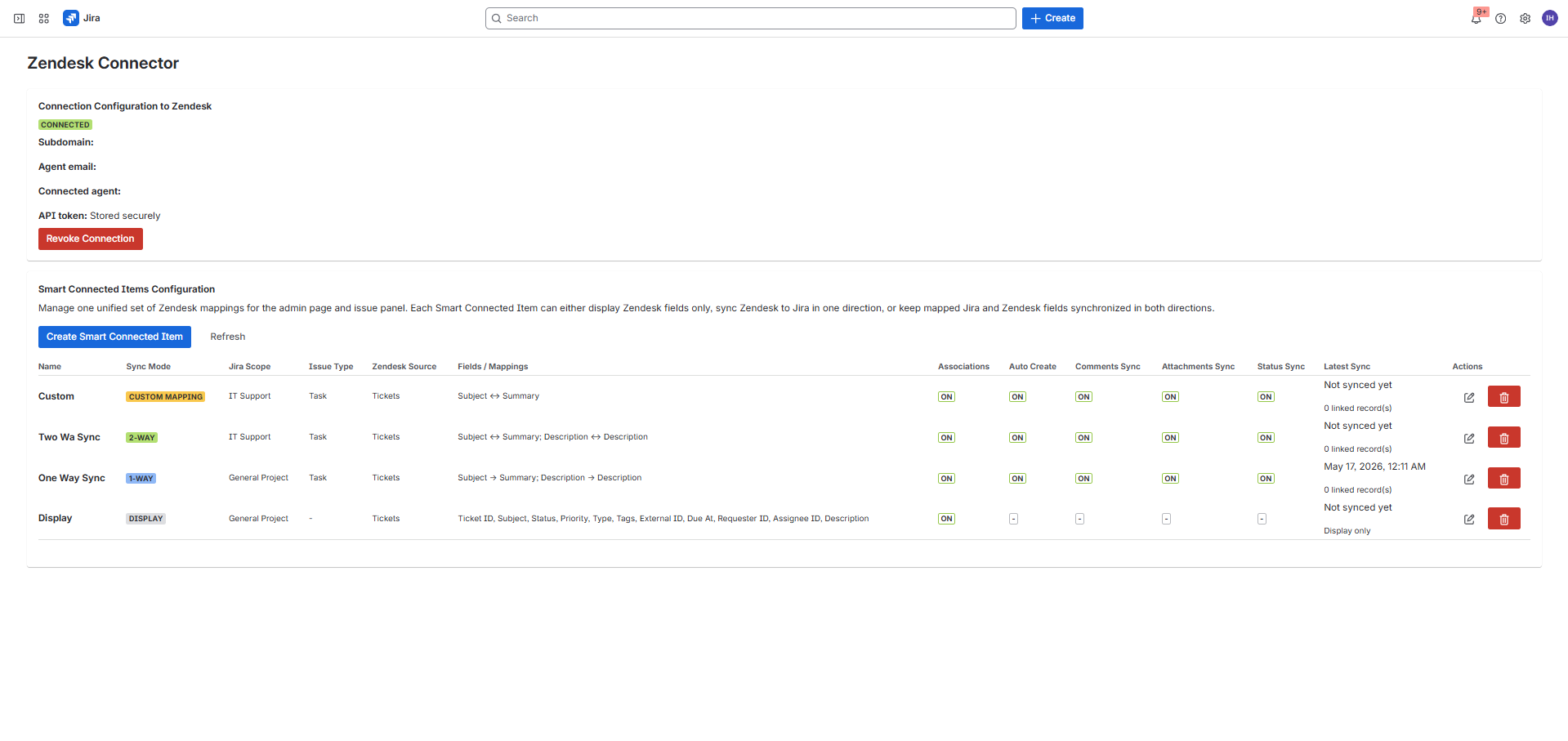
Connected-state summary
- Connected lozenge.
- Zendesk subdomain, connected agent email, connected agent display name.
- Stored-securely token indicator.
- Revoke Connection button to disconnect the account.
Configuration
Create Smart Connected Items
One admin screen, multiple item types
The Smart Connected Items table lists every configured item, including its sync mode, Jira scope, issue type, Zendesk source, mapped fields, association display, and enabled sync features.
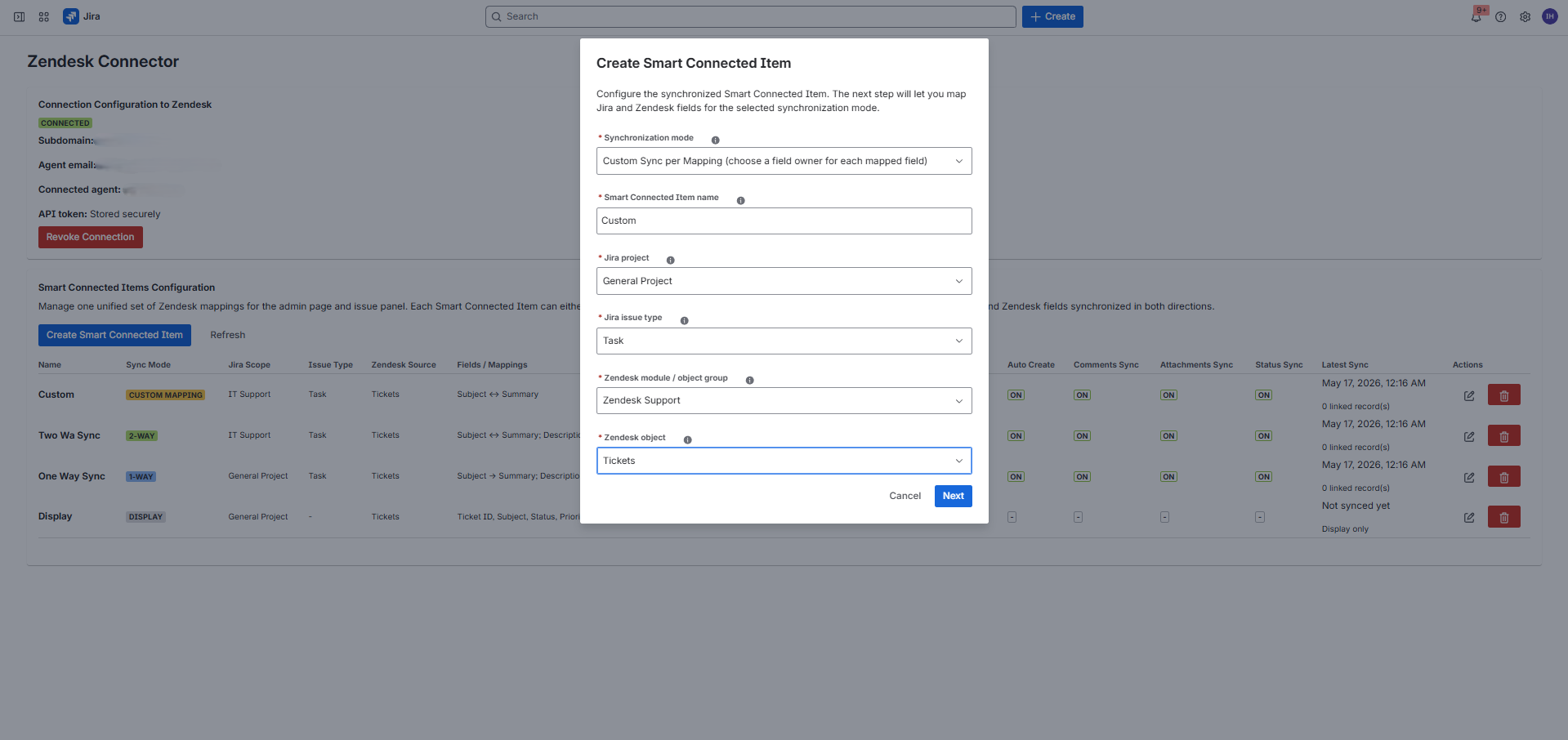
What every item defines
- A name that appears in the Jira issue panel.
- A sync mode: none, one-way sync, two-way sync, or custom sync per mapping.
- A Jira project and optionally a specific Jira issue type.
- A Zendesk module and object choice.
What synchronized items add
- Field mappings between Zendesk and Jira.
- Optional auto-create for new Zendesk tickets.
- Optional associated record display.
- Optional Conditional Sync Rules, status sync, comment sync, and attachment sync.
- Warnings when a Jira issue type is missing safe create-field coverage.
Display-only
Display-only Smart Connected Items
When to use display-only mode
- You want Jira users to manually link a Zendesk record from the issue panel.
- You only need a read-friendly preview of selected Zendesk fields.
- You want to expose customers or organizations, which are not synchronized objects.
- You do not want the scheduler to create or update Jira issues.
Supported objects in this mode
- Tickets
- Customers
- Organizations
- Readable option labels and non-empty preview values are rendered in the issue panel.
Optional association display
- Admins can enable associated Zendesk records on display-only items.
- The issue panel renders related records as read-only expandable groups.
- Association display does not turn customers or organizations into synchronized records.
Field previews are selected by the admin
The issue panel only displays the Zendesk fields you map into the Connected Item. The connector now preserves values by field ID first, which prevents duplicate labels from hiding real values in the preview table.
Synchronization
One-way, two-way, and custom ticket items
Tickets only
Only Zendesk tickets are supported for synchronized Smart Connected Items, including one-way sync, two-way sync, Custom Sync per Mapping, auto-create, Conditional Sync Rules, status sync, comment sync, and attachment sync. Customers and organizations remain available through the display-only Connected Item flow for manual linking in the issue panel.
One-way sync
- Zendesk is the source of truth for mapped fields.
- The scheduler reconciles Zendesk ticket updates into Jira every five minutes.
- Optional auto-create can open new Jira issues from new Zendesk tickets.
Two-way sync
- The scheduler still pulls Zendesk changes into Jira.
- Jira issue update events push mapped field changes back to Zendesk.
- Comments, attachments, and status can be synchronized in both directions when enabled.
Custom Sync per Mapping
- Each mapped field receives its own field owner.
- Zendesk owns writes that field from Zendesk to Jira.
- JSM owns writes that field from Jira to Zendesk.
- Both own keeps that single field synchronized in both directions.
Automation options
- Auto-create can open Jira issues from new Zendesk tickets.
- Associated record display adds read-only context to the issue panel.
- Conditional Sync Rules can control Jira status and decide whether non-matching new tickets are created.
Initial status protection for auto-created issues
When the five-minute scheduler creates a Jira issue from a Zendesk ticket, the new Jira issue is intentionally kept in the first status of the Jira workflow for that project and issue type. Once the linked items later change status, the normal sync logic resumes.
Matrix
Modes and behavior matrix
| Capability | Display-only | One-way sync | Two-way sync | Custom Sync per Mapping |
|---|---|---|---|---|
| Manual link in issue panel | Yes | Yes | Yes | Yes |
| Preview selected Zendesk fields | Yes | Yes | Yes | Yes |
| Scheduler pulls Zendesk changes into Jira | No | Yes | Yes | Per mapping when Zendesk owns or both own |
| Auto-create Jira issues from Zendesk | No | Optional | Optional | Optional |
| Jira pushes mapped field changes back to Zendesk | No | No | Yes | Per mapping when JSM owns or both own |
| Associated Zendesk records in the issue panel | Optional | Optional | Optional | Optional |
| Conditional Sync Rules and non-match auto-create filter | No | Optional | Optional | Optional |
| Status sync | No | Optional | Optional | Optional |
| Comment sync | No | Optional | Optional | Optional |
| Attachment sync | No | Optional | Optional | Optional |
| Manual Refresh action | Yes | Yes | Yes | Yes |
Important behavior detail
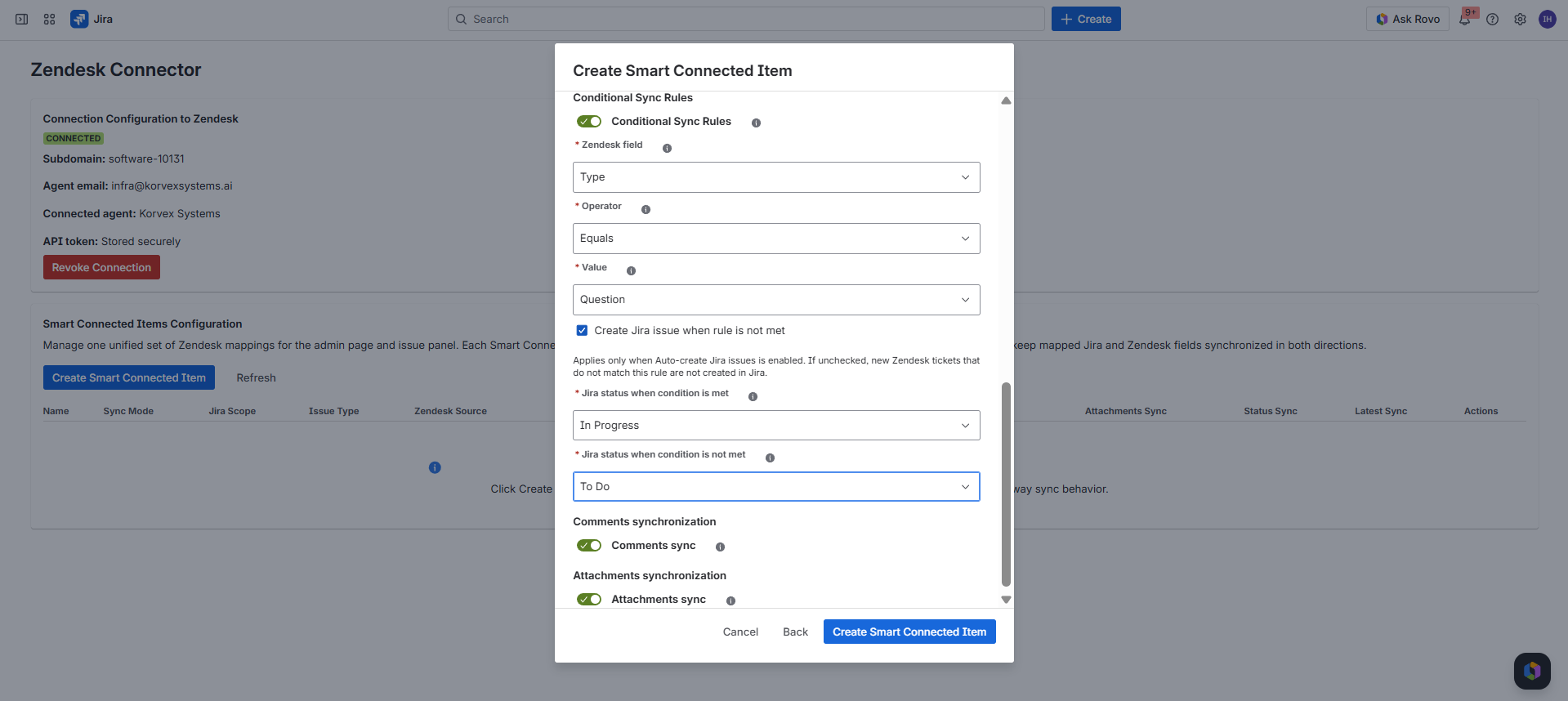
Field mappings follow the selected mode. In Custom Sync per Mapping, each field mapping overrides the global pattern with its own owner. Status sync, comments sync, and attachments sync remain separate switches. When Conditional Sync Rules are enabled, the conditional Jira status behavior replaces generic status sync for that Smart Connected Item. If auto-create is enabled, the Create Jira issue when rule is not met checkbox controls whether new non-matching Zendesk tickets are created in Jira or skipped.
Configuration
Field mapping rules
How mappings work
A mapping pairs one Zendesk field with one Jira field. One-way mode writes mapped values from Zendesk to Jira. Two-way mode also lets Jira issue updates push mapped values back to the linked Zendesk ticket.
How custom field owners work
In Custom Sync per Mapping, each row has a field owner. Choose Zendesk owns for Zendesk-to-Jira, JSM owns for Jira-to-Zendesk, or Both own for two-way synchronization on that one field.
When mappings are optional
A synchronized Smart Connected Item can be saved without field mappings when the goal is status-only synchronization, comment-only synchronization, attachment-only synchronization, conditional status movement, or manual linking without auto-create.
Safe ownership choices
Treat the owner as the system of record for that field. Use Both own only for fields where agents are comfortable with the most recent eligible change moving between Jira and Zendesk.
| Field owner | Direction | Typical use |
|---|---|---|
| Zendesk owns | Zendesk -> Jira | Use when Zendesk is the source of truth, such as ticket subject, type, priority, or requester context. |
| JSM owns | Jira -> Zendesk | Use when Jira agents maintain the operational value and Zendesk should receive it. |
| Both own | Zendesk <-> Jira | Use when either side may update the field and the value can safely be mirrored. |
Configuration
Conditional Sync Rules
What the rule evaluates
The connector checks one selected Zendesk field on each eligible linked or newly discovered ticket. Operators include equals, does not equal, is empty, and is not empty. Dropdown-style, boolean, date, and text values are driven by the Zendesk field metadata available in the admin page.
What the rule changes in Jira
The admin chooses a Jira status for tickets that meet the condition. A separate not-met Jira status is used only when the non-match creation checkbox is enabled. During scheduled sync, manual linking, refresh, and relevant Jira issue updates, the connector transitions the Jira issue when Jira exposes a valid workflow transition.
What the checkbox controls
Create Jira issue when rule is not met applies only when auto-create Jira issues is also enabled. If checked, a new Zendesk ticket that does not match the condition can still create a Jira issue and use the not-met Jira status. If unchecked, the scheduler skips that new ticket and no Jira issue is created for it.
| Configuration field | Meaning | Example |
|---|---|---|
| Zendesk field | The ticket field the connector evaluates before active field or status synchronization. | Type |
| Operator | The comparison rule: equals, does not equal, is empty, or is not empty. | Equals |
| Value | The expected field value, unless the operator is empty or not empty. | Question |
| Create Jira issue when rule is not met | Controls whether auto-create should include Zendesk tickets that fail the condition. | Checked |
| Jira status when condition is met | The workflow status used when the Zendesk ticket satisfies the rule. | In Progress |
| Jira status when condition is not met | The workflow status used for non-matching tickets only when the checkbox is enabled. | To Do |
Auto-create dependency
The checkbox does not create Jira issues by itself. It only changes how Conditional Sync Rules filter the scheduled auto-create flow. When auto-create is disabled, Jira users can still manually link matching or non-matching Zendesk tickets from the issue panel.
Workflow transition requirement
Jira must expose a transition from the issue's current status to the configured target status. If the workflow does not allow the move, the connector records the skipped transition instead of forcing an invalid workflow state.
Configuration
Display Associated Zendesk Records
What the toggle does
When enabled, the Jira issue panel looks up Zendesk records related to the linked record and groups them by relationship type. Ticket examples include requester, submitter, assignee, organization, CCs, followers, problem ticket, follow-up tickets, and incident tickets.
What users see
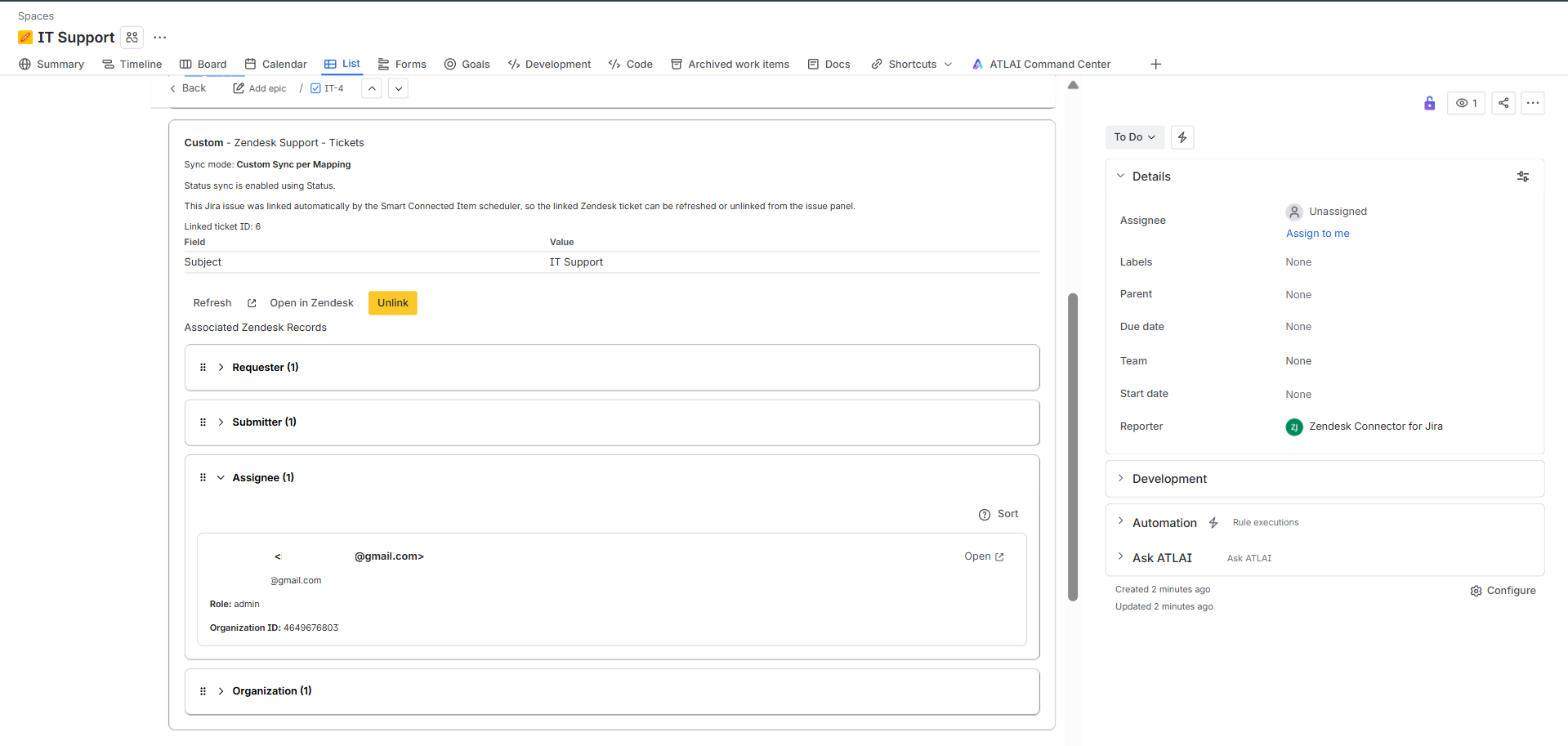
Users see expandable groups under Associated Zendesk Records. Each returned record shows a compact preview of useful fields and an Open action when the connector can build a Zendesk URL.
Read-only context
Associated records are displayed for context. They do not create Jira issue links, do not become sync targets, and do not change the main linked Zendesk record. The primary linked record remains the only record controlled by the Smart Connected Item.
Responsive issue-panel behavior
The connector limits associated record previews per group so the Forge issue panel stays responsive. Optional relationship groups are loaded independently, so one unavailable Zendesk relationship does not hide the rest of the associated records.
Platform
Permissions and scope reference
Forge scopes in the manifest
storage:appread:jira-workwrite:jira-workread:jira-userread:issue:jirawrite:issue:jira
Configured backend egress domains
https://*.zendesk.comhttps://*.amazonaws.comhttps://*.cloudfront.nethttps://*.zdusercontent.com
Jira User Guide
Issue panel overview
What users see before linking
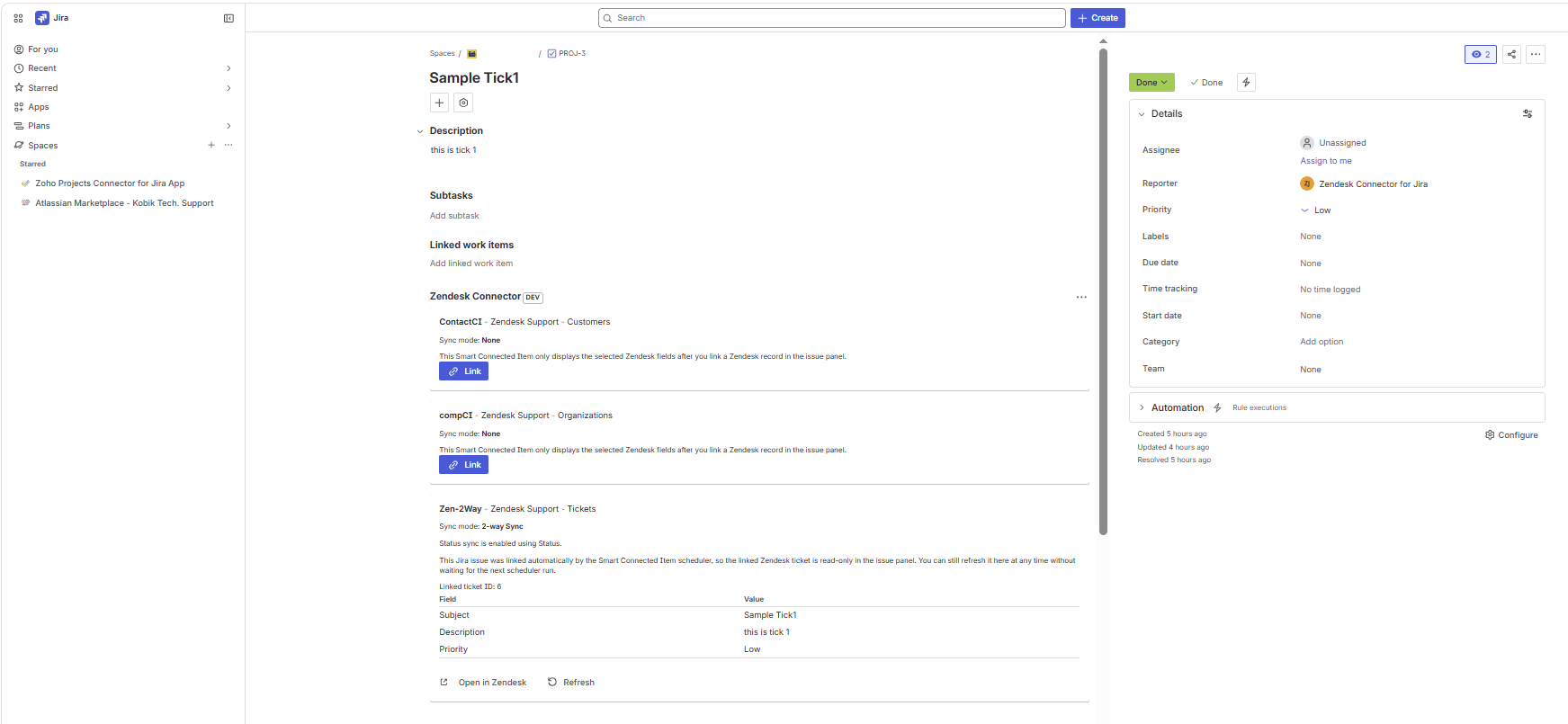
- A card per Smart Connected Item that matches the Jira project.
- The item name, Zendesk module and object label, and current sync mode.
- A Link action when no record is connected yet.
- For synchronized items, a note explaining that linking a ticket starts synchronization.
What users see after linking
- The linked Zendesk record ID.
- A preview table of the selected Zendesk fields and their readable values.
- Open in Zendesk and Refresh actions.
- Unlink when the record was linked manually, not by the scheduler.
- Associated Zendesk record groups when the admin enabled association display.
User Actions
Link, Refresh, and Unlink
Open the Link dialog
Click Link on a Smart Connected Item card. The dialog title and helper copy adapt to the selected Zendesk object type.
Search for a Zendesk record
Ticket searches support ticket IDs and partial subject matching. Customer searches support partial ID, name, and email matching. Organization searches support partial ID and name matching.
Refresh the linked preview on demand
The Refresh action forces an immediate pull of mapped fields. On synchronized tickets it also re-runs the current comment and attachment sync logic.
Unlink only manual records
The Unlink action is available for manually linked records. Links created automatically by the scheduler stay read-only in the issue panel.
Scheduler Behavior
Auto-managed links
What happens when auto-create is enabled
During the five-minute sync run, the connector can create Jira issues for new Zendesk tickets and immediately store a linked-record relation for that Smart Connected Item.
Issue panel behavior
- The linked Zendesk ticket is shown as read-only in the issue panel.
- Users can still open the ticket in Zendesk.
- Users can still run Refresh without waiting for the next scheduler cycle.
- Users cannot manually unlink the auto-managed record from the issue panel.
Status safeguard
- New scheduler-created Jira issues stay in the first Jira workflow status initially.
- This prevents the very first sync pass from skipping that initial status entirely.
- Once Jira or Zendesk status changes later, the normal sync logic resumes.
- The safeguard applies only to scheduler-created issues, not to manual links.
Outbound Behavior
What changes in Zendesk
Mapped field updates
- In one-way sync, Zendesk remains the source of truth for mapped fields.
- In two-way sync, Jira issue update events can push mapped values back to the linked Zendesk ticket.
- In Custom Sync per Mapping, only fields owned by JSM or both sides can be pushed from Jira to Zendesk.
- Priority values are normalized so Zendesk only receives valid ticket priorities.
Status synchronization categories
- Jira
newaligns with Zendesknew. - Jira
indeterminatealigns with Zendeskopen,pending, andhold. - Jira
donealigns with Zendesksolvedandclosed. - Conditional Sync Rules replace generic status sync for the Smart Connected Item.
- Zendesk
closedtickets cannot be reopened by API, so the connector records that as a sync limitation.
Comment behavior
- Zendesk public comments become Jira comments.
- Zendesk internal notes are copied into Jira with a connector prefix.
- Jira comments are pushed back to Zendesk as public comments.
- Existing comments are matched and not edited in place because Zendesk ticket comments are immutable.
Attachment behavior
- Zendesk attachments are downloaded and added to Jira during scheduled sync and manual refresh.
- New Jira attachments are uploaded to Zendesk through the Uploads API.
- Connector-managed Jira comments are added to provide traceability for synced files.
- Files above 10 MB are skipped to keep the sync reliable inside Forge limits.
Traceability
Connector markers and traceability
[Zendesk internal note]
Prepended to Jira comments that originated as Zendesk internal notes so teams can distinguish them from public conversation.
[Zendesk Connector]
Used in connector-managed metadata blocks so the sync engine can recognize comments and attachment notes that it previously created.
type=jira-attachment-sync
Stored in the connector metadata for Zendesk attachment comments so later sync runs can match the originating Jira attachment safely.
Preview-value normalization
The issue panel resolves readable option labels and stores preview values by field ID first, which keeps duplicate labels from hiding the real data.
Operations
Troubleshooting
The admin connection does not save
Recheck the Zendesk subdomain, agent email, and API token. The connector validates those values immediately and will return the upstream Zendesk error when the credentials do not match.
The object or fields are missing in configuration
Refresh the Smart Connected Items screen after reconnecting. Missing object metadata usually points to a credential or permission gap in Zendesk, not a silent fallback inside the app.
Manual search shows no records
Ticket, customer, and organization search now support partial matching, but the results still depend on the object type and the actual Zendesk data. If a search result is unexpectedly empty, retry with the record ID to separate search behavior from permission issues.
Refresh or sync fails on priority
The connector now reads the Jira priority catalog through the Jira API that works with the current Forge scopes, and it normalizes Jira priorities before sending them to Zendesk. If priority still fails, confirm the mapped Zendesk field is the standard ticket priority field.
Comments or attachments are missing
Confirm that the Smart Connected Item has those sync options enabled. For large files, remember that attachments above 10 MB are intentionally skipped.
Conditional status does not move the Jira issue
Confirm the Conditional Sync Rule is enabled, the selected Zendesk field has the expected value, and the Jira workflow exposes a transition from the current issue status to the configured target status. For non-matching records, also confirm that Create Jira issue when rule is not met is checked and a not-met Jira status is selected.
New Zendesk tickets are not auto-created
If Conditional Sync Rules are enabled, check whether the ticket fails the rule. When Create Jira issue when rule is not met is unchecked, the scheduler intentionally skips new non-matching Zendesk tickets even when auto-create is enabled.
Associated records are not visible
Confirm association display is enabled on the Smart Connected Item and refresh the linked record from the issue panel. Some optional Zendesk relationship groups appear only when the underlying ticket has related IDs or the Zendesk feature is available to the connected agent.
Known Limits
Current product limits
Important product boundaries
This section documents the current behavior of the shipping connector. It is intended to help admins set correct expectations before they roll the integration out broadly.
Tickets only for synchronized flows
One-way sync, two-way sync, Custom Sync per Mapping, auto-create, Conditional Sync Rules, status sync, comment sync, and attachment sync are only available for Zendesk tickets.
Customers and organizations are display-only
Those objects can be manually linked, searched, refreshed, and previewed, but they are not part of the synchronized scheduler pipeline.
Large attachments are skipped
The sync engine intentionally skips files above 10 MB to avoid unreliable transfers inside Forge runtime and payload limits.
Deletions are not mirrored
The connector creates missing comments and attachments on the other side, but it does not delete Jira or Zendesk content when the source content is deleted later.
Closed tickets cannot reopen
If Jira moves after the Zendesk ticket is already closed, the connector records that limitation rather than faking a reopen that Zendesk does not allow by API.
Auto-managed links stay read-only in the issue panel
Users can refresh and open scheduler-managed tickets from Jira, but they cannot manually unlink those auto-created links in the issue panel.
Conditional status still depends on Jira workflow transitions
Conditional Sync Rules cannot bypass Jira workflow configuration. The target status must be available to the selected issue type and reachable from the current status.
Non-match creation requires auto-create
The Create Jira issue when rule is not met checkbox only affects scheduled auto-create. It does not create Jira issues when auto-create is disabled, and it does not block users from manually linking Zendesk tickets in the issue panel.
Associated records are contextual, not synchronized
Associated Zendesk records are read-only previews in the issue panel. They do not create Jira issues, do not become sync targets, and are limited per relationship group to keep the panel responsive.
References
Official references
| Resource | Why it matters |
|---|---|
| Atlassian Forge documentation | Platform documentation for Forge runtime, permissions, storage, deployment, and app modules. |
| Zendesk Ticketing API introduction | High-level Zendesk Support API overview. |
| Zendesk tickets API | Used for ticket reads, updates, comments, status, and scheduler-driven sync behavior. |
| Zendesk users API | Used for customer lookups and customer preview refreshes. |
| Zendesk organizations API | Used for organization lookups and organization preview refreshes. |
| Zendesk Support search reference | Helpful when validating search behavior for tickets and global search syntax. |