
Smart Connected Items, Notion Automations, and OAuth configuration live together.
Documentation snapshot for connector build on June 10, 2026
Technical guide for the Notion Connector for Jira
This guide explains every major feature built in the app: Notion OAuth with the public page picker, Smart Connected Items, Jira issue panel linking, scheduled synchronization, Jira event triggers, comments, attachments, Notion Automations, workflow post functions, webtriggers, searchable issue metadata, and operational limits.
Atlassian Forge app
Forge UI Kit
Custom UI workflow config
Notion API 2026-03-11
Scheduled runs scan enabled mappings and process eligible Notion and Jira changes.
Issue, comment, and attachment events push configured Jira-side changes to Notion.
Oversized files are skipped when detected to stay inside platform and API limits.
Fast Path
Deployment quick start in six steps
Install the Forge app
Install or deploy the Notion Connector for Jira to the target Jira Cloud site. The app exposes a Jira admin page, Jira issue panel, workflow post function, scheduled trigger, Jira event triggers, and webtriggers.
Create the Notion public connection
In the Notion Developer Portal, create a public connection and enable read content, update content, insert content, read comments, and insert comments.
Register the OAuth callback
Deploy or tunnel the app, run forge webtrigger, and use the
notion-oauth-callback URL as the OAuth redirect URI in Notion.
Authorize Notion from Jira
Save the Notion OAuth client ID, client secret, and redirect URI in the Jira admin page, generate the authorization URL, and complete the Notion page picker flow.
Create Smart Connected Items
Select the Jira project and issue type, choose a Notion data source or page, define display properties, then configure mappings, status behavior, conditions, comments, attachments, and auto-create options.
Test the user workflow
Open a matching Jira issue, link a Notion page from the issue panel, refresh it, verify field sync, and check the admin tables for latest sync state or errors.
Architecture
How the connector works
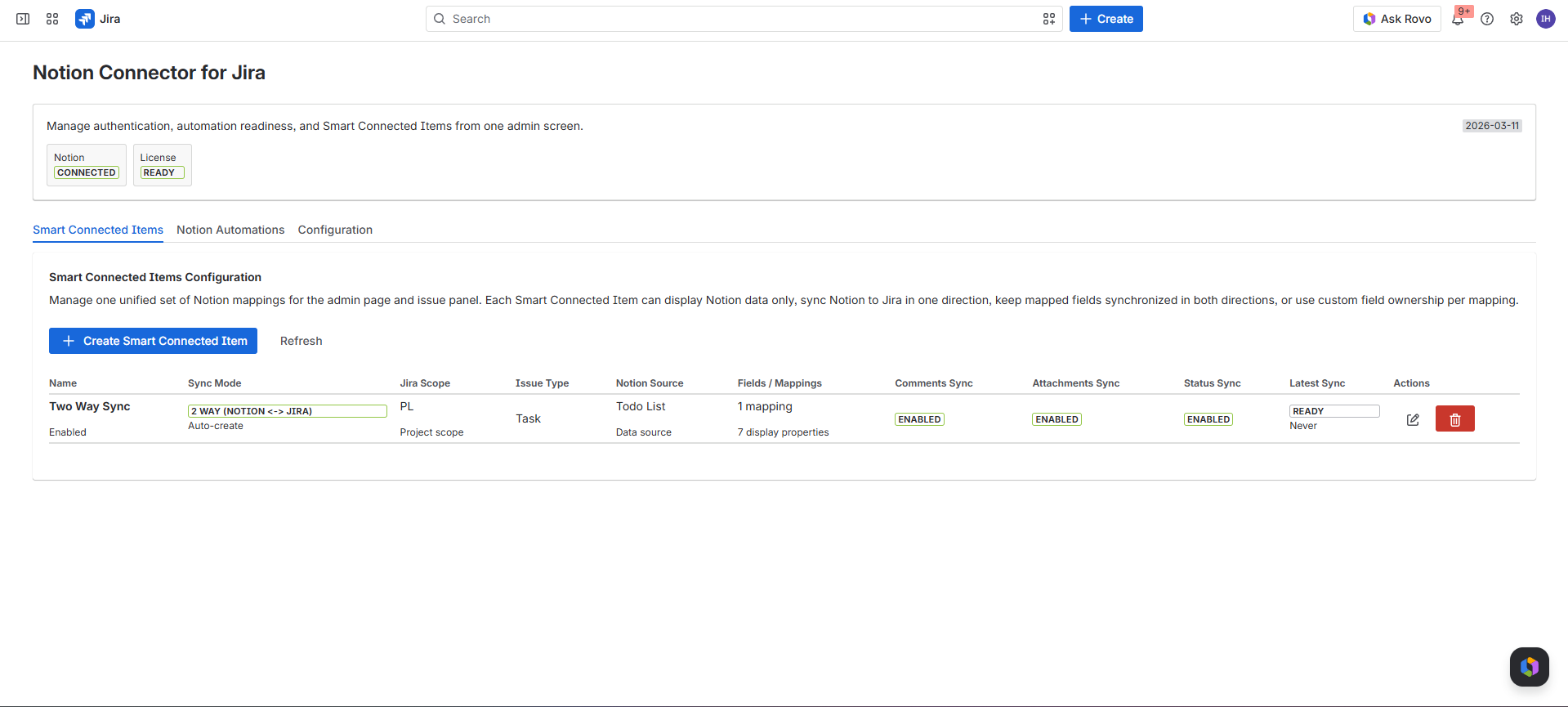
Current sync model in this build
Notion-originated changes are handled by scheduled sync and optional webhooks. Jira-originated issue, comment, and attachment changes are handled by Forge Jira triggers. Manual refresh from the issue panel can force a Notion-to-Jira update for a linked page.
Main Forge modules
- Jira issue panel for users who link, refresh, unlink, preview, and open Notion pages.
- Jira admin page for OAuth, Smart Connected Items, Notion Automations, and configuration.
- Jira workflow post function named Notion workflow action.
- Five-minute scheduled trigger for background synchronization.
- Jira triggers for issue updates, issue creation, comments, and attachments.
- Webtriggers for Notion OAuth callback and optional Notion webhook delivery.
System responsibilities
- Notion OAuth grants access only to pages and data sources selected in the page picker.
- Forge storage keeps Smart Connected Items, automations, issue links, page links, and sync state.
- Forge secret storage is used for OAuth credentials and tokens when available.
- Indexed Jira issue properties expose selected Notion metadata for JQL search.
Terminology
Key terms used in this guide
Smart Connected Item
A reusable mapping between one Jira project and issue type and one Notion source. It controls issue panel display, field sync, status sync, comments, attachments, and optional Jira issue creation from Notion.
Notion source
Either a Notion data source or a single Notion page selected through OAuth. Data sources can support scheduled scans and auto-create behavior; single pages are best for direct display or a stable one-page integration.
Notion Automation
An admin-configured rule that creates a Notion page from Jira issue events such as issue creation or a selected workflow status. It can use a Notion template and add a backlink comment to Jira.
Workflow post function
A Jira workflow action that runs after a transition. It can create and optionally link a Notion page, add a comment to a linked page, or update a Notion page property.
Manual link
A link created by a Jira user from the issue panel. Users can refresh and unlink manual links when the Smart Connected Item still applies to the issue.
Auto-managed link
A link created by automation, such as auto-create from a Notion page or a workflow action. It is owned by the integration and should not be treated as a user-managed relationship.
Admin Guide
Install and permission requirements
Who should install and configure
A Jira site administrator should install the app and complete configuration. The app needs access to Jira work items, project configuration, Jira users, Forge storage, and external Notion endpoints.
- Install or deploy the Forge app to the Jira Cloud site.
- Confirm the Marketplace license status is active when licensing is enforced.
- Open the app admin page from Jira administration.
- Complete Notion OAuth and create at least one Smart Connected Item.
What installation adds to Jira
- An issue panel titled Notion Connector for Jira.
- An admin page with Smart Connected Items, Notion Automations, and Configuration tabs.
- A workflow post function named Notion workflow action.
- Indexed issue metadata under the
notionConnectorMetadataissue property. - Background jobs and triggers that run as the app.
License behavior
The app surfaces a license warning when the Marketplace license is inactive. Write actions are protected by the license guard, while local development can use a license override when needed.
Admin Guide
Notion Developer Portal setup
Create the public connection
- Create a Notion public connection named Notion Connector for Jira.
- Deploy or tunnel the Forge app and run
forge webtrigger. - Copy the URL for
notion-oauth-callback. - Paste that URL into the Notion OAuth redirect URI field.
- Copy the OAuth client ID and client secret for the Jira admin page.
Required Notion capabilities
- Read content.
- Update content.
- Insert content.
- Read comments.
- Insert comments.
- User info only if future marketplace copy or mappings need user display names.
Page picker scope matters
Notion public connections use the OAuth page picker. The connector can search, read, update, and create content only inside the selected pages and data sources.
Admin Guide
Authenticate Notion in the Jira admin page
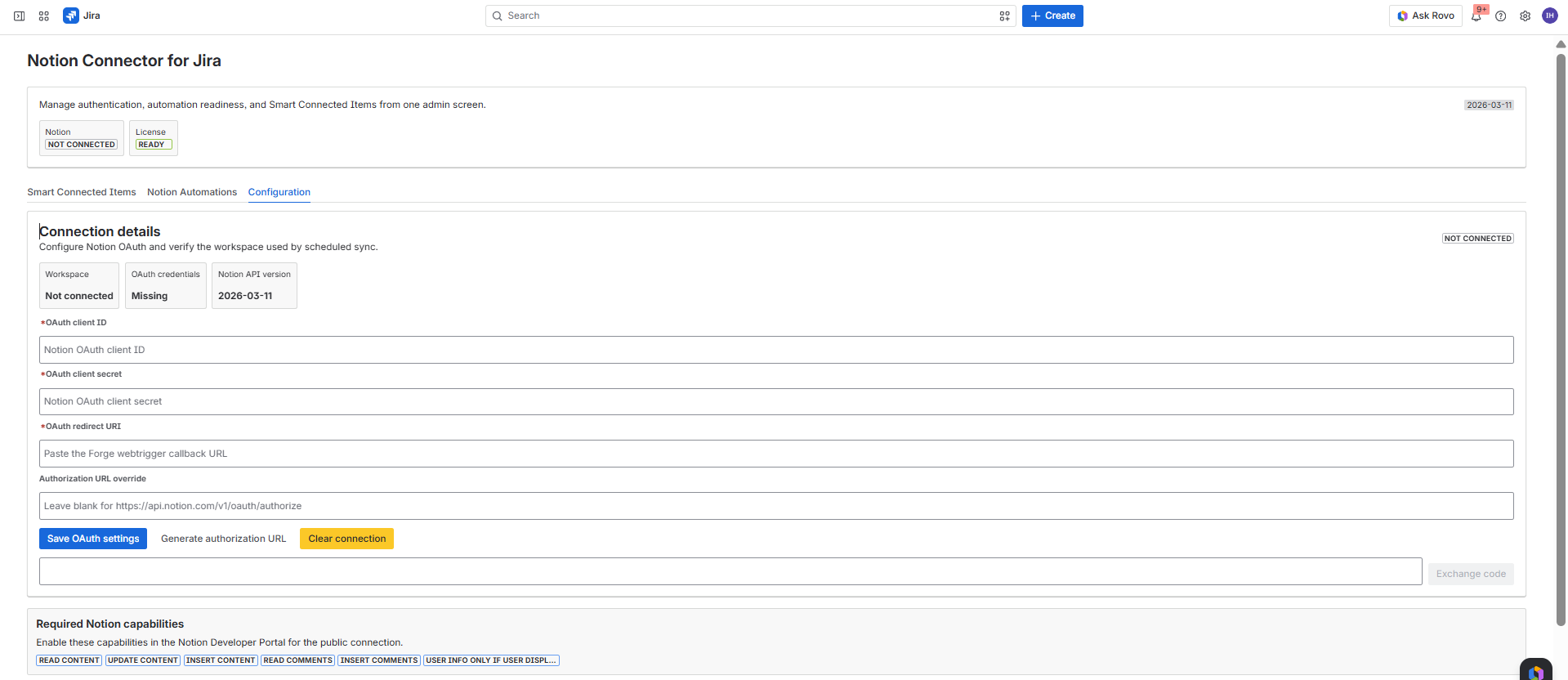
Save OAuth settings
Enter the Notion OAuth client ID, OAuth client secret, and Forge webtrigger redirect URI. The optional authorization URL override can stay empty unless Notion requires a custom authorization endpoint.
Generate the authorization URL
The app creates a state-protected Notion OAuth URL. Open the Notion page picker, choose the workspace content the app can access, and finish the callback.
Exchange the code if needed
If the browser callback does not complete automatically, paste the returned authorization code into the admin page and select Exchange code.
Admin Guide
Create and manage Smart Connected Items
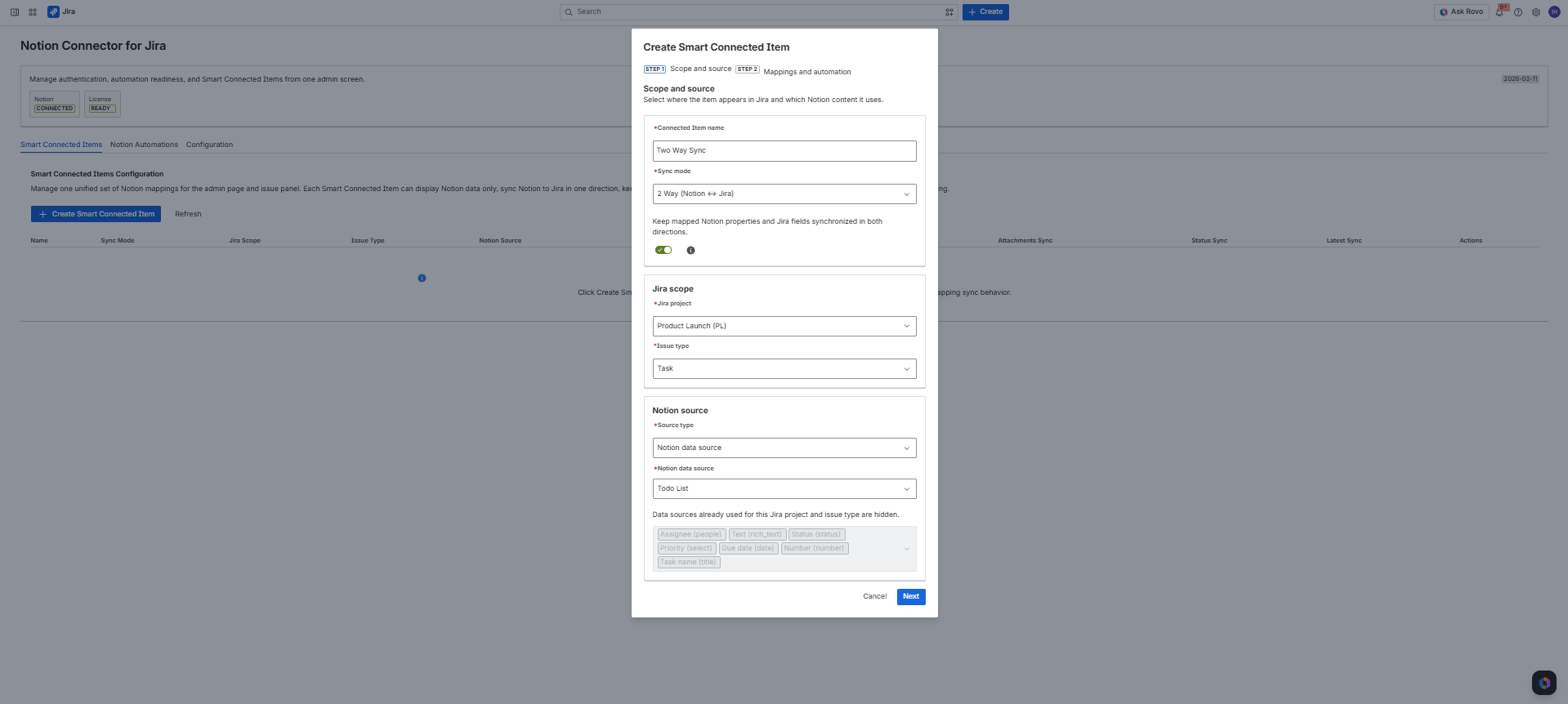
Step 1: scope and source
- Name the Smart Connected Item.
- Choose Display, 1 Way, 2 Way, or Custom Sync per Mapping.
- Select the Jira project and issue type where the item should appear.
- Choose a Notion data source or Notion page.
- Select Notion properties to preview in the issue panel.
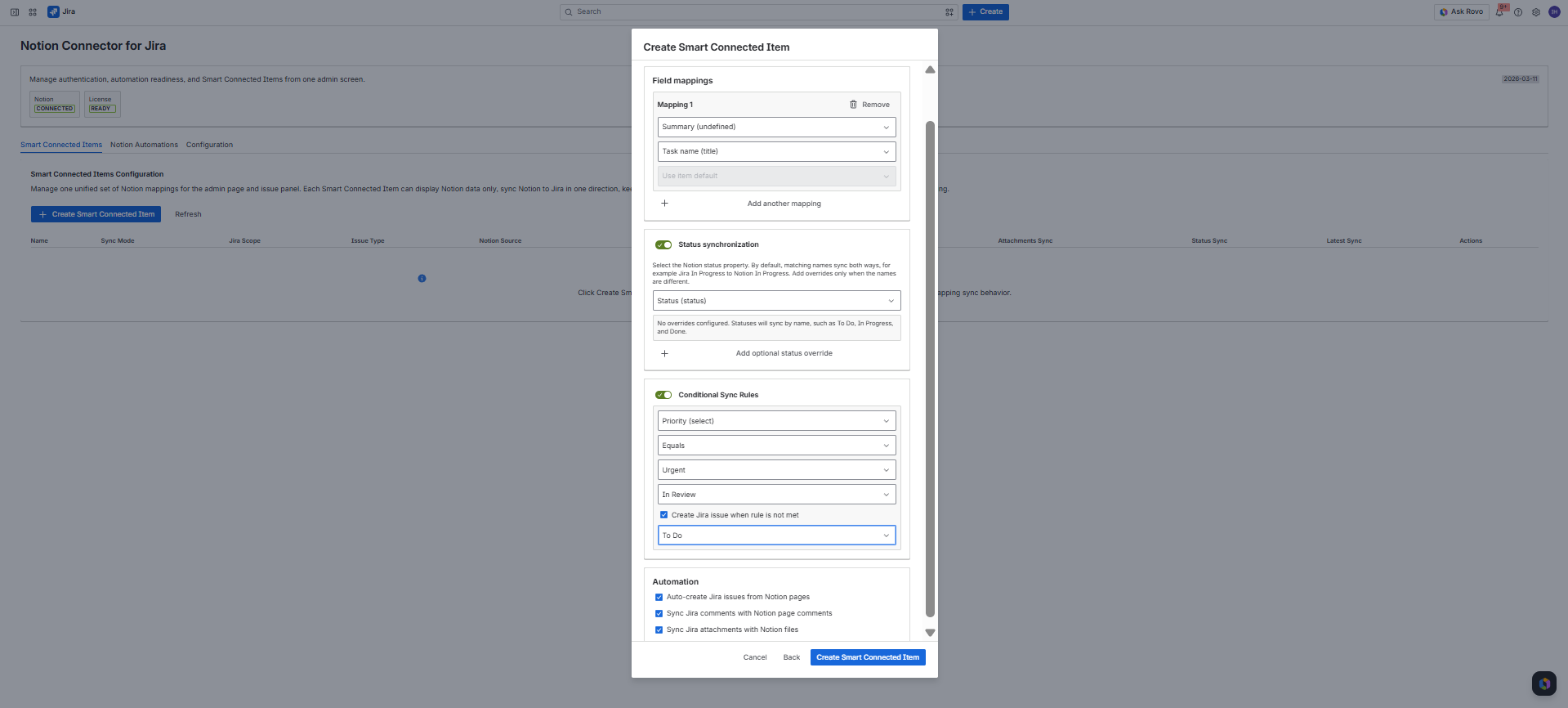
Step 2: mappings and automation
- Map Jira fields to Notion properties.
- Choose field owners when using Custom Sync per Mapping.
- Enable status synchronization and optional status overrides.
- Enable conditional rules, auto-create, comments sync, and attachment sync.
- Save the item and monitor latest sync state in the admin table.
Duplicate source protection
For the same Jira project and issue type, the admin UI hides Notion pages or data sources already used by another Smart Connected Item. This avoids ambiguous matching in the issue panel and scheduled sync.
Admin Guide
Modes and behavior matrix
| Mode | Main behavior | Field direction | Automation options |
|---|---|---|---|
| Display | Shows selected Notion properties in the Jira issue panel after a user links a page. | No field mappings are required. | Auto-create, comments sync, and attachment sync stay off. |
| 1 Way (Notion -> Jira) | Scheduled sync and manual refresh push mapped Notion property values into Jira fields. | Notion is the default owner. | Auto-create, status, comments, and attachments can be enabled where supported. |
| 2 Way (Notion <-> Jira) | Notion changes update Jira and Jira issue changes update Notion. | Both systems participate for mapped fields. | Full synchronized behavior is available. |
| Custom Sync per Mapping | Each field mapping chooses its own owner. | Notion owns, Jira owns, or both own each field. | Useful when one item combines read-only, Jira-owned, and two-way fields. |
Admin Guide
Field mapping rules
Notion values supported for display and sync
- Title and rich text become plain text.
- Number, checkbox, date, URL, email, and phone values are normalized.
- Select, multi-select, and status use option names.
- People values use Notion names or IDs.
- Formula, rollup, created time, edited time, created by, edited by, and unique ID are read for display.
Jira field handling
- Description and textarea-style fields are written as Atlassian Document Format.
- Labels become normalized string arrays.
- Number, date, datetime, boolean, option, priority, component, and version field shapes are handled.
- Complex Jira objects are converted to display names, values, email addresses, or compact JSON fallback text.
Field owner behavior
In Custom Sync per Mapping, a field can be Notion-owned, Jira-owned, or both-owned. In other modes, the item mode supplies the default direction for all mappings.
Admin Guide
Status synchronization
Default behavior
Admins choose a Notion status or select property. By default, the connector matches status names across systems, including common equivalents such as To Do, In Progress, and Done.
Optional overrides
Use overrides when the names differ. For example, a Notion value named Complete can map to a Jira transition whose target status is Done.
Jira transition requirement
Jira status updates use available workflow transitions. If a matching transition is not available from the issue's current status, the connector cannot force that movement.
Admin Guide
Conditional Sync Rules
Rule ingredients
- A Notion property to evaluate.
- An operator: equals, not equals, is empty, is not empty, or contains.
- A value, when the selected operator needs one.
- A Jira status to use when the condition is met.
- An optional fallback status when the condition is not met.
Where rules apply
Rules are evaluated during Notion-to-Jira sync and auto-create checks. They can steer a linked Jira issue into a configured status and can also decide whether unmatched Notion pages should still create Jira issues.
Display mode exception
Conditional rules are disabled for Display Smart Connected Items because Display mode does not run field synchronization or auto-create behavior.
Admin Guide
Comments sync
Jira to Notion
Jira comment events create Notion page comments when the linked Smart Connected Item has comments sync enabled. The connector includes the Jira author display name when available.
Notion to Jira
Scheduled sync and manual refresh can copy eligible Notion page comments into Jira. The app reads comments in pages and stops at the configured sync limit.
Loop prevention
Synced comments include connector markers so a comment created by the integration is not immediately synced back to the source system.
Admin Guide
Attachments sync
Jira to Notion
Jira attachment events download the attachment, upload it through the Notion File Upload API, and add a Notion page comment with the uploaded file and connector marker.
Notion to Jira
Scheduled sync and manual refresh inspect Notion file properties, file-like blocks, and comment attachments. Fetchable files are attached to the linked Jira issue and a Jira notice comment is added.
Signed file URLs
Some Notion-hosted files use signed storage domains. If Forge blocks a fetchable file URL,
add the host to permissions.external.fetch.backend in manifest.yml.
Admin Guide
Notion Automations
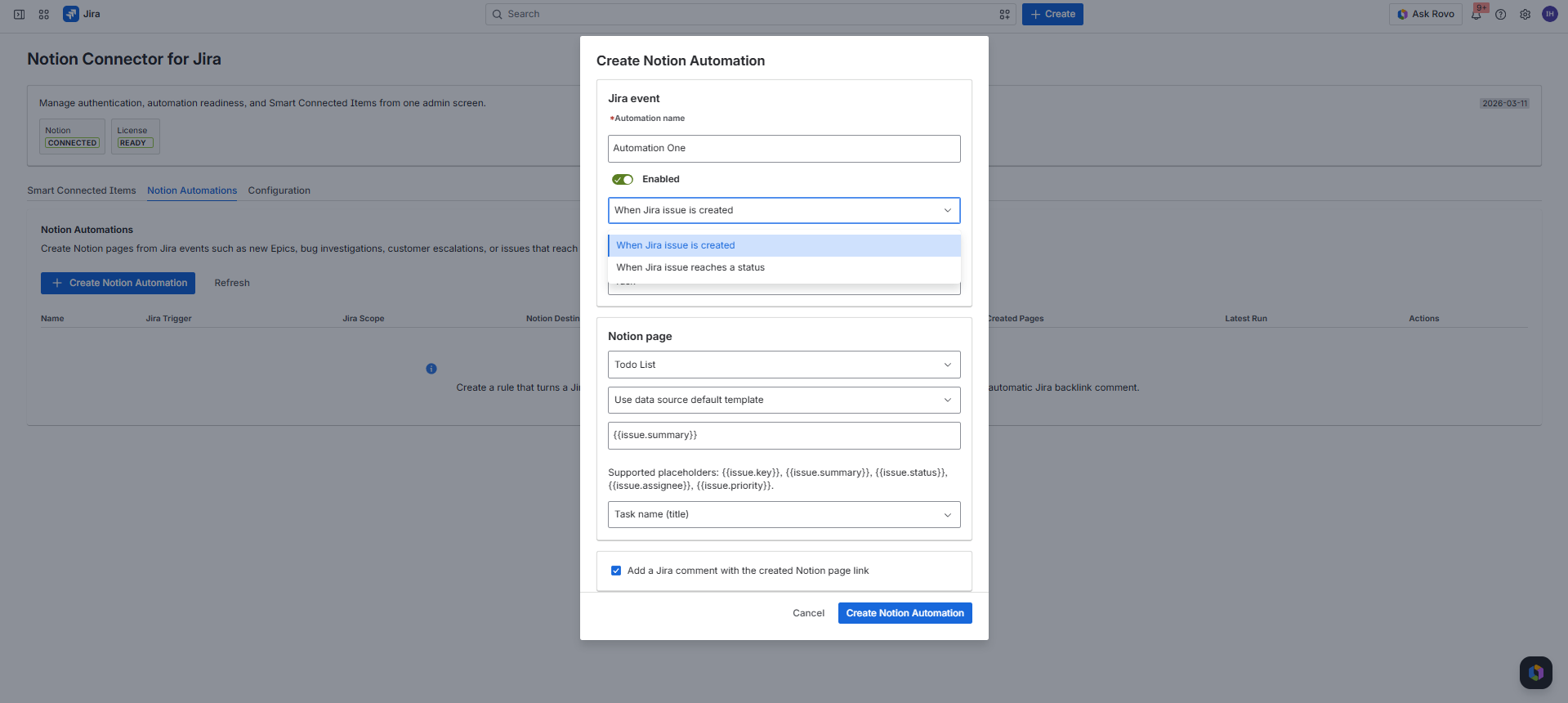
Supported triggers
- When a Jira issue is created.
- When a Jira issue reaches a selected workflow status.
Created Notion page options
- Create in a selected Notion data source.
- Use a selected Notion template or create a blank page.
- Set the Notion title property from a template such as
{{issue.summary}}. - Optionally add a Jira comment containing the created Notion page link.
Duplicate protection
Each automation stores issue-to-page links. If the same automation already created a page for an issue, future matching events skip duplicate page creation.
Admin Guide
Jira workflow post functions
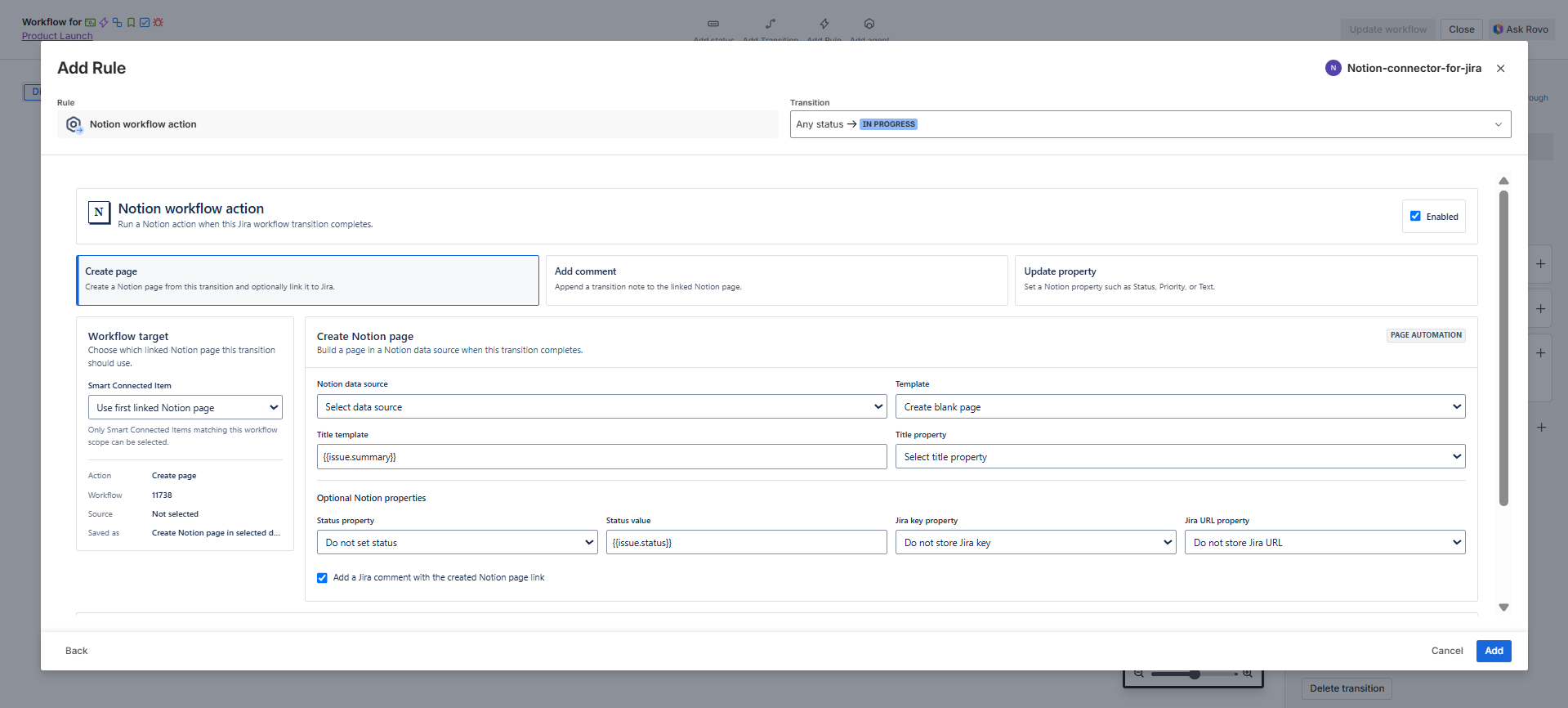
| Action | What it does | Typical use case |
|---|---|---|
| Create page | Creates a Notion page in a selected data source and can link it to a Smart Connected Item. | Create a discovery, PRD, escalation, or handoff page after a transition. |
| Add comment | Appends a transition note to the linked Notion page. | Record workflow milestones or approvals in Notion. |
| Update property | Sets a Notion property such as status, priority, text, URL, date, or checkbox. | Mirror transition outcomes or workflow metadata into Notion. |
Supported placeholders
Templates support issue and project tokens such as {{issue.key}},
{{issue.summary}}, {{issue.status}}, {{issue.assignee}},
{{issue.priority}}, {{issue.type}}, {{issue.url}},
{{project.key}}, {{project.name}}, and {{transition.name}}.
Jira User Guide
Issue panel overview
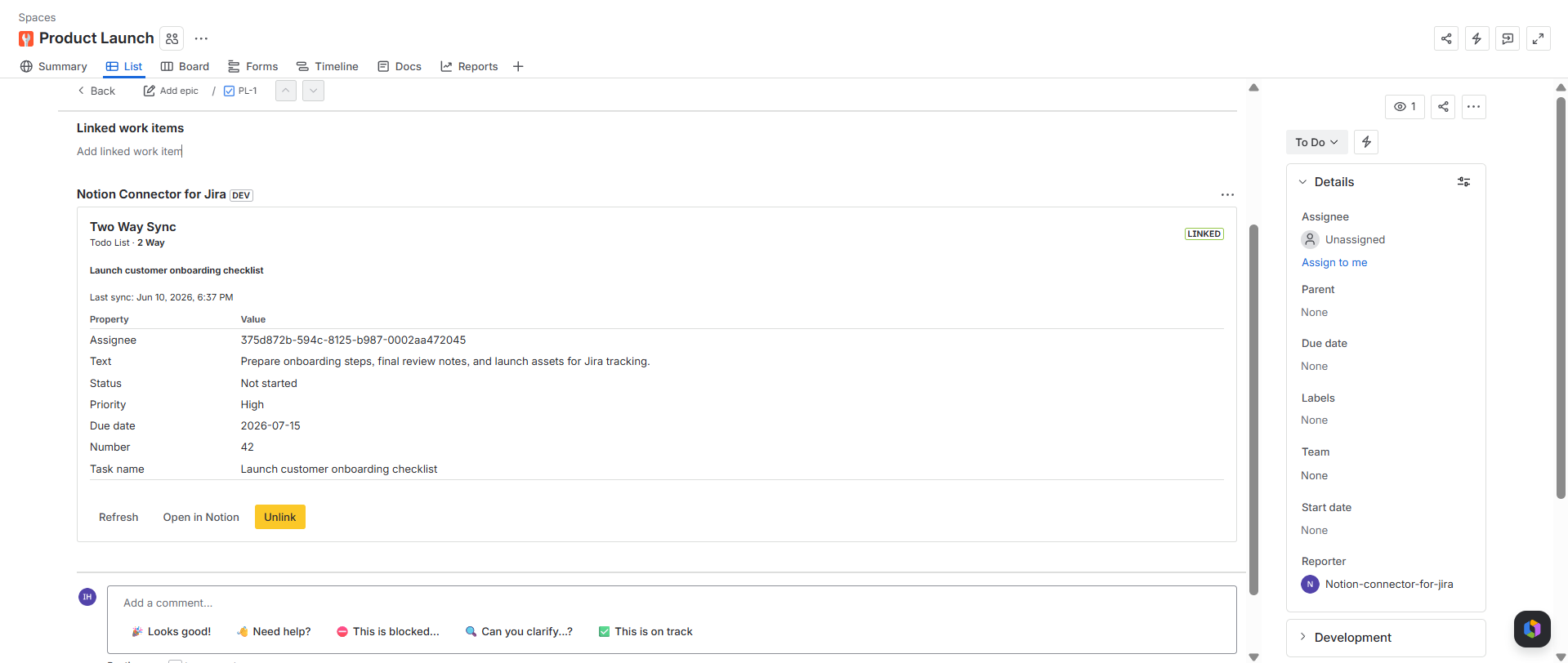
What Jira users see
- Smart Connected Items that apply to the current Jira project and issue type.
- Warnings when Notion OAuth, licensing, scheduled sync, or link sync needs attention.
- The linked Notion page title, preview properties, and last sync timestamp.
- Actions to refresh, open in Notion, unlink, or search and link a page.
What determines visibility
The panel only shows enabled Smart Connected Items that match the current issue's Jira project key and issue type ID. If no matching item exists, the panel shows an empty state.
Jira User Guide
Link, refresh, and unlink Notion pages
Search and link
Users can search pages shared through the Notion OAuth page picker. They can select a result or paste a Notion page ID, then link it to the Jira issue.
Refresh
Refresh pulls the latest Notion page data into the issue panel. For synchronized items, it also applies eligible Notion-to-Jira field, status, comment, and attachment updates.
Unlink
Unlink removes the stored Jira issue to Notion page relationship. It does not delete the Jira issue and it does not delete the Notion page.
Jira User Guide
Auto-managed links
When they are created
Auto-managed links are created when the connector creates Jira issues from Notion pages, when Notion Automations create pages for Jira events, or when workflow post functions create and link Notion pages.
How users should treat them
Auto-managed links represent automation-owned relationships. Users should use the issue panel to inspect or open the Notion page, while admins adjust the responsible automation or Smart Connected Item when behavior needs to change.
Jira User Guide
Searchable Notion metadata in Jira
| Alias | Purpose | Example search idea |
|---|---|---|
notionLinked |
Tracks whether an issue has one or more Notion links. | notionLinked = "true" |
notionLinkCount |
Stores the number of linked Notion pages on the Jira issue. | notionLinkCount > 1 |
notionPageTitle |
Indexes linked Notion page titles. | notionPageTitle ~ "roadmap" |
notionPageId |
Stores the primary linked Notion page ID. | Find a Jira issue connected to a known Notion page ID. |
notionPageUrl |
Stores the primary linked Notion page URL. | Find issues that reference a specific Notion page URL. |
notionDataSource |
Stores the primary source data source or page label. | Find issues linked to a specific Notion workspace area. |
notionDataSources |
Indexes all linked Notion source labels on the issue. | notionDataSources ~ "Roadmap" |
notionStatus |
Stores the primary linked Notion status metadata when available. | notionStatus = "In progress" |
notionStatuses |
Indexes all linked Notion status values on the issue. | notionStatuses ~ "Blocked" |
notionPriority |
Stores the primary linked Notion priority value when available. | notionPriority = "High" |
notionPriorities |
Indexes all linked Notion priority values on the issue. | notionPriorities ~ "High" |
notionAssignee |
Indexes assignee, owner, or people metadata from linked Notion pages. | notionAssignee ~ "Alex" |
notionDueDate |
Stores the primary linked Notion due date, due, or deadline value. | notionDueDate >= "2026-06-01" |
notionNumber |
Stores the primary linked Notion number metadata value. | notionNumber > 10 |
notionText |
Indexes selected text, notes, or description metadata from linked Notion pages. | notionText ~ "customer" |
notionTags |
Indexes tags, tag, labels, or label metadata from linked Notion pages. | notionTags ~ "Enterprise" |
notionArchived |
Tracks whether any linked Notion page is archived. | notionArchived = "false" |
notionCreatedTime |
Stores the latest Notion created timestamp from linked pages. | notionCreatedTime >= "2026-01-01" |
notionSmartItem |
Indexes the Smart Connected Item names responsible for the links. | notionSmartItem ~ "Roadmap" |
notionLastEdited |
Stores the last edited timestamp from Notion. | Find linked issues changed recently in Notion. |
notionMetadataSynced |
Stores when the Jira searchable Notion metadata was last written. | Find issues whose Notion metadata was refreshed recently. |
Reindexing note
Jira may need time to index app-defined entity properties before every JQL alias is searchable.
Operations
Storage and security model
Stored configuration
- OAuth status, workspace identity, redirect URI, and authorization settings.
- Smart Connected Item definitions and sync state.
- Notion Automation definitions and created page links.
- Issue-to-page link records and page-to-issue reverse lookup records.
- Comment, attachment, field, status, error, and webhook processing state.
Secret and API handling
- Client IDs, client secrets, access tokens, and refresh tokens use Forge secret APIs where available.
- The Notion client sends
Notion-Version: 2026-03-11on API calls. - Expired access tokens are refreshed when Notion returns an authorization failure and a refresh token exists.
- Notion rate-limit responses with
Retry-Afterare retried with bounded backoff.
Operations
Permission and scope reference
Jira and Forge scopes
read:jira-workfor reading issues, fields, comments, and attachments.write:jira-workfor updating issues, transitions, comments, and attachments.manage:jira-projectandmanage:jira-configurationfor project and admin setup.read:jira-userfor user display context.storage:appfor Forge app storage and sync state.
External fetch domains
https://api.notion.comandhttps://www.notion.so.https://file.notion.so,https://attachment.notion.so, andhttps://secure.notion-static.com.- Configured S3 domains used by Notion-hosted file URLs.
- Additional signed file hosts may need to be added for specific Notion workspaces.
Operations
Troubleshooting guide
The Jira admin page shows Notion is not connected
Confirm the OAuth client ID, OAuth client secret, redirect URI, and Notion connection settings. Reopen the authorization URL and make sure the required pages and data sources are selected in the Notion page picker.
No Notion data sources or pages appear in the picker
Confirm the content was shared through the OAuth page picker and that the public connection has the required content capabilities. Reauthorize if the selected workspace content changed.
No Smart Connected Items appear in the issue panel
Verify the Smart Connected Item is enabled and that its Jira project key and issue type ID match the current issue. Also confirm the app license and Notion OAuth connection are valid.
Fields or statuses are not syncing
Check the sync mode, field owner direction, field mappings, and status sync property. For Jira status changes, confirm the target status is reachable through the issue's current workflow transitions.
Attachments are skipped
Check the file size, Notion signed URL host, and Forge external fetch permissions. The admin and issue panel surfaces store recent attachment sync errors on the link state.
A Notion Automation did not create a page
Validate the automation is enabled, the issue project and issue type match, the selected status trigger was reached, the Notion data source is available, and a required template or title property was selected.
Operations
Known limits in this connector build
Scheduled Notion polling
Notion-to-Jira background updates depend on the five-minute scheduled trigger unless a Notion webhook subscription is configured and delivered successfully.
Changed page scan ceiling
Each scheduled run scans up to 500 changed pages per Smart Connected Item data source.
Comment sync ceiling
Comment synchronization reads up to 300 comments per linked page or issue during a sync pass.
Attachment size limit
Files over 10 MB are treated as unsupported when detected and may be skipped or recorded as attachment sync errors.
No deletion mirroring
Comment deletion, attachment deletion, Jira issue deletion, and Notion page deletion are not mirrored between systems in this build.
Display mode is read-focused
Display Smart Connected Items do not run field mappings, auto-create, comments sync, or attachment sync.
Operations