Configure AI providers, global thresholds, access, privacy, and project workspaces.
Documentation package updated May 14, 2026
Administrator and user guide for ATLAI: AI for Atlassian Jira
ATLAI helps Jira and Jira Service Management teams classify issues, route work, assess escalation risk, answer issue questions, generate case artifacts, plan sprints, inspect sprint scope, and produce release notes using a customer-managed AI provider.
Jira Cloud
Jira Service Management
Forge app
Customer-managed AI provider
Command centers
Review confidence, apply suggestions, rerun triage, dismiss output, and generate plans.
Ask questions, draft replies, create subtasks, analyze documents, and save summaries.
Create sprint plans, inspect scope, generate work items from documents, and write release notes.
Audience
Who uses ATLAI
Jira administrator
Installs the app, connects the AI provider, defines global settings, controls access, and monitors provider health, routing quality, and retention posture.
Project administrator or service owner
Enables project workspaces, selects AI-managed fields, creates queues and pools, defines override rules, and tunes escalation policy for the project.
Support agent or issue owner
Uses the issue Command Center, Ask ATLAI, Case Summary Studio, and ATLAI Activities to understand the issue, apply suggestions, produce updates, and document work.
Manager, scrum master, or delivery lead
Uses the Project Command Center, Sprint Planning Assistant, Sprint Studio, release notes, and sprint inspection to manage risk and delivery flow.
Fast Path
End-to-end setup and usage flow
Connect an AI provider
Open the ATLAI admin workspace, go to Settings, select OpenAI, Azure OpenAI, Anthropic Claude, or Google Gemini, enter the model settings and API key, test the connection, then save and activate the provider.
Set global controls
Configure access groups, allowed projects, confidence thresholds, fallback policy, privacy masking, and retention windows before enabling automation.
Enable a project workspace
Choose a Jira project, enable AI triage, add project routing guidance, select AI-managed fields, and save the workspace.
Define routing and risk policy
Create assignment pools, routing queues, deterministic override rules, and Escalation Intelligence settings for SLA, sentiment, urgency, and customer impact.
Use the issue centers
When ATLAI processes an issue, agents review the issue Command Center, apply or dismiss suggestions, ask questions in Ask ATLAI, and review history in ATLAI Activities.
Use agile and management centers
Managers use the Project Command Center, Sprint Planning Assistant, Sprint Studio, release notes, and sprint inspection to make operational and delivery decisions.
Architecture
How ATLAI works
Runtime model
- ATLAI runs as an Atlassian Forge app.
- Provider calls run from server-side Forge functions, not from the browser.
- Issue creation events can enqueue triage jobs for enabled projects.
- Issue update events capture feedback such as accepted, corrected, or overridden suggestions.
- Scheduled jobs handle SQL migration and retention maintenance.
Data model
- Provider API keys are stored in Forge secret storage.
- Installation settings, provider metadata, project settings, and issue summary state are stored in Forge KVS.
- Triage history, audit events, feedback, analytics, idempotency records, and duplicate signals are stored in Forge SQL.
- Only the selected customer-managed AI provider receives the minimum required issue context.
Command center design principle
ATLAI separates classification from resolution. Triage decides what Jira fields and routes should change. Resolution centers explain operational risk, missing information, recommended human actions, customer communication, and handover needs.
Admin Guide
Admin workspace navigation
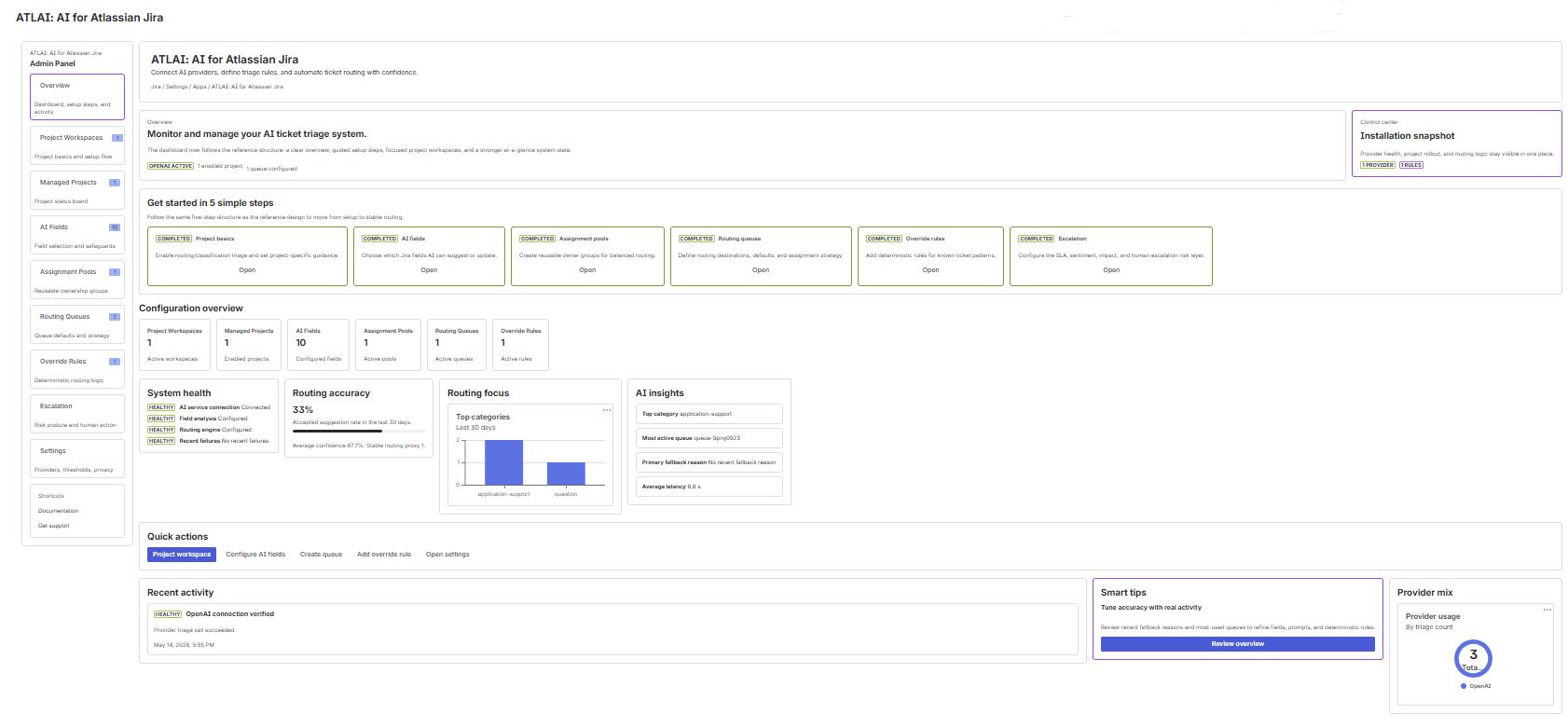
Overview
Project Workspaces
Managed Projects
AI Fields
Assignment Pools
Routing Queues
Override Rules
Escalation
Settings
What the Overview page tells admins
- Setup progress and next recommended step.
- Installation snapshot: provider health, project rollout, and routing logic status.
- Configuration counts for workspaces, projects, fields, pools, queues, and rules.
- System health, routing accuracy, top categories, AI insights, recent activity, and provider mix.
Admin Guide
Configure the provider connection
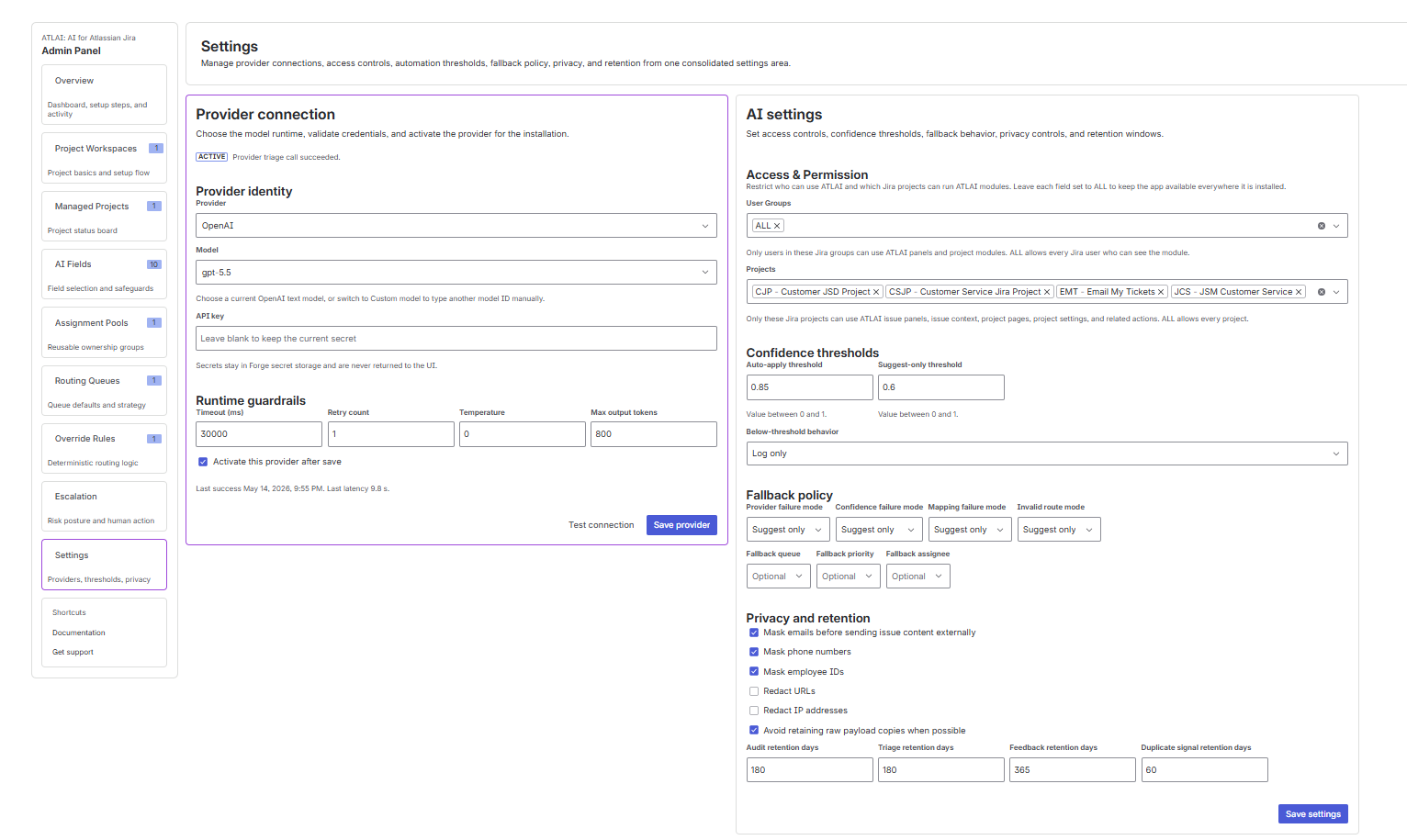
Open Settings
From the ATLAI Admin Panel, select Settings, then locate Provider connection.
Select the provider
Choose OpenAI, Azure OpenAI, Anthropic Claude, or Google Gemini. The provider list controls which model and endpoint fields appear.
Choose or enter a model
Select a model from the catalog or choose the custom model option when your provider has a newer, regional, or preview model ID.
Enter provider-specific fields
For Azure OpenAI, enter the endpoint, deployment name, and API version. For other providers, enter the model and runtime controls.
Enter or rotate the API key
Paste the API key. Leave the field blank when saving non-secret settings and keeping the current stored secret.
Test and save
Click Test connection. After a successful test, enable Activate this provider after save and click Save provider.
| Runtime setting | Purpose | Typical starting value |
|---|---|---|
| Timeout | Maximum wait time for provider responses before failure handling starts. | 30000 ms |
| Retry count | Number of retry attempts for transient provider or network failures. | 1 |
| Temperature | Controls output variability. Triage should remain deterministic. | 0 |
| Max output tokens | Caps provider response size for predictable runtime and cost control. | 800 |
Admin Guide
Configure AI settings, access, thresholds, and fallback policy
Access and permission
- Open Settings.
- Under Access & Permission, select Jira user groups allowed to use ATLAI.
- Select Jira projects allowed to use issue panels, issue context, project pages, and project settings.
- Leave a field as ALL only when every visible user or project should be allowed.
Confidence thresholds
- Auto-apply threshold: results at or above this score can be written to Jira automatically.
- Suggest-only threshold: results at or above this score are shown to users for review.
- Below-threshold behavior: low confidence can be logged or routed through fallback policy.
| Fallback area | What it controls | Available behavior |
|---|---|---|
| Provider failure | The AI provider fails, times out, or cannot be reached. | Log only, suggest only, or fallback route. |
| Confidence failure | The provider responds, but confidence is below configured policy. | Log only, suggest only, or fallback route. |
| Mapping failure | AI suggests a value that cannot be safely mapped to Jira metadata. | Log only, suggest only, or fallback route. |
| Invalid route | Queue, assignee, or route target is not valid for the project. | Log only, suggest only, or fallback route. |
Admin Guide
Privacy and retention controls
Mask emails
Replaces email-like values before issue content is sent to the selected AI provider.
Mask phone numbers
Reduces exposure of phone numbers in summaries, descriptions, and comments used as context.
Mask employee IDs
Redacts employee or account-like identifiers that match the configured masking logic.
URL and IP redaction
Optionally redacts URLs and IP addresses before external AI processing.
No-retention payload mode
Avoids retaining raw payload copies when possible and keeps only operational records, normalized output, audit-safe summaries, hashes, and tokenized duplicate signals.
Retention windows
Controls how long audit events, triage history, feedback events, and duplicate signal records stay in Forge SQL.
Admin Guide
Review managed projects
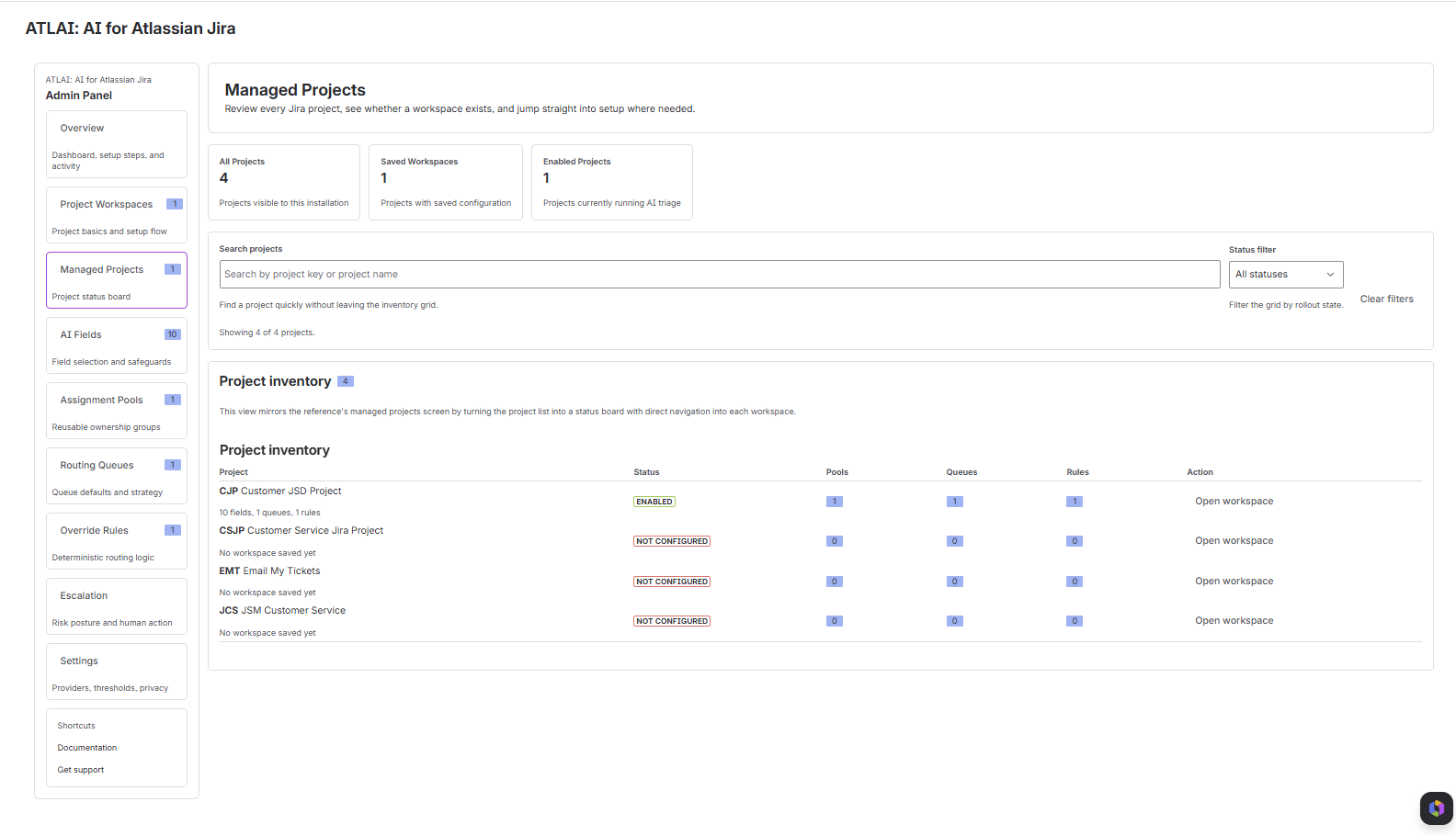
Open Managed Projects
Use this page to see all Jira projects visible to the app installation.
Search or filter
Search by project key or project name. Use the status filter to show all projects, not configured projects, saved workspaces, or enabled projects.
Review rollout state
Check whether the project is enabled, how many pools, queues, and rules exist, and whether a workspace has been saved.
Open workspace
Click Open workspace to configure or update that project.
Project Workspace
Project basics
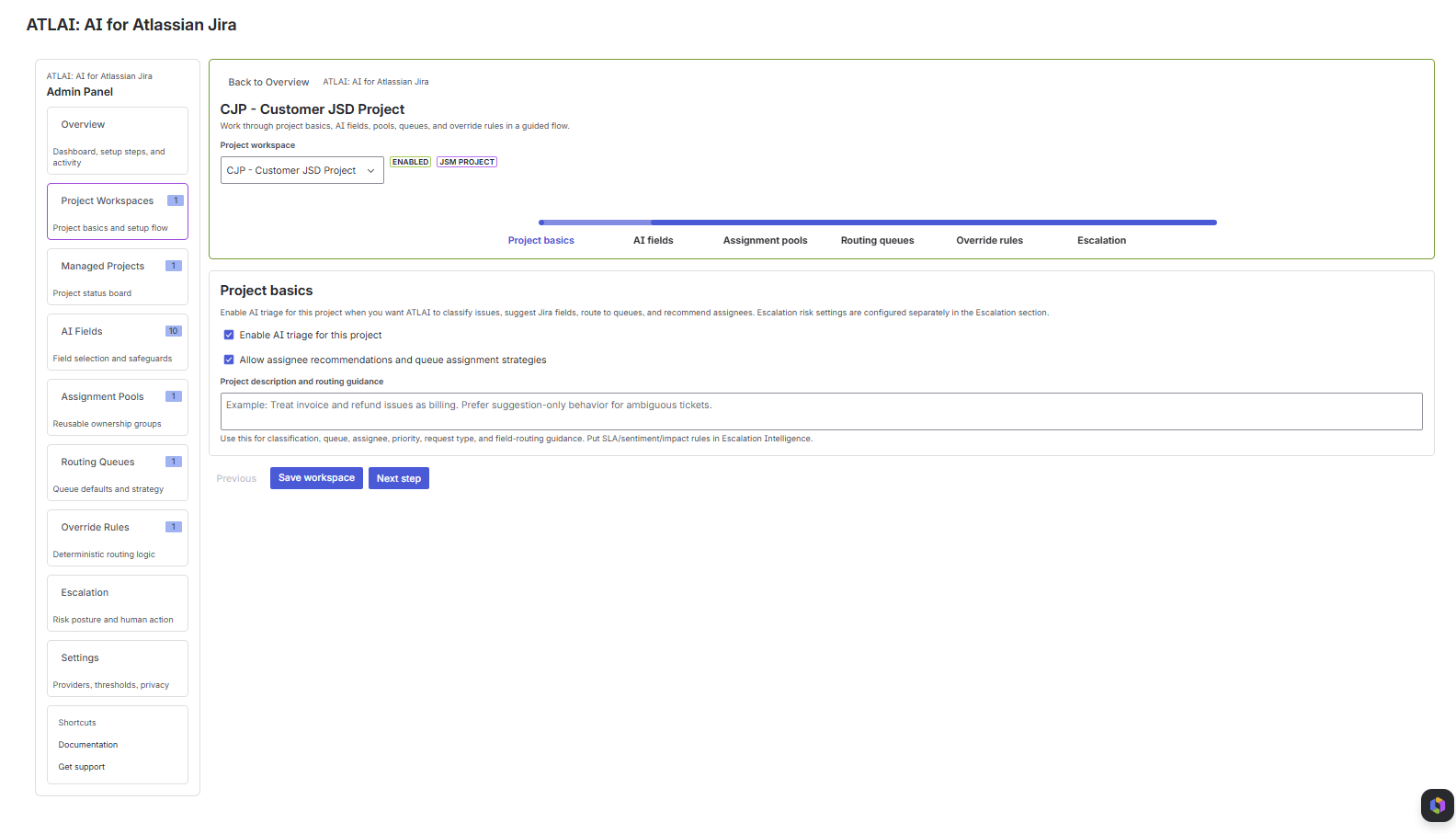
Configuration steps
- Open a project workspace.
- Enable AI triage for this project.
- Enable assignee recommendations and queue assignment strategies if ATLAI should recommend ownership.
- Add project description and routing guidance.
- Click Save workspace, then continue to the next step.
What to write in routing guidance
- Project-specific terminology and product areas.
- How categories, request types, components, and queues should be interpreted.
- When ambiguous tickets should remain suggestion-only.
- Which issues should go to support, engineering, billing, security, or incident teams.
Project Workspace
AI Fields
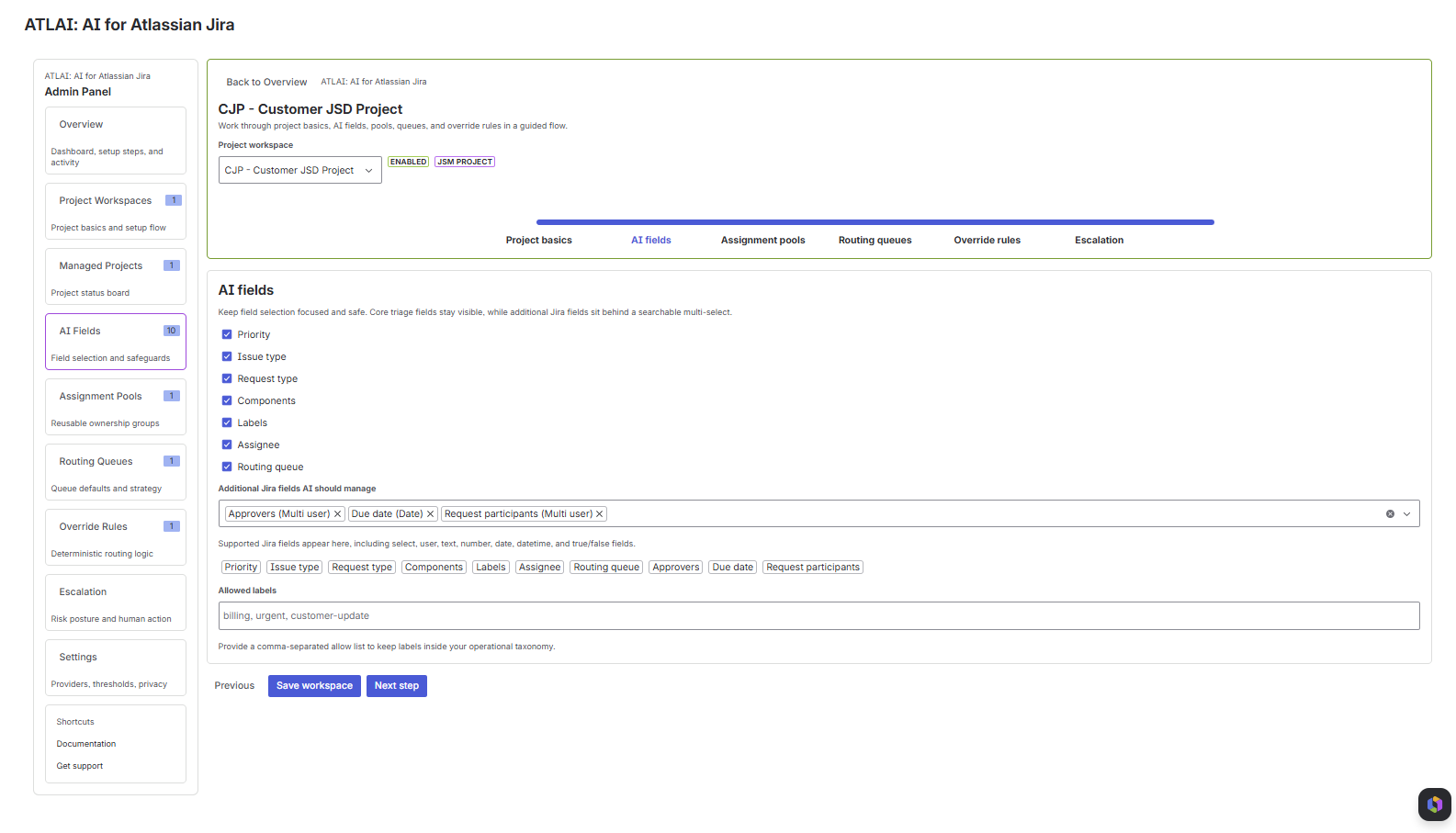
Core fields
ATLAI can suggest or update selected core fields only when the admin allows them.
- Priority
- Issue type
- Request type
- Components
- Labels
- Assignee
- Routing queue
Additional Jira fields
Supported additional Jira fields appear in a searchable multi-select.
- Single-select and multi-select fields
- User and multi-user fields
- Text and long-text fields
- Number fields
- Date and datetime fields
- Boolean fields
Best practice
Start with a small field set, observe suggestion quality, then add more fields. Keep
allowed labels aligned with your operational taxonomy, such as billing,
urgent, or customer-update.
Project Workspace
Assignment pools
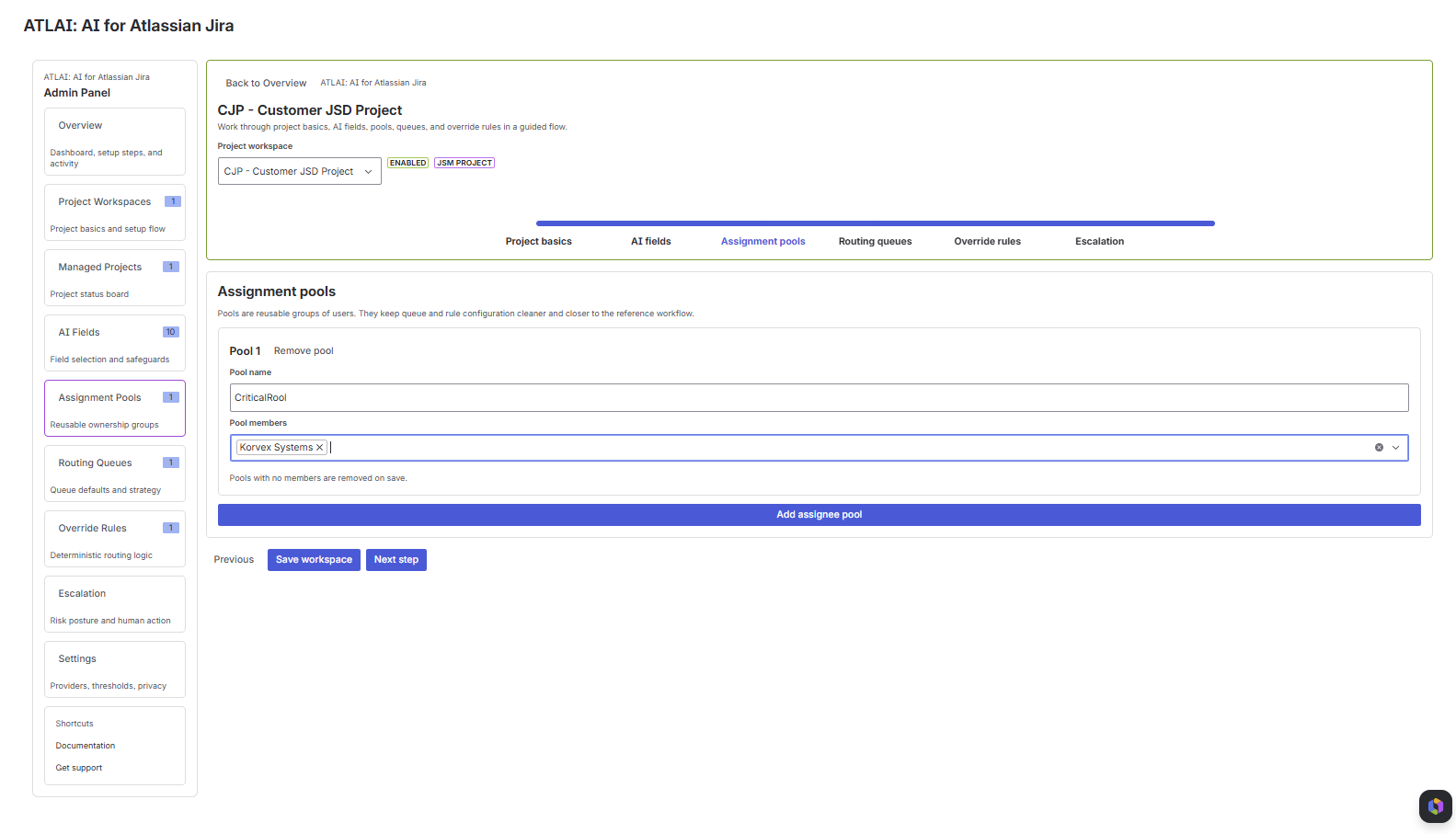
Create a pool
Click Add assignee pool and provide a clear pool name, such as Support Tier 1, Billing, or Critical Response.
Add members
Select assignable Jira users. Pools with no members are removed on save.
Use the pool in queues or rules
Choose the pool from a routing queue or override rule when round-robin or least-loaded assignment should use that group.
Project Workspace
Routing queues
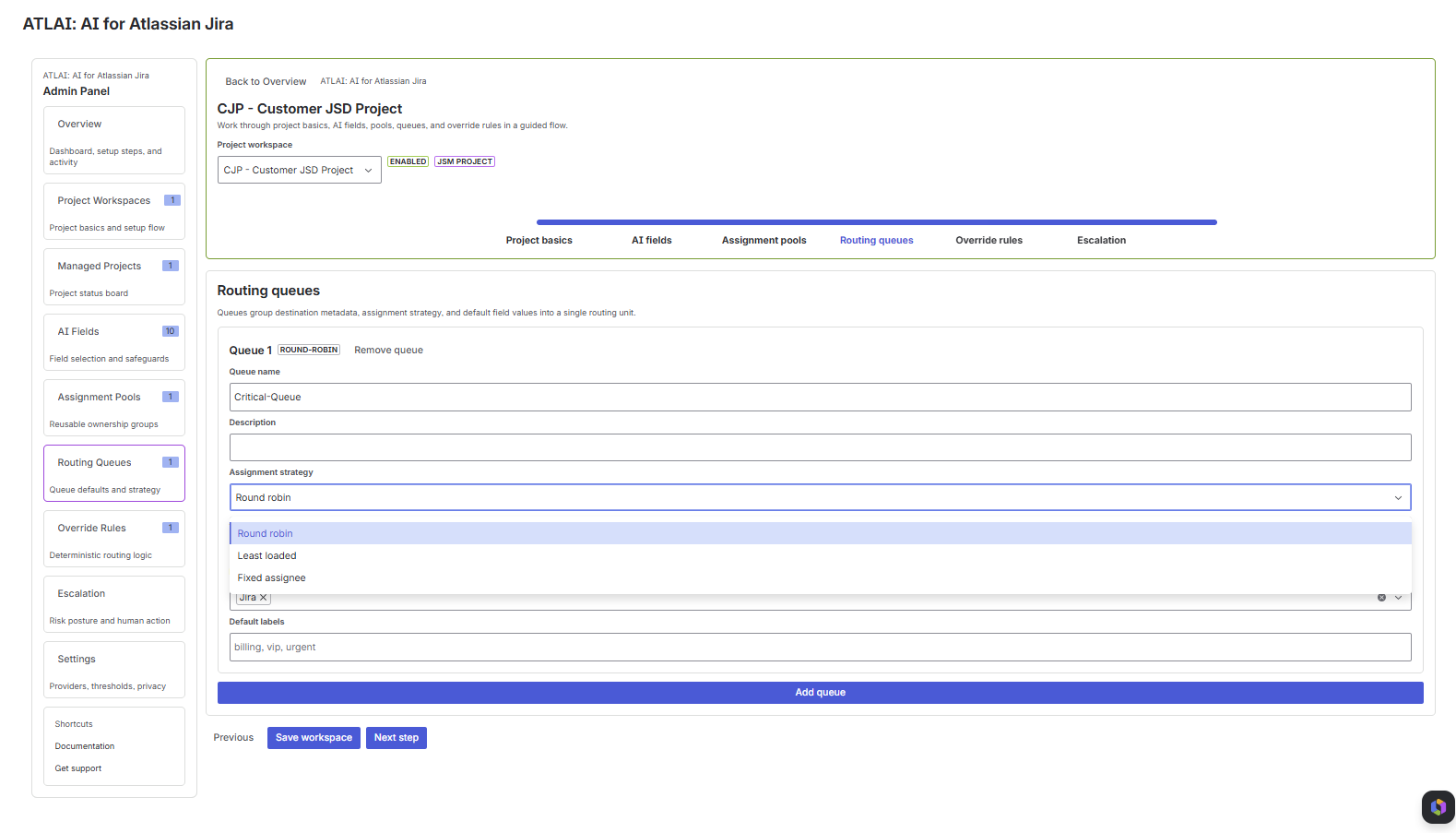
Queue fields
- Queue name: reusable destination name shown in ATLAI.
- Description: what belongs in this queue and when to use it.
- Assignment strategy: round robin, least loaded, or fixed assignee.
- Assignee pool: selected when the strategy needs a reusable group.
- Default components and labels: values added when this queue is selected.
How ATLAI uses queues
Native Jira Service Management queues are views, not directly writable issue fields. ATLAI therefore stores queue intent in its own state and safely expresses routing through allowed editable Jira fields such as assignee, priority, issue type, request type, labels, and components.
Project Workspace
Override rules
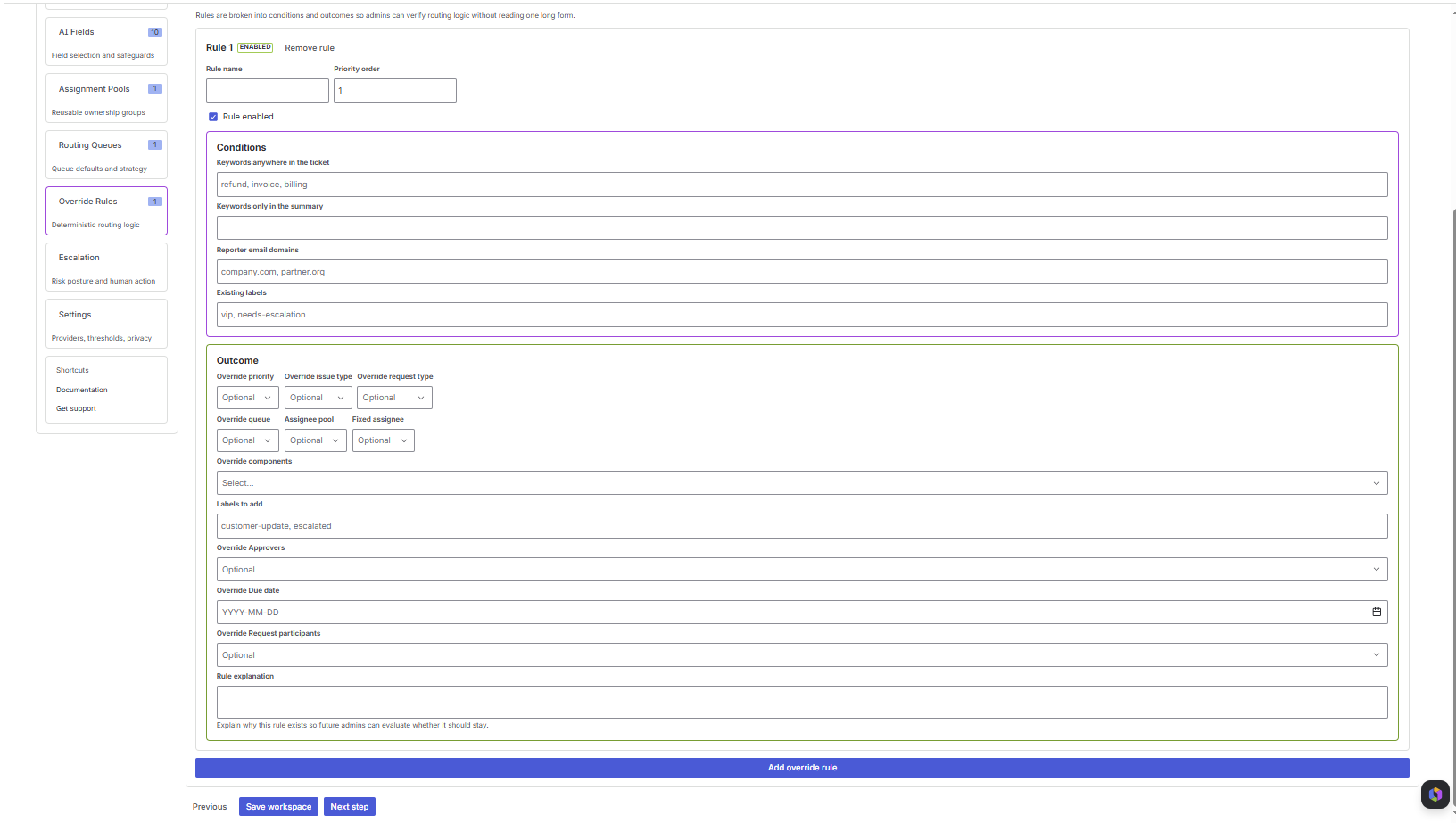
Rule conditions
- Keywords anywhere in the ticket
- Keywords only in the issue summary
- Reporter email domains
- Existing Jira labels
Rule outcomes
- Override priority, issue type, request type, queue, pool, or assignee.
- Add labels and components.
- Override selected additional Jira fields.
- Record a rule explanation for future admins.
When to use rules
Use rules for business logic that must be deterministic, such as all invoice and refund tickets going to Billing, VIP domains going to a customer-success route, or incident labels forcing escalation review.
Project Workspace
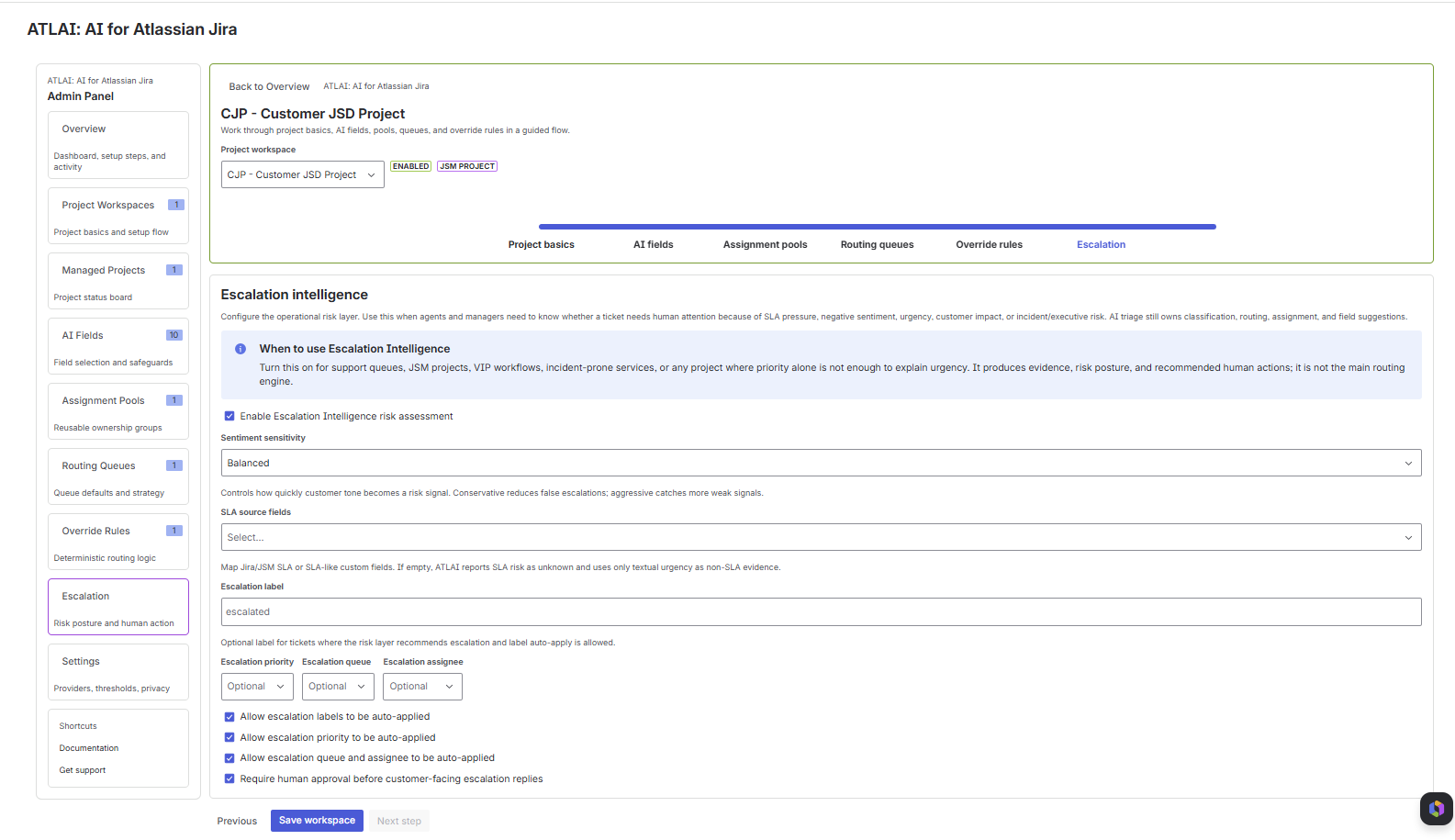
Escalation Intelligence configuration
Enable the risk assessment
Turn on Enable Escalation Intelligence risk assessment for support queues, VIP workflows, incident-prone services, or SLA-driven projects.
Select sentiment sensitivity
Use conservative to reduce false escalations, balanced for normal support operations, and aggressive when weak risk signals must be caught early.
Map SLA source fields
Select Jira or JSM SLA fields. If no SLA fields are mapped, ATLAI reports SLA risk as unknown and uses textual urgency as non-SLA evidence.
Define escalation outputs
Optionally set an escalation label, escalation priority, escalation queue, and escalation assignee.
Control auto-apply behavior
Choose whether escalation labels, priority, queue, and assignee can be auto-applied. Keep customer-facing escalation replies behind human approval when needed.
User Guide
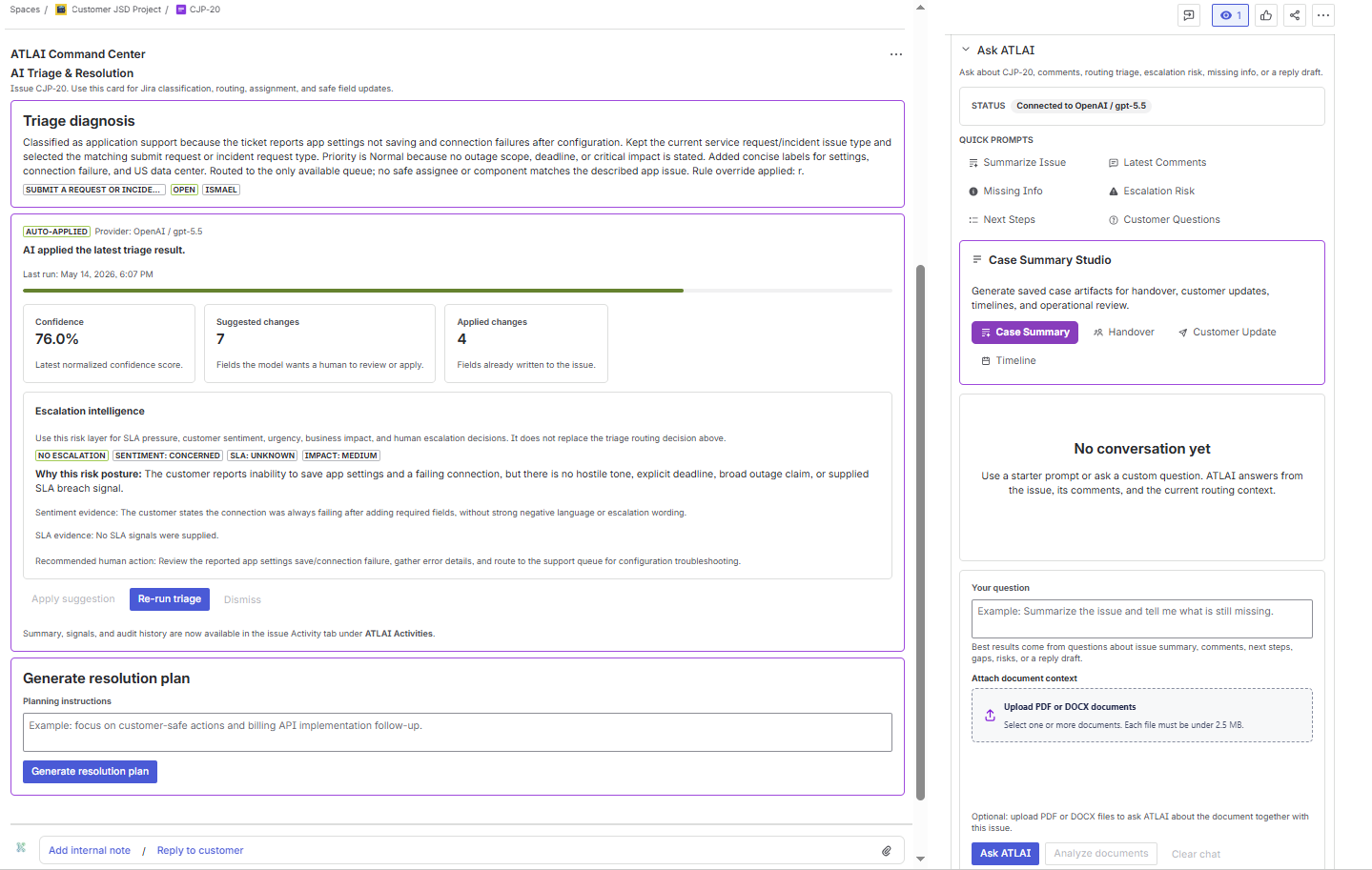
ATLAI Command Center on a Jira issue
What users see
- Triage diagnosis and explanation.
- ATLAI status: pending, auto-applied, suggested, fallback, failed, or dismissed.
- Provider and model used for the latest run.
- Confidence progress bar.
- Suggested changes and applied changes counts.
- Escalation Intelligence evidence and recommended human action.
- Resolution plan generator.
Primary actions
- Apply suggestion: writes suggested fields to Jira when a suggestion is available.
- Re-run triage: queues a fresh AI triage run for the current issue.
- Dismiss: rejects the suggestion and optionally records a reason.
- Generate resolution plan: creates a structured plan for diagnosis, gaps, actions, communication, handover, and evidence.
User Guide
AI Triage and Resolution workflow
| Status | Meaning | User action |
|---|---|---|
| Pending | ATLAI has queued or started a triage run. | Wait for completion or refresh the issue later. |
| Auto-applied | Confidence met the auto-apply threshold and allowed fields were written to Jira. | Review the applied fields and escalation evidence. |
| Suggested | ATLAI prepared field updates for human review. | Apply, dismiss, or rerun triage. |
| Fallback | Fallback policy was used because confidence, mapping, provider, or route safety did not meet policy. | Review the fallback reason and correct the issue manually if needed. |
| Dismissed | A user rejected the suggestion. | Use Ask ATLAI or rerun triage after issue context changes. |
User Guide
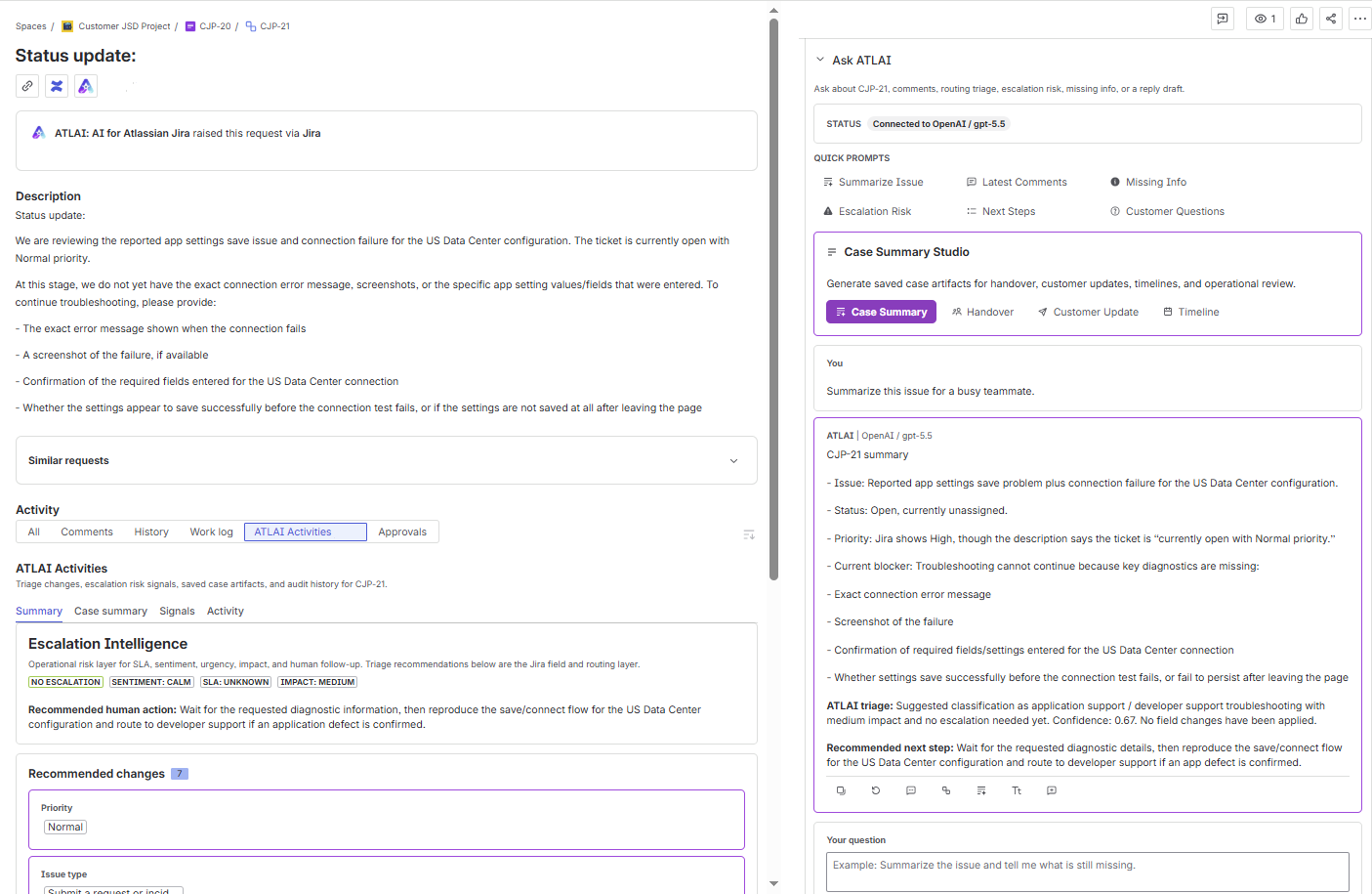
Ask ATLAI
Ask a question
- Open the Jira issue.
- Open the Ask ATLAI issue context panel.
- Use a quick prompt or type a custom question.
- Optionally upload PDF or DOCX documents as additional context.
- Click Ask ATLAI or Analyze documents.
Quick prompts
- Summarize Issue
- Latest Comments
- Missing Info
- Escalation Risk
- Next Steps
- Customer Questions
- Triage Decision when a triage summary exists
| Assistant action | What it does |
|---|---|
| Re-generate | Runs the previous prompt again. |
| Use as follow-up | Copies the assistant answer into the next question flow. |
| Create subtask | Creates a Jira subtask from the assistant answer when the project supports subtasks. |
| Replace Summary / Description | Updates the issue summary or description when the answer is suitable for replacement. |
| Add as internal note / customer reply | Adds the answer as a JSM internal note or customer reply, depending on the issue context. |
| Add as a comment | Adds the answer as a regular Jira comment for non-JSM issue contexts. |
User Guide
Case Summary Studio
Case Summary
Generates a full operational summary with situation, impact, status, open questions, next steps, customer-safe update, and internal handover notes.
Handover
Creates a concise internal handover for reassignment, shift change, escalation, or manager review.
Customer Update
Drafts a customer-safe status update that excludes private operational details, provider/model internals, and audit commentary.
Timeline
Builds a chronological timeline from issue context, comments, triage history, escalation intelligence, and recorded actions.
User Guide
ATLAI Activities
| Tab | Purpose | What users review |
|---|---|---|
| Summary | Shows current triage and escalation result. | Escalation Intelligence, recommended changes, and already applied fields. |
| Case summary | Lists saved artifacts from Case Summary Studio. | Mode, provider, time, and preview of each summary. |
| Signals | Shows duplicate and similarity indicators. | Similar issue keys, similarity scores, and explanations. |
| Activity | Provides historical and audit evidence. | Triage history, confidence, explanations, agent actions, feedback, and reruns. |
User Guide
Issue-level Resolution Command Center
Metrics and diagnosis
- Resolution risk: low, watch, at-risk, or critical.
- Latest ATLAI confidence.
- Missing information count.
- Triage diagnosis, issue type, status, and assignee.
Action queue
- Create investigation subtasks.
- Draft customer reply.
- Add internal note.
- Apply recommended field updates.
- Escalate with risk evidence.
- Generate handover.
Resolution plans
The resolution plan generator produces sections for diagnosis, missing information, recommended actions, customer communication, internal handover, and evidence. Users can add planning instructions to focus the output on billing, implementation, incident response, customer-safe actions, or any other operational need.
Agile and Project Centers
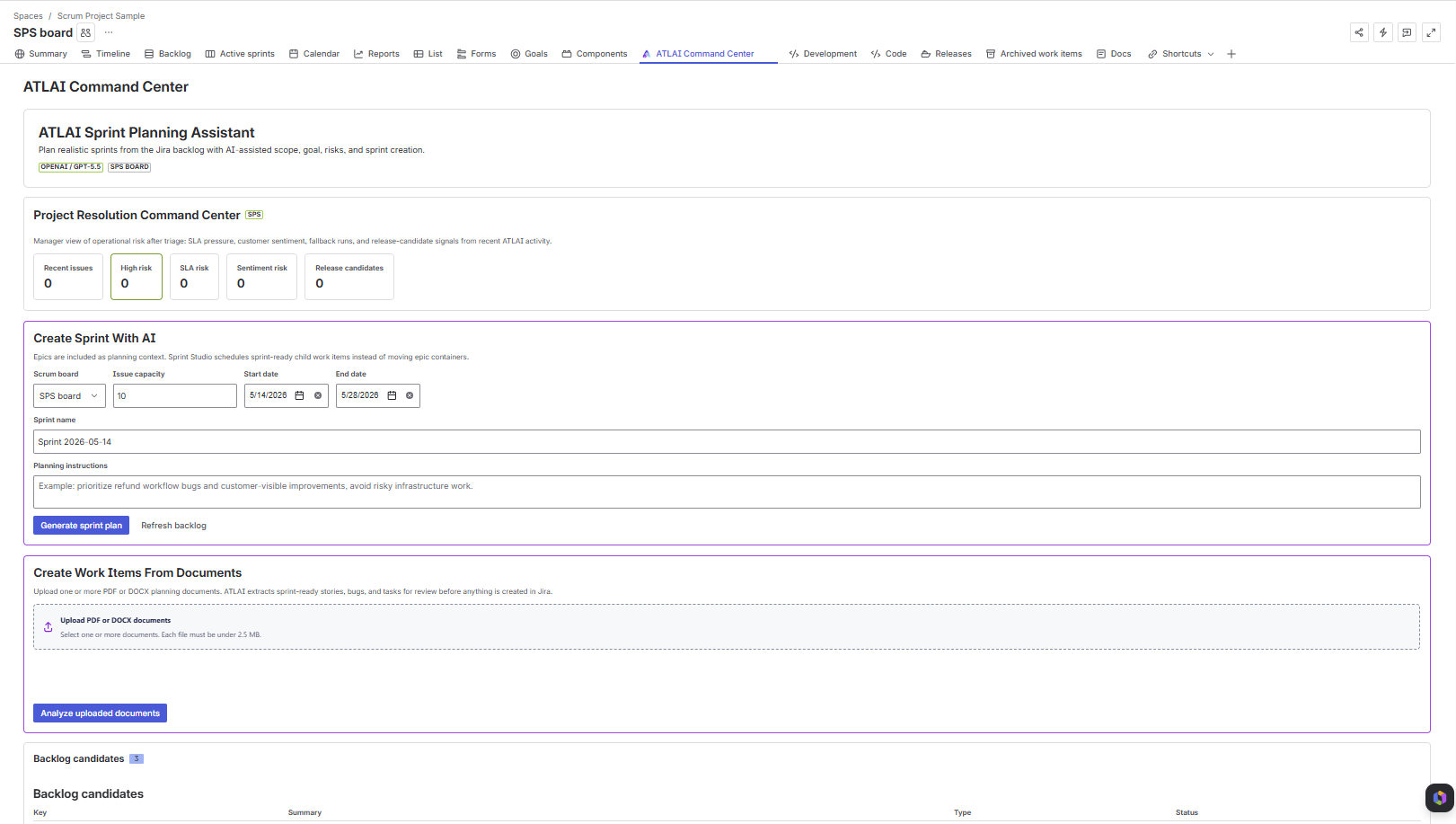
Project Command Center
Where to open it
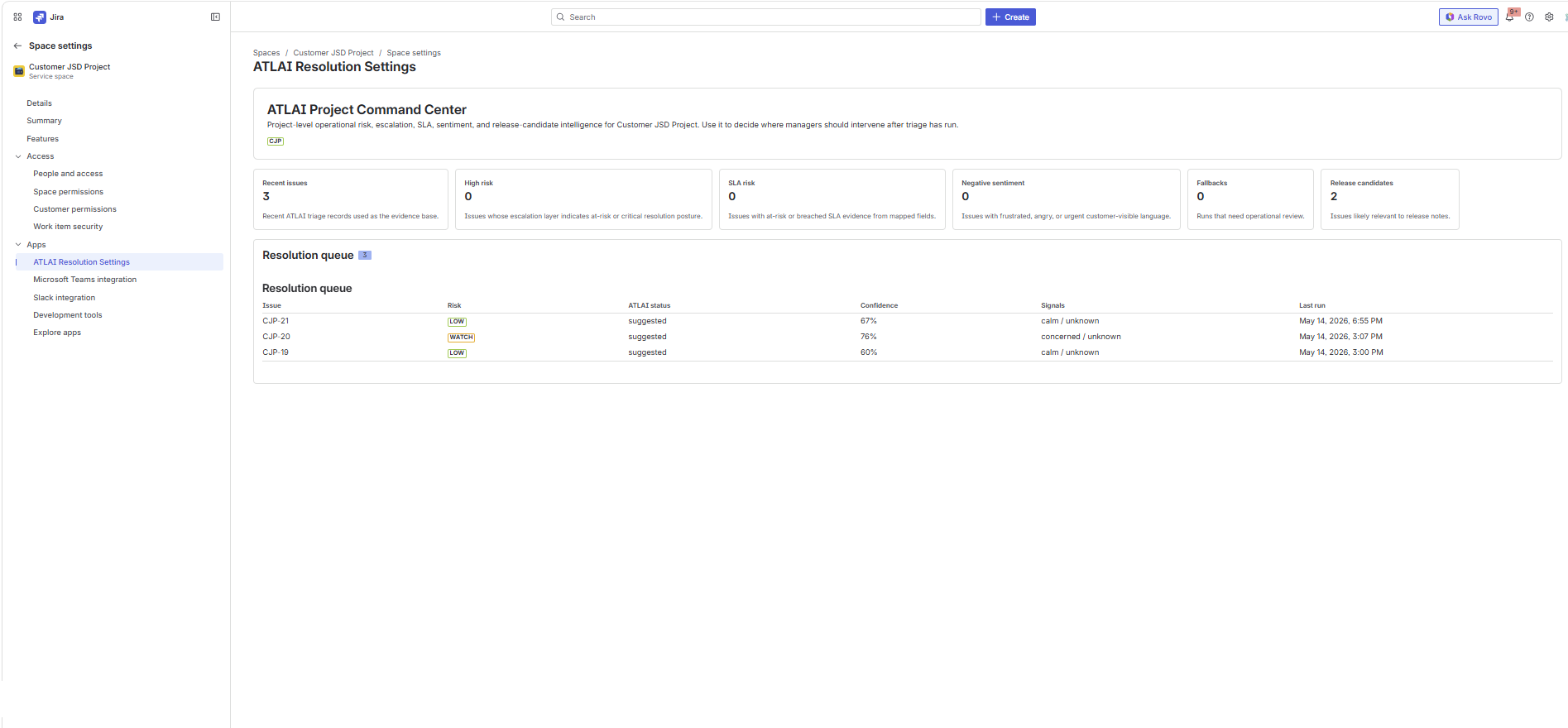
In a software project, open the project page named ATLAI Command Center. In project settings, open ATLAI Resolution Settings for the project-level risk queue.
Project metrics
- Recent issues
- High risk
- SLA risk
- Negative sentiment
- Fallbacks
- Release candidates
Manager workflow
Use this center after triage has run. Start with high-risk and fallback rows, review SLA and sentiment signals, then decide which issues need escalation, customer communication, release note inclusion, or manager follow-up.
Agile and Project Centers
ATLAI Sprint Planning Assistant
Open the project ATLAI Command Center
Open the software project and select the ATLAI Command Center project page.
Select sprint inputs
Choose the Scrum board, issue capacity, start date, end date, sprint name, and planning instructions.
Generate the sprint plan
Click Generate sprint plan. ATLAI reviews backlog candidates and returns a sprint name, goal, selected issues, rationale, risks, assumptions, and release theme.
Create the sprint
Review the selected issues. Click Create sprint and move issues to create the sprint and move the selected work items.
Agile and Project Centers
Create work items from documents
Supported input
- PDF planning documents
- DOCX planning documents
- Up to five documents per analysis request
- Each document must be under 2.5 MB
Review before creation
- ATLAI generates draft stories, bugs, or tasks.
- Each draft includes summary, description, issue type, source document, and confidence.
- Users can edit summary and description before creating Jira items.
- Users can create work items only or create work items and a sprint.
Agile and Project Centers
ATLAI Sprint Studio
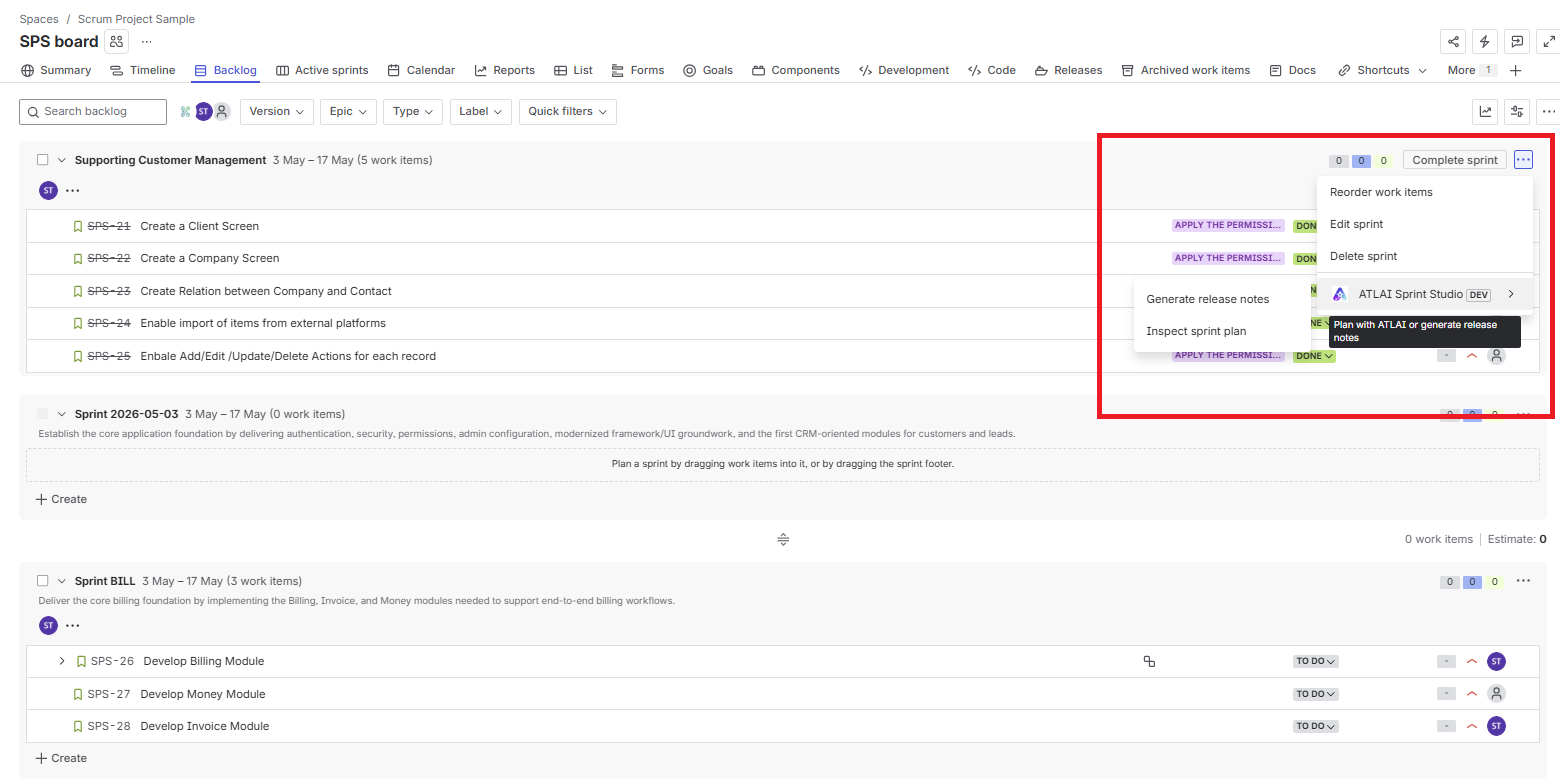
Open the Jira backlog or sprint view
Find the sprint and open the sprint action menu.
Select ATLAI Sprint Studio
The menu exposes Generate release notes and Inspect sprint plan.
Run the selected action
ATLAI opens a modal using the selected sprint as context and lists the sprint scope visible to Jira.
Agile and Project Centers
Release Notes Studio
Generate release notes
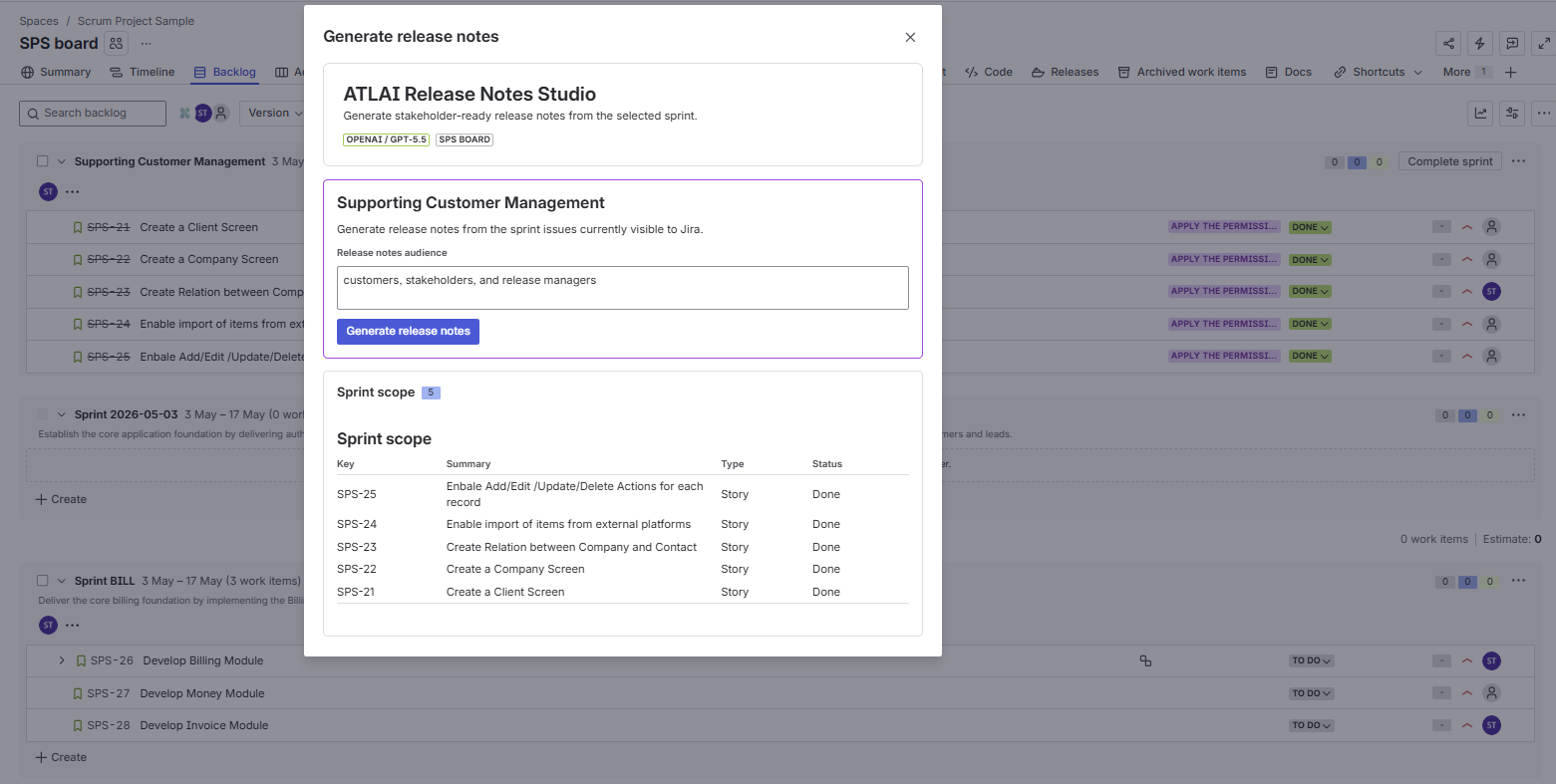
- Open the sprint action menu.
- Select Generate release notes.
- Enter the audience, such as customers, stakeholders, and release managers.
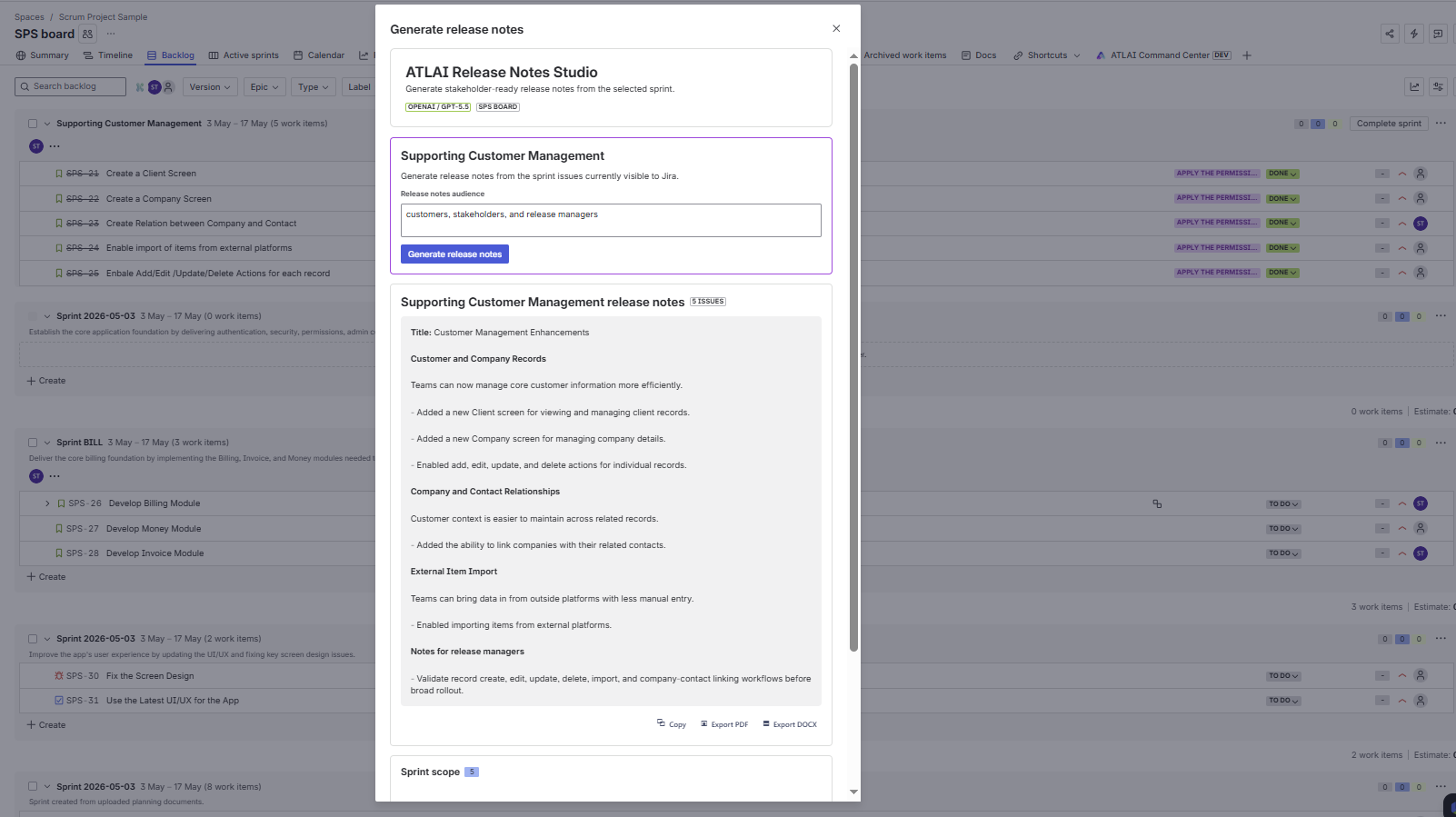
- Click Generate release notes.
- Review the generated title, sections, release-manager notes, and issue count.
Use the output
- Copy the notes into Slack, Teams, Confluence, email, or a customer update.
- Export to PDF when the action helper is available.
- Export to DOCX when the action helper is available.
- Validate release-manager notes before sending externally.
Agile and Project Centers
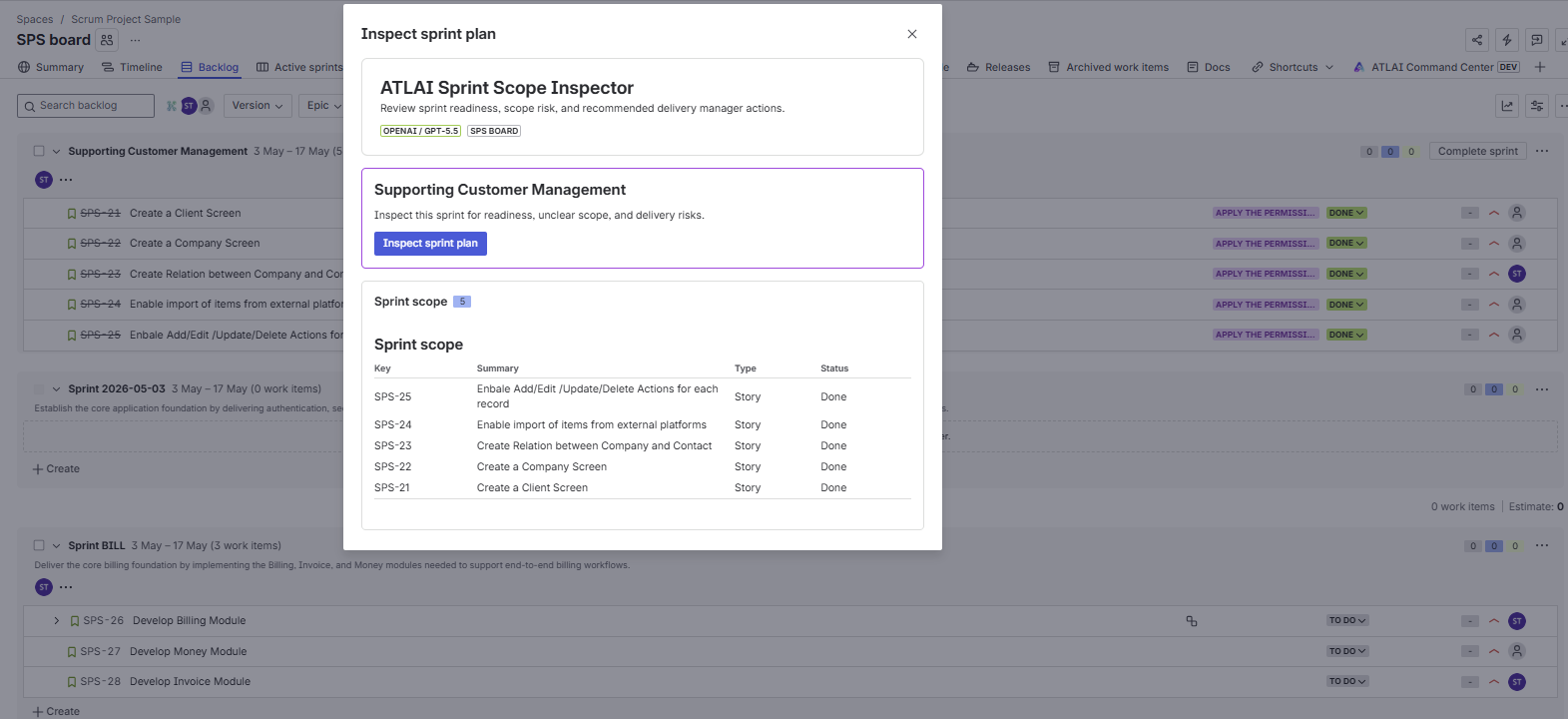
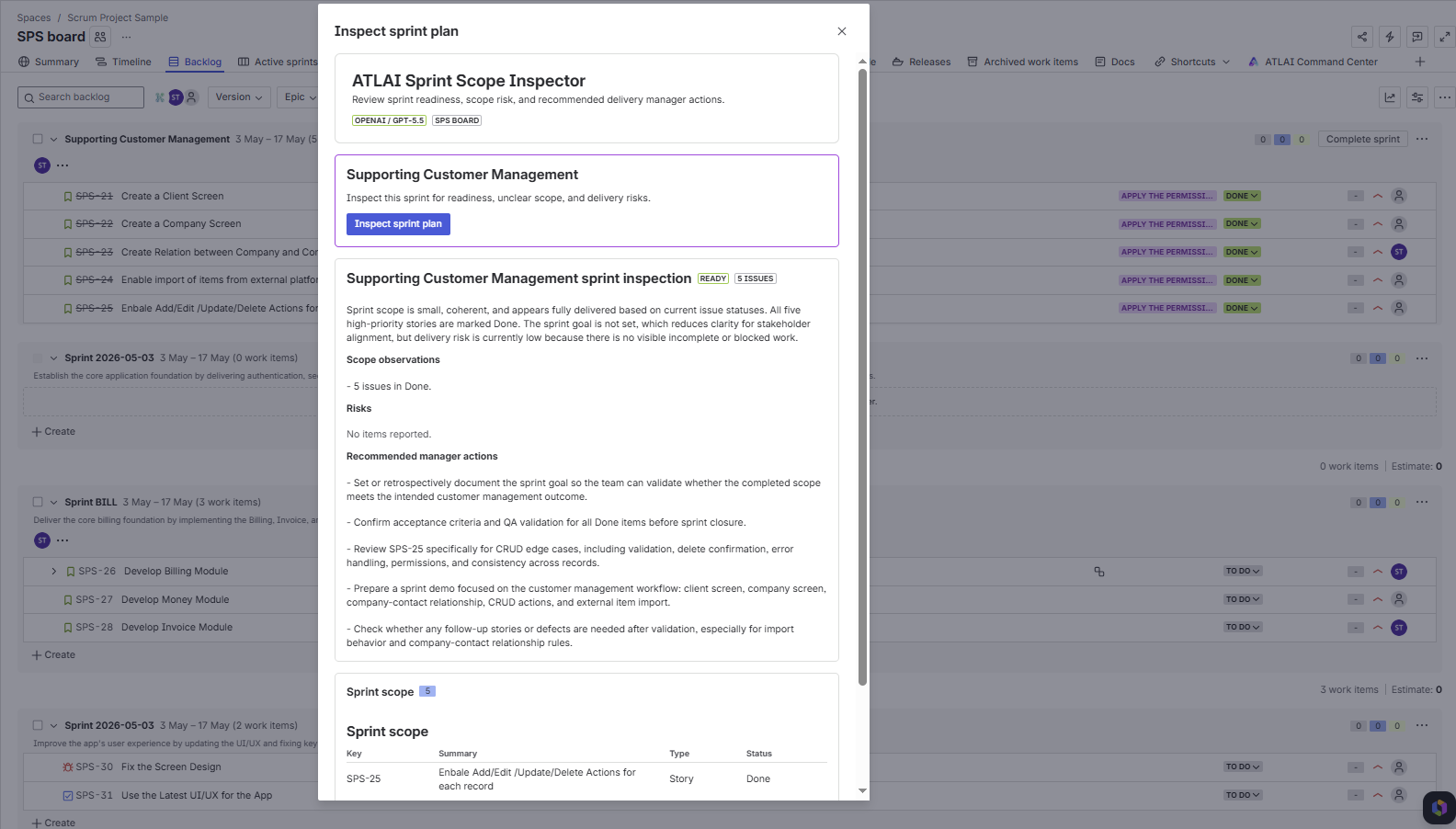
Sprint Scope Inspector
| Output | Meaning |
|---|---|
| Readiness | Overall sprint posture: ready, watch, or at-risk. |
| Summary | Plain-language delivery assessment for the sprint. |
| Scope observations | Notes about size, clarity, status mix, and coherence. |
| Risks | Delivery, quality, missing goal, unclear scope, blocked, or incomplete work risks. |
| Recommended manager actions | Concrete next steps for scrum masters, project managers, or delivery leads. |
Operations
Automation, feedback, and analytics
What ATLAI records
- Triage jobs and triage history.
- Audit events for apply, dismiss, rerun, assistant actions, and case summaries.
- Feedback events for accepted, corrected, overridden, helpful, and not-helpful outcomes.
- Duplicate signal records and analytics facts.
Dashboard metrics
- Tickets processed and auto-triaged.
- Auto-applied, suggestion-only, low-confidence, and failure counts.
- Average confidence and latency.
- Override, correction, and accepted-suggestion rates.
- Estimated minutes and hours saved.
Operations
Security and governance model
Customer-managed providers
ATLAI uses only the provider credentials configured by the customer. Supported providers are OpenAI, Azure OpenAI, Anthropic Claude, and Google Gemini.
Server-side calls only
Provider calls are made from Forge backend functions. API keys are not exposed to client-side UI code.
Strict output validation
AI triage output is parsed through a strict schema, normalized, and validated against Jira project metadata before mutation.
Fail-closed routing
Invalid options, invalid assignees, invalid queues, low confidence, and provider failures follow admin-configured fallback policy.
Operations
Troubleshooting
Ask ATLAI says no provider is connected
Open Settings, configure a provider, test the connection, save it, and make sure it is active.
The issue panel says no triage result exists
Confirm the project is enabled, the project is allowed by access settings, an active provider exists, and the issue was created after configuration. You can also click Queue triage run or Re-run triage.
Suggestions are not auto-applied
Check the confidence score, auto-apply threshold, selected AI fields, mapping validity, fallback policy, and Jira permissions for field updates and assignment.
Document analysis fails
Upload only PDF or DOCX files, keep each file under 2.5 MB, and confirm an active provider is available.
Sprint creation is unavailable
Use a Scrum board that supports sprints. Some boards are visible but do not expose sprint creation through the Jira Agile API.
Escalation risk looks incomplete
Map SLA fields in Escalation Intelligence. Without mapped SLA fields, ATLAI can still assess sentiment and textual urgency, but SLA risk may show as unknown.
Operations
Known limits and operating notes
JSM queues are not directly writable
ATLAI preserves queue intent and routes through editable Jira fields such as assignee, priority, issue type, request type, labels, and components.
Subtasks depend on project capability
Ask ATLAI can create subtasks only when the current project has a creatable subtask issue type.
Document limits apply
Issue and sprint document analysis supports PDF and DOCX files under 2.5 MB each.
Provider quality affects output
All AI output depends on the selected provider, model, runtime settings, project guidance, and the quality of issue context.
Fallback does not replace human review
Fallback routes are safety behavior, not proof that the issue is fully resolved or correctly classified.
Access settings can hide modules
If a user or project is excluded by ATLAI access settings, issue panels and project modules may be unavailable.